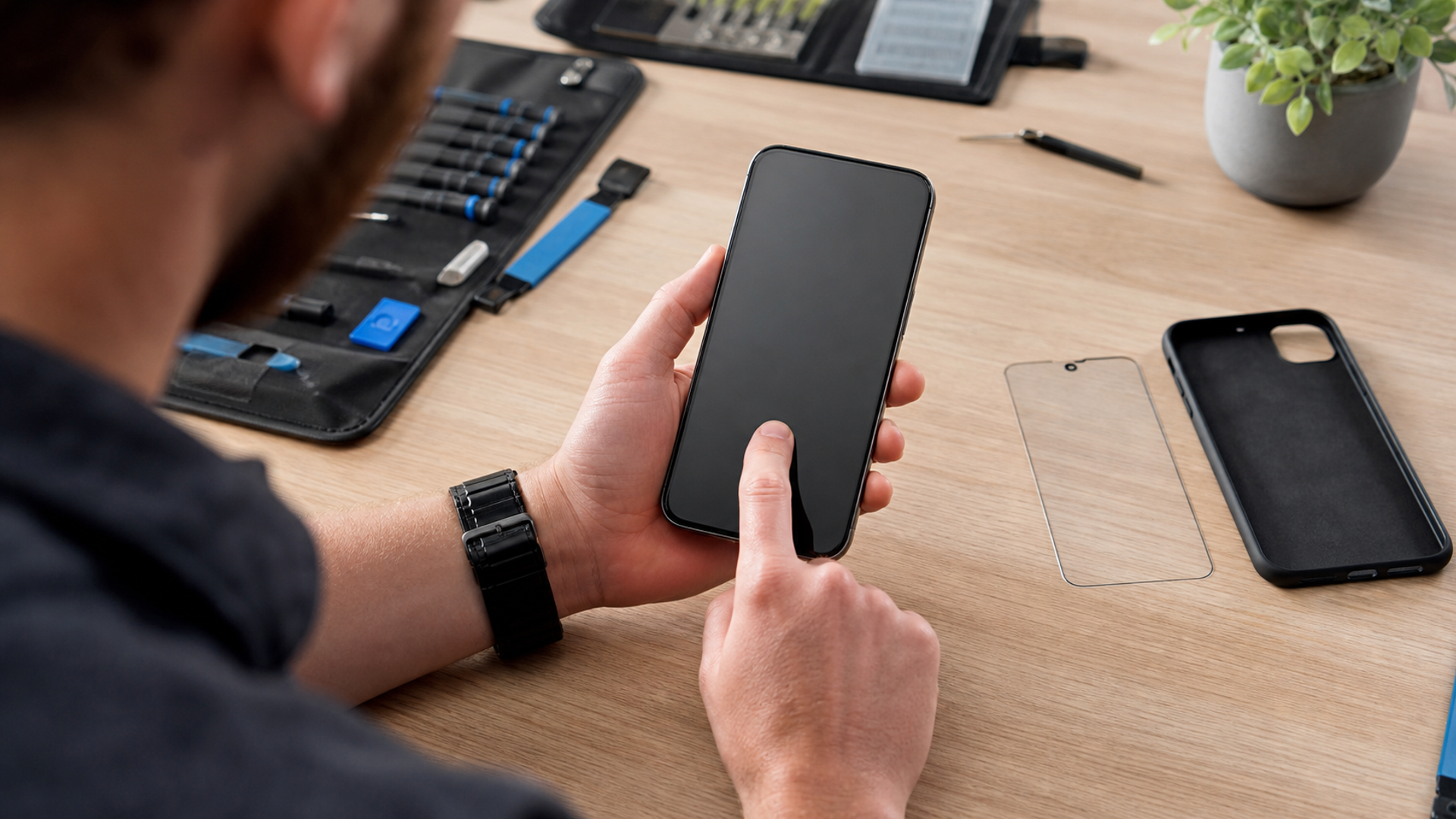
An unresponsive phone screen does not automatically mean the display has failed. In the first ten minutes, you can usually separate four very different problems: surface interference, a frozen operating system, one faulty area of the touch layer, or physical damage that needs professional repair. The order matters. Start with reversible checks, preserve your data, and treat a factory reset as a last diagnostic step—not a reflex.
That distinction matters because “the screen does not respond” describes a symptom, not a cause. A damp surface can make taps erratic. A poorly fitted protector can block edge gestures. One application can freeze while the operating system remains healthy. A damaged digitiser can fail in a repeatable strip even though the image still looks perfect. Each pattern calls for a different next move.
Keep notes as you test. The sequence—what changed, which area failed and whether the fault followed one app—is more diagnostic than a general description after several uncontrolled attempts.
The ten-minute triage
| Time | Check | What a pass means | What a failure suggests |
|---|---|---|---|
| 0–2 minutes | Dry, clean and visually inspect the screen | Surface contamination is unlikely | Moisture, cracks or impact damage may be involved |
| 2–4 minutes | Remove the case, protector, gloves and accessories | An accessory is not obstructing touch or sensors | Re-test without the accessory before blaming hardware |
| 4–6 minutes | Force a normal restart using the model-specific buttons | A temporary software freeze may clear | Continue without repeatedly power-cycling |
| 6–8 minutes | Test a slow diagonal drag across the whole display | The touch layer responds continuously | A repeatable break in one place points towards a localised fault |
| 8–10 minutes | Check safe mode or another app, then confirm backup status | A downloaded app may be responsible | System or hardware diagnosis becomes more likely |
This sequence adapts the manufacturer guidance from Google’s Android touchscreen troubleshooting and Apple’s official iPhone support. Button combinations and safe-mode procedures vary, so use your device maker’s instructions rather than copying a sequence from a different model.
Minute 0–2: remove the environmental variables
Disconnect charging cables and docks. Put the phone on a dry, stable surface. Dry your hands, then wipe the display with a clean microfibre cloth. Do not pour cleaner onto the device, and do not probe a crack with a fingernail or tool.
Look for evidence rather than assuming the worst:
Is the glass cracked, chipped or lifting from the frame?
Is there condensation, rain or perspiration on the screen?
Did the problem begin immediately after a drop, bend or liquid exposure?
Does the image look normal while touch fails, or is the display also flickering, discoloured or black?
Is the phone unusually hot, swollen or separating at the seam?
Stop using and charging a phone with swelling, smoke, a chemical smell or significant heat. That is not a touchscreen troubleshooting exercise; power it down if you can do so safely and seek authorised service.
Minute 2–4: remove everything between finger and glass
Take off the case and any removable screen protector. Remove gloves. Disconnect USB accessories and, if attached, any magnetic mount. Google explicitly includes the case and screen protector among its first checks because an edge pressing on the display or a badly fitted film can create intermittent input.
Now test a simple action in several areas: tap a large button, type a short line, swipe from each edge and pinch a photo. If responsiveness returns only after the protector comes off, the phone may be healthy. Replace the protector with one specified for the exact model and check whether it interferes with fingerprint sensing or edge gestures.
Do not press harder. Capacitive touchscreens detect electrical change, not determination. Extra force can turn a small crack into a larger one without improving input.
Minute 4–6: restart once, correctly
A normal restart clears temporary process failures without deleting data. If the screen cannot accept the shutdown gesture, use the manufacturer’s documented force-restart combination. The combination differs across iPhone generations and Android brands, so identify the exact model first.
After restart, wait for the device to settle before opening multiple apps. Test the lock screen, quick settings and one built-in application. If touch works normally until a particular app opens, the fault may be software-specific. Update or remove that app after confirming your important data is backed up.
Repeated restarts are not a repair strategy. If the phone becomes responsive only briefly after every reboot, record the pattern. That evidence is useful to a technician and may indicate storage pressure, an application conflict or a developing hardware issue.
Minute 6–8: map the failure
Google recommends a slow drag test across the screen. Open a surface where a continuous gesture is visible, touch one corner, then move slowly to the opposite corner without lifting your finger. Repeat in the other direction.
Interpret the result carefully:
A gesture that breaks at the same horizontal or vertical strip on every attempt suggests a localised touch-layer problem.
A gesture that fails randomly may reflect moisture, electrical noise, software load or a loose connection.
A screen that responds in system menus but not one app points towards that app.
A screen that displays nothing but still rings or vibrates is a different fault from a visible display that ignores touch.
Photograph or video the behaviour with another device if possible. A repeatable map is more useful than telling a repair desk that the screen “sometimes goes strange”.
Minute 8–10: protect the data before advanced action
If enough of the screen works, check that current photos, messages, authenticator access and documents are backed up. If this is a work phone, contact the administrator before removing accounts or resetting anything. Managed devices may have a required incident or repair process.
Safe mode can help determine whether a downloaded application is involved on supported Android devices. If touch works in safe mode, remove recently installed or updated apps one at a time. Do not reinstall the suspected app until normal operation remains stable.
A factory reset deletes local data and apps. Google lists it as advanced troubleshooting and tells users to back up first. It is reasonable only when you understand the account credentials needed to reactivate the phone, the backup is verified, and physical damage is not the obvious cause. A reset cannot repair cracked glass, a damaged digitiser or a loose connector.
Repair, monitor or replace?
| Evidence | Sensible next action |
|---|---|
| Touch returns after cleaning or removing protector | Replace the accessory if the issue returns; monitor for 48 hours |
| Only one app triggers the problem | Update, clear or remove that app; preserve evidence if it is a managed app |
| Same strip fails in every drag test | Request display/digitiser diagnosis and quote |
| Failure started after drop or liquid exposure | Stop experiments that could worsen damage; arrange inspection |
| Phone is swollen, very hot or separating | Stop use and charging; seek qualified service promptly |
| Reset is the only remaining software test | Verify backup and credentials first; do not reset a managed phone without approval |
Before authorising repair, ask whether the quote covers the complete display assembly, calibration, sealing, diagnostic testing and warranty. Also ask what happens to local data and whether the repair process requires your passcode. A trustworthy service route should explain those boundaries.
If replacement is becoming more rational than repair, use a broader business-phone selection framework rather than deciding on specifications alone. For confidential work, the migration plan, support life and control of sensitive accounts matter as much as a faster processor.
The decision in one sentence
Clean and uncover the screen, restart once, map the failing area, test whether software is responsible, and secure the data before destructive action. If failure is repeatable in the same physical area—or follows impact, liquid or swelling—stop troubleshooting and move to qualified diagnosis.