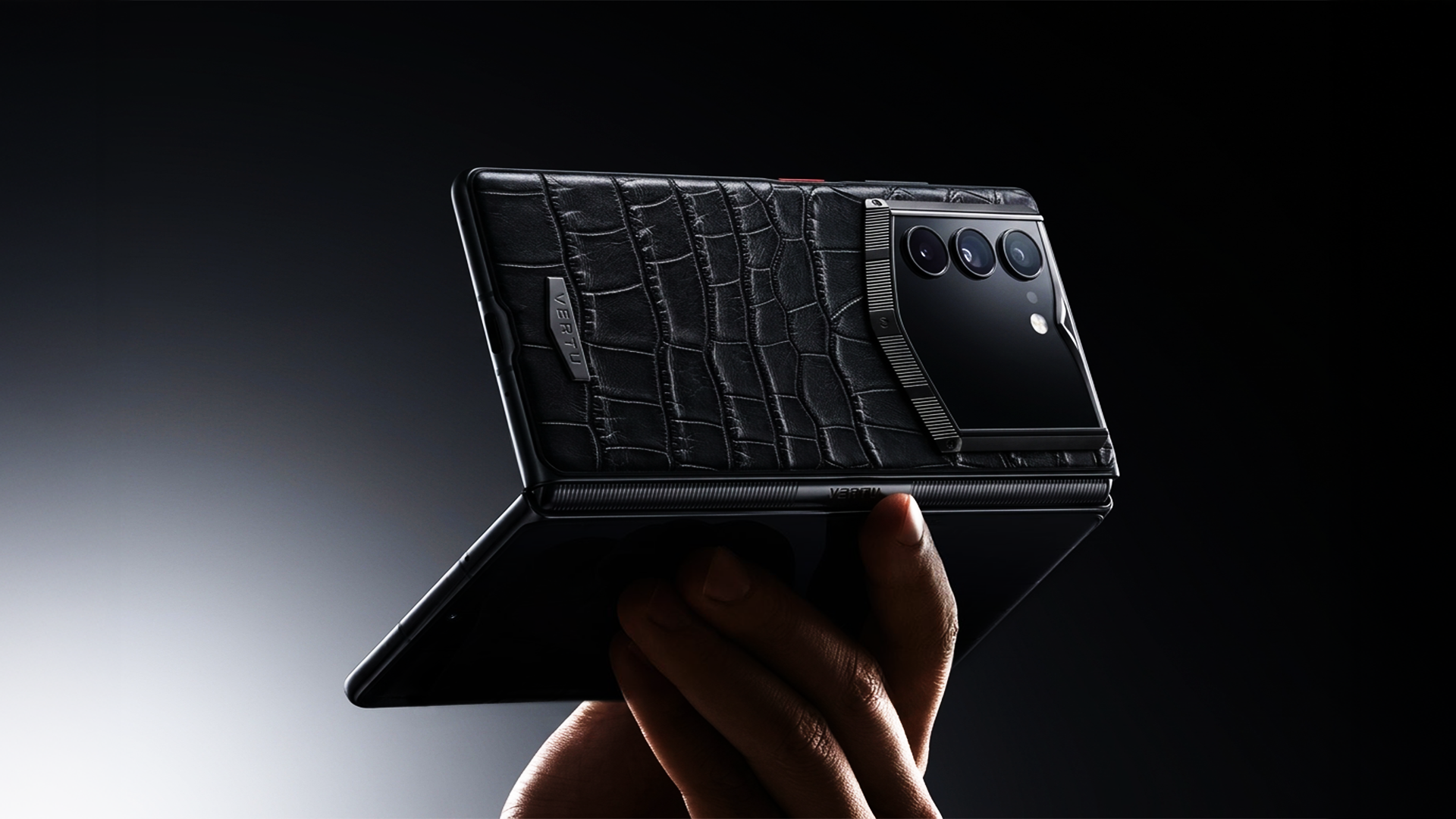
If your workday lives in motion—airport lounges, back-to-back meetings, a few minutes between calls—you’ve probably felt the same friction: a standard phone screen is just large enough to keep you busy, and just small enough to slow you down.
A large screen foldable changes the math. Not because it’s “bigger,” but because it gives you a usable workspace: two apps side by side, less app-switching, and a layout that finally resembles how you think when you work.
Key Takeaway: A large screen foldable phone is most productive when you treat the inner display as a workspace—and build a repeatable multitasking setup around it.
What “large screen foldable” really means (in work terms)
Most productivity conversations are about book-style foldables: phones that open into a tablet-like inner display.
Cover display: fast checks—messages, quick replies, calls.
Inner display: focused work—split screen, document review, note-taking, approvals.
A useful mental model: the cover screen is your “lobby.” The inner screen is your “office.”
Why a large inner display improves productivity
1) It reduces the cost of context switching
On a normal phone, switching between email, calendar, a document, and a chat thread isn’t hard—it’s constant. The productivity leak is the micro-delay and the mental reset.
With split screen, you can keep the “supporting” app visible (calendar, notes, chat) while you stay in the “primary” app (doc, deck, inbox). That’s the core win.
2) It makes two-app work feel natural, not cramped
Samsung’s foldable guidance emphasizes practical multi-window workflows—launching multiple apps, saving pairings, and using drag-and-drop between windows as a way to get more done on a single device (see Samsung Insights’ 2021 article “8 tips to multiply productivity on the Galaxy Z Fold3”).
Even if you’re not using that exact model, the underlying idea is durable: the inner display turns “two things at once” from a compromise into a workflow.
3) Documents become readable—and therefore actionable
Productivity isn’t just writing. It’s reviewing, comparing, verifying.
A larger canvas makes common tasks less fragile:
reading a PDF without constant zoom
comparing two versions of a contract clause
reviewing a slide while keeping notes open
4) It supports a desk-friendly posture for calls and quick work blocks
One reason foldables earn “productivity” credibility is that you can place them in stable angles and use them hands-free for calls, then keep notes open beside the call content. Samsung explicitly frames this as part of its work-oriented foldable usage (Samsung Insights, 2021).
Large screen foldable phone for productivity: a repeatable setup
Best practices: make your foldable a productivity system (not a novelty)
Below are device-agnostic practices that map to how the best foldable software is designed to be used.
Best practice 1: Build two “default modes”—cover for speed, inner for depth
Why it matters: If you unfold the phone for everything, you’ll stop unfolding it. If you never unfold it, you’ve just bought a heavier phone.
How to do it
On the cover screen, keep only your “triage” apps: messages, calls, calendar glance, boarding pass wallet.
On the inner screen, keep your “work pair” apps accessible: mail + calendar, notes + browser, docs + chat.
Failure mode: You treat the inner screen like a bigger Instagram feed. The hardware can’t rescue that.
Best practice 2: Save app pairs you actually repeat
Why it matters: The productivity advantage comes from repeatable layouts, not from improvising split screen every time.
How to do it: Save two or three app pairs you use weekly:
Email + calendar
Browser + notes
PDF reader + messaging
Google’s Pixel Fold guidance explicitly supports saving app pairs and placing them for quick access, with split-screen driven from the taskbar and overview (see Google’s “Use split screen & switch between apps on your Pixel Fold”).
Failure mode: You save ten app pairs. You use none.
Best practice 3: Treat split screen as “primary + supporting,” not “two primaries”
Why it matters: Two equally demanding apps at the same time is a distraction machine.
How to do it
Make one window larger.
Keep the supporting window strictly supportive: quick references, short replies, notes.
Failure mode: You run chat + social + email simultaneously and call it “multitasking.” That’s just fragmentation.
Collector’s note: The most productive foldable users aren’t doing more things. They’re doing the same things with fewer resets.
Best practice 4: Use drag-and-drop when it genuinely saves steps
Why it matters: Productivity is often “time to assemble a deliverable”—a meeting note, a follow-up email, a slide.
How to do it: When your foldable supports it, drag content between windows (a quote into notes, an image into a deck). Samsung highlights drag-and-drop as a way to move content between apps on the unfolded display (Samsung Insights, 2021).
Failure mode: You try to force drag-and-drop into every workflow. Use it for assembly tasks; ignore it elsewhere.
Best practice 5: Audit your “must-work” apps for foldable behavior
Why it matters: Foldables are productivity devices only if your critical apps behave predictably in split screen.
How to do it: Pick 5 apps you rely on (mail, docs, chat, calendar, PDF). Test:
does it resize cleanly?
does it keep layout when switching?
does it restart when you unfold/fold?
Failure mode: You blame the device class when the real problem is one uncooperative app.
Large foldable vs tablet for work: a simple decision rule
A foldable can reduce what you carry, but it won’t replace every tablet workflow.
Choose a large screen foldable phone for productivity if you:
work in short, frequent bursts
need fast two-app workflows (notes + browser, email + calendar)
want one device that’s always on you
Choose a tablet if you:
do long-form writing for hours
need a full-size keyboard setup as default
regularly work on large spreadsheets
If you’re deciding between the two, start with one question: Do I need a pocket device that can become a workspace, or a workspace that I sometimes carry?
A discreet, high-end angle: productivity isn’t only speed—it’s control
For some readers, the real productivity gain is not just multitasking. It’s control over attention, context, and privacy—especially when travel, assistants, and sensitive conversations are part of the week.
In that context, the “best” device is the one that supports a calmer workflow: fewer handoffs, less improvisation, and clearer separation between what you can handle in public and what you should handle in private.
A single example (optional): executive workflow on a foldable
If you want to see how a luxury foldable frames the inner display as a command surface—rather than a bigger phone—take a look at VERTU AlphaFold. The useful lens here isn’t the spec sheet; it’s the workflow concept: an inner-screen workspace paired with a service layer built for high-trust, high-tempo schedules.
FAQ
Are large screen foldables actually better for productivity?
They can be—when your work is multi-app by nature (email + calendar, docs + chat, reference + notes). The inner display makes side-by-side workflows practical, and official guidance from major platforms emphasizes split screen and app pairs as core features (Google’s Pixel Fold split-screen guide).
What’s the most important feature for foldable phone multitasking?
Not raw performance. The deciding factor is usually software multitasking maturity: stable split screen, quick switching, and the ability to save and relaunch your common layouts.
Will split screen on a foldable phone make me less focused?
It can—if you treat it as “more apps.” The productive pattern is “primary + supporting,” with one window serving the other.
Next steps
If you’re new to foldables, start by setting up two app pairs and using them for one week. That’s enough to feel the difference.
If you’re evaluating devices, prioritize: multitasking stability, app behavior, and whether the unfolded posture fits your day.
For an executive-oriented perspective on foldables and travel workflows, you can also read VERTU’s guide: Best Foldable Phone 2025 for Executive Business Travel.
Disclosure: This article references VERTU pages. Editorial judgment remains the priority.
![Top 10 Tourbillon Watches for Men [2026 Latest]](https://cdn.sanity.io/images/e0gp1l2g/production/8cb6bc45133cf9453382fc7d074465af588bb610-1800x1080.webp?w=800&h=450&q=82&auto=format&fit=crop)