
Key Takeaways
- USB is a straightforward choice for large batches or when you want to select the destination folder yourself; the cable must support data transfer.
- Quick Share is useful for nearby wireless transfers, provided both devices meet its requirements and their visibility settings allow the exchange.
- Phone Link can send files between a paired Android phone and Windows PC, but availability, app versions and supported features vary.
- After copying sensitive files, check the receiving PC’s Downloads folder and access settings before deleting the originals from your phone.
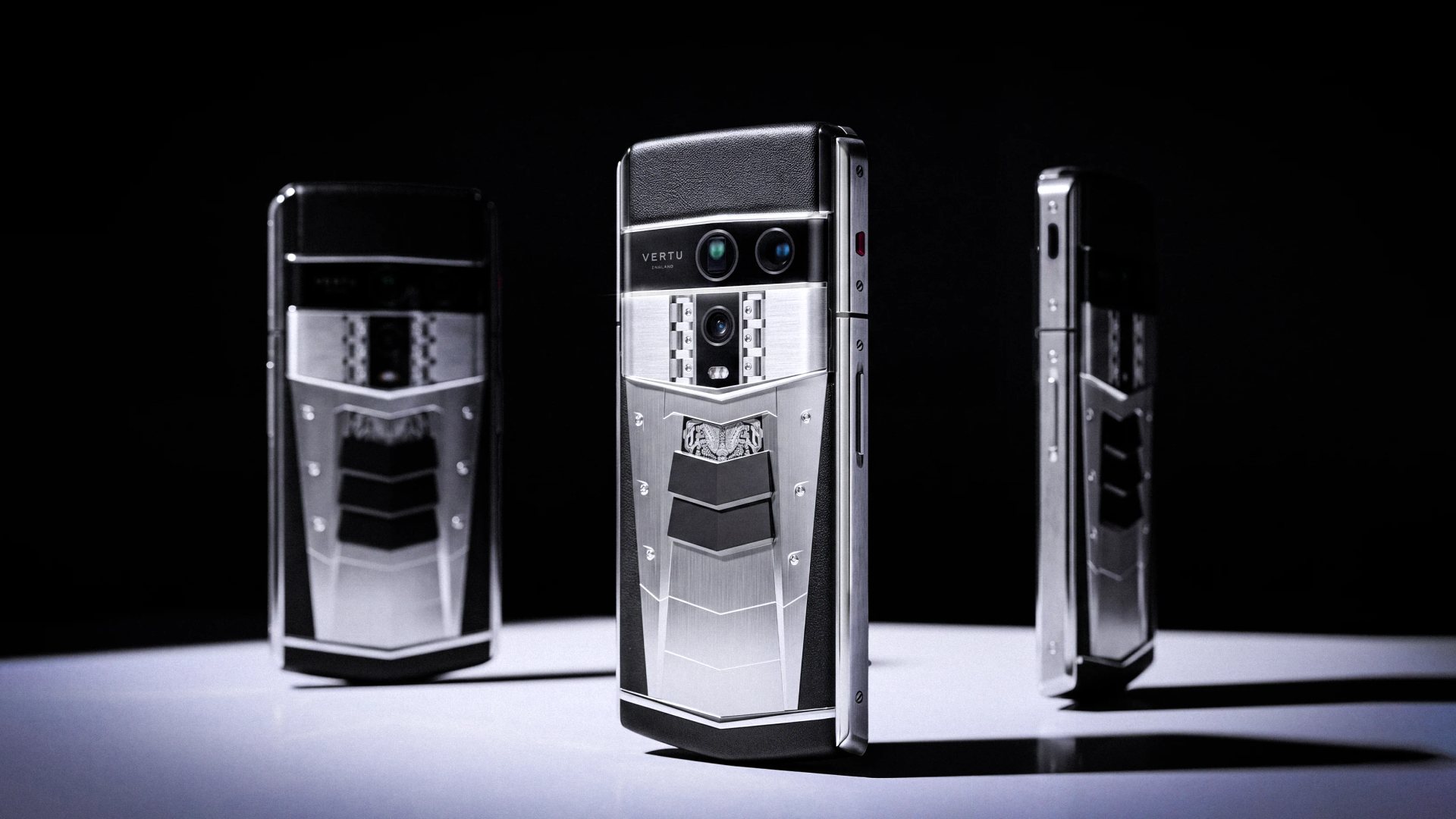
To transfer files from an Android phone to a Windows PC, use a USB cable and select File transfer, or send them wirelessly with Quick Share or Phone Link. The best method depends on the file size, device support and whether you want a direct cable connection or a nearby wireless transfer. A larger display can also help when reviewing files before sending: VERTU’s ALPHAFOLD foldable phone lists an 8.05-inch inner screen, while the transfer itself still depends on the Android and Windows tools you use.
Which Android-to-PC file transfer method should you use?
USB gives you direct access to folders in Windows File Explorer; Quick Share sends files wirelessly between nearby devices; Phone Link is useful when your phone and PC are already paired. The table below summarises the practical differences.
| Method | Best suited to | What you need | Where to find received files | Main limitation |
|---|---|---|---|---|
| USB cable | Large batches, folders, or manual file organisation | An unlocked Android phone and a data-capable cable | The folder you choose in File Explorer | Some USB cables charge only and cannot transfer files |
| Quick Share | Sending selected files to a nearby PC without a cable | Quick Share on Windows, Bluetooth and Wi-Fi enabled, compatible devices nearby | Usually Downloads > Quick Share on Windows | Visibility, network or device requirements can prevent discovery |
| Phone Link | Sending files through an already paired phone-PC connection | Phone Link on Windows and Link to Windows on a supported Android phone | Downloads > Phone Link on the PC | Feature availability and requirements vary; cloud files may be shared as links |
How to transfer files from Android to PC with a USB cable
For USB file transfer, connect the unlocked phone with a data-capable cable, change the USB mode from charging to File transfer, then copy the files in File Explorer. Android’s menu wording may differ by device and software version.
- Unlock your phone. Keep the screen unlocked while you connect it, so Android can show the USB options.
- Connect a data-capable USB cable. If the phone only charges and no transfer option appears, try a different cable or USB port.
- Open the USB notification. On the phone, tap the notification that says something like “Charging this device via USB”.
- Select File transfer. The exact label can vary, but choose the option for transferring files rather than charging only.
- Open the phone in File Explorer. On the PC, select the device under “This PC”. Open its internal storage and browse to folders such as DCIM, Pictures, Download or Documents.
- Copy files to a PC folder. Drag or copy selected items to a destination such as Pictures, Documents or a clearly named project folder.
- Check the copied files before deleting anything. Open several files from the PC to confirm that they arrived and are usable. Then eject the phone in Windows before unplugging it.
Google’s Android USB transfer instructions also note that not all cables support file transfer. If Windows does not detect the phone, unlock it again, reconnect it, try another cable or port, and restart the phone or PC if necessary.
How to transfer Android files to Windows with Quick Share
Quick Share transfers selected files wirelessly between nearby, compatible Android and Windows devices. Install the appropriate Quick Share app on the PC, set device visibility to your preference, then choose the PC from the Android share menu and accept the transfer.
- Install and open Quick Share on the Windows PC. Use the version intended for your PC; Samsung PCs may use Samsung’s Quick Share app.
- Set PC visibility. Choose an option such as your devices or contacts when appropriate. Avoid leaving the PC visible to everyone nearby when you do not need it.
- Check the connection. Turn on Bluetooth and Wi-Fi on both devices and keep them nearby. Google’s Windows instructions specify the same network and proximity requirements for supported transfers.
- Select files on the phone. Open the file or photo, tap Share, choose Quick Share and select your PC from the device list.
- Accept the request if prompted. Check that the receiving device is the intended PC. A PIN may appear; confirm it matches on both devices.
- Verify the destination. On Windows, received files are typically placed in Downloads under a Quick Share folder.
Google’s Quick Share instructions for Android and Windows list device requirements and explain visibility settings. If the PC does not appear, check that both devices have Wi-Fi and Bluetooth enabled, that the PC is discoverable, and that the devices are close enough. Some office or public Wi-Fi networks restrict device-to-device sharing; trying a different permitted network may help.
Can Phone Link transfer files between Android and a PC?
Yes. Phone Link can transfer files between a paired Windows PC and Android phone when the devices, app versions and Windows features are supported. On the phone, select a file, tap Share, choose “Link to Windows – Send to PC”, then select the connected computer.
To receive a file on the PC, watch for the Phone Link notification and open it or the containing folder. Microsoft lists Downloads\Phone Link as the default PC destination for files sent from Android. For transfers in the other direction, received files on the phone are placed under Downloads > Sent from your PC.
Phone Link’s file-sharing requirements can change as the app is updated. Microsoft currently lists Windows 11, Android 10 or later, and minimum versions of Phone Link and Link to Windows for its file-sharing feature. Check Microsoft’s current Phone Link file-transfer requirements and steps if the sharing option is missing.
One useful distinction: Microsoft says that only files stored locally on the phone can be shared as files; an item stored in a cloud service may be sent as a link instead. If the task is to move the actual file, download it to the phone first.
How should you handle sensitive files during a transfer?
Choose the receiving device deliberately, check the destination folder and remove temporary copies only after confirming the transfer. A nearby-sharing request or a connected PC can still expose information if the wrong recipient or account is selected.
- Check the recipient name before accepting a Quick Share request or selecting a paired PC.
- Limit visibility to your devices or contacts when that setting is available and fits the situation.
- Check the destination PC. Downloads folders may be visible to other users of a shared or managed computer.
- Keep a verified original until the PC copy opens correctly and is saved in the intended folder.
- Follow workplace rules. Confidential work documents may need an organisation-approved transfer method rather than a personal PC or account.
For a broader discussion of separating work material from personal phone use, see VERTU’s article on managing sensitive files and separate phone spaces. A device feature does not replace checking the recipient, destination and access permissions.
Where does VERTU fit into an Android-to-PC file workflow?
VERTU ALPHAFOLD is relevant here as a large-screen phone for reviewing documents, not as a special file-transfer protocol. Its official listing specifies an 8.05-inch inner screen; that wider canvas may be useful for checking a document or selecting the right item to send. The product specification alone does not establish compatibility with a particular Windows feature, cable or transfer app.
That distinction keeps the workflow practical: use USB, Quick Share or Phone Link according to the supported connection, then use the phone’s screen and file manager to confirm what you are sending. VERTU’s large-screen foldable productivity workflows discuss the broader role of an unfolded display in document review and multitasking.
Why is Android file transfer not working?
Most Android-to-PC transfer failures come from a charge-only cable, a locked phone, an unavailable sharing option or a PC that is not discoverable. Check the connection and the receiving folder before repeating the transfer.
- Phone charges but does not appear: unlock it, reopen the USB notification and select File transfer. Try a different cable, since some cables carry power but not data.
- Quick Share cannot find the PC: check Wi-Fi, Bluetooth, visibility settings, proximity and whether the network allows device-to-device sharing.
- Phone Link has no send option: confirm the phone is paired, both companion apps are current, and the feature is available for your device and Windows version.
- The file is missing: check Downloads\Phone Link or Downloads\Quick Share on Windows, then search the PC by filename.
- The transfer appears incomplete: keep the relevant app open until it reports completion, then compare the file name and open the copy.
FAQ
What is the easiest way to transfer files from Android to PC?
For one or a few nearby files, Quick Share is often the simplest wireless option if both devices support it. For folders or a larger batch, USB provides direct folder access in File Explorer.
Why does my Android phone only charge when connected to my PC?
The cable may support charging but not data, or the phone may still be in charging mode. Try another cable, unlock the phone and select File transfer from the USB notification.
Where does Quick Share save files on Windows?
Quick Share saves received files in a Quick Share folder under Downloads by default. Check the app’s settings if the destination differs on your installation.
Can Phone Link transfer files from Android to a PC?
Yes, when file sharing is supported and the devices are paired. On Android, use Share and choose “Link to Windows – Send to PC”; received files appear in the PC’s Downloads\Phone Link folder by default.
Is Quick Share visible to everyone nearby?
Not necessarily. Quick Share offers visibility choices such as everyone, contacts, your devices or no one; select the narrowest option that suits the transfer and turn off visibility when it is no longer needed.
Conclusion
Use USB when you need direct folder control, Quick Share for a nearby wireless exchange, and Phone Link when its pairing and file-sharing features are already supported on your devices. Whichever method you choose, confirm the recipient, verify the PC copy and check who can access its destination folder. If file transfers are part of a wider storage workflow, VERTU’s overview of phone storage planning for files and travel offers a related next step.