You don’t lose privacy in one dramatic moment. You lose it in small, ordinary ones: the wrong notification on a lock screen, the wrong app left in Recents, the wrong account selected when you share a file.
A private space on a phone is designed for exactly that reality. It gives you a separate, lockable environment for a small set of high-sensitivity apps—so sensitive work stays out of casual view, and (just as importantly) out of the wrong context.
Key takeaways
A Private Space is more than a hidden folder; on modern Android it can be a separate profile with separate app copies, accounts, and content.
“Isolation” has layers: app sandboxing protects apps from each other; profile separation helps protect you from accidental mixing.
These features reduce casual exposure and context mistakes. They don’t replace strong device security or safe account habits.
The goal isn’t perfection. It’s reducing the most common work/personal boundary failures.
What is a Private Space (and what it isn’t)
A Private Space is a protected area on your phone where sensitive apps live behind an additional lock.
On Android, the Android Open Source Project (AOSP) describes Private Space as a secure, isolated environment for sensitive apps; when it’s locked, those apps are hidden from surfaces like recents, notifications, and settings (see AOSP “Private space” documentation, 2026).
What it’s good for:
Separating sensitive operations (passwords, banking, confidential documents) from everyday usage.
Reducing accidental disclosure when you briefly hand your phone to someone else.
Keeping identities clean: separate app instances and separate accounts.
What it’s not:
A substitute for a strong passcode, secure backups, or careful permission choices.
A guarantee against phishing, account takeover, or cloud misconfiguration.
Key TakeawayThe value isn’t “hiding apps.” It’s building a deliberate boundary that holds under real-world pressure.
System isolation, explained without the marketing
When people say “system isolation,” they often mean three different things.
Layer 1: App sandboxing (everyday isolation)
Android’s base security model already tries to keep apps separated. AOSP explains that the platform isolates apps using a Linux user-ID model—each app runs as a distinct identity with its own process and restricted access to other apps’ data (see Android “Application Sandbox” documentation, 2026).
This matters, but it doesn’t address a surprisingly common risk: human context mistakes.
Layer 2: Profile separation (a stronger boundary for your workflow)
Private Space adds a higher-level boundary: a separate profile that can hold separate copies of apps, with separate accounts and content, and a lifecycle that can be stopped/started based on lock state (as described in the AOSP Private Space documentation above).
A clean analogy: think of it as a second locked room inside the same device—one you enter only when you intend to.
Layer 3: “Separate spaces” as a habit, not a feature
The strongest separation is still behavioral:
which apps you allow to notify you
which accounts you keep signed in
what you store locally vs in cloud drives
what you open when someone is watching
The feature supports the discipline. It doesn’t replace it.
Sensitive operations: what belongs inside your separated space
If you want separation to work, reserve it for actions where exposure has a clear cost.
Common “sensitive operations” worth isolating:
- Identity and accesspassword managers, authenticator apps, recovery email.
- Money movementbanking, trading, wallets.
- Confidential work artifactsboard decks, term sheets, legal documents, investor updates.
- High-trust communicationsclient chats, sensitive inboxes, deal-related messaging.
- Travel identity trailpassport scans, visas, itinerary PDFs, emergency contacts.
A useful rule: if you’d hesitate to open it on a conference-room screen share, it belongs behind the boundary.
⚠️ WarningIf you put everything into the separated space, you’ll stop using it. Keep it small and intentional.
Phones with private space: what to look for (and what to ignore)
Not all “phones with private space” features are equal. Some are true profile-level separation; others are cosmetic hiding.
When evaluating any implementation, look for four signals:
Separate app instances (the same app can exist in both spaces with different data).
Separate accounts and content (not just a disguised shortcut).
Lock-state behavior (sensitive apps vanish from recents/notifications when locked).
Clear sharing controls (you choose when content crosses the boundary).
What to ignore:
vague claims like “military-grade” without a specific architecture
app-store “lockers” that sit on top of the OS rather than using OS-level separation
Work vs personal boundary: where things actually go wrong
Most leaks aren’t dramatic breaches. They’re collisions.
Notification leakage
A single preview line on a lock screen can expose more than you intend. Separation helps when sensitive apps can be hidden while the space is locked—but you still need to configure notification previews thoughtfully.
Account mixing
Opening the “same” app with the wrong identity is a quiet failure mode:
personal calendar invites sent from a work address
personal photos uploaded into a work drive
the wrong profile active in a messaging app
Separate app instances reduce these mistakes because you’re not constantly switching accounts inside one app—you’re switching contexts.
Recents-view exposure
Recents is where sensitive screens linger. A properly locked separated profile reduces the chance those snapshots appear in the wrong moment.
The “quick handoff” moment
You hand your phone to someone for a photo, a boarding pass, a map pin. The goal isn’t to distrust people. It’s to avoid trusting the moment.
Private Space vs app lock vs Work Profile
For executives, it helps to separate “privacy theatre” from real separation.
Private Space
Best when:
you want user-controlled separation for a small set of high-sensitivity apps
you need fast context switching between “public” and “confidential” modes
you want a boundary that reduces human mistakes (wrong account, wrong share target, wrong notification)
App lock
Best when:
you only need to prevent casual access to a single app (for example, gallery)
you’re not trying to maintain separate accounts, separate app instances, or separate content stores
Limitations to understand:
an app lock can hide entry points, but it often doesn’t change what happens with notifications, sharing, cloud sync, or cross‑app data
it rarely prevents “wrong context” actions, like sending from the wrong identity inside the same app
Work Profile
Best when:
your organization needs policy control over work data
you want managed separation with enterprise rules
AOSP describes a work profile as a managed profile with separate app data, where an administrator controls policies; some system-wide settings like Wi‑Fi and Bluetooth can be shared (see AOSP managed profiles / work profile documentation, 2026).
Private Space for executives: what to store there
A Private Space only works if it stays small. Treat it like a safe.
What belongs inside for most executives:
- Identity & accesspassword manager, authenticator, recovery email
- Money movementbanking/trading apps, corporate card controls, wallets
- Deal room artifactsterm sheets, cap table snapshots, board decks, diligence folders
- High-trust commsclient/investor messaging, sensitive inboxes, document-signing flows
- Travel identity trailpassport scans, visas, emergency contacts, itinerary PDFs
A useful rule: if you’d hesitate to open it on a conference-room screen share, it belongs behind the boundary.
How to keep separation usable
Three habits that keep the boundary operational:
Lock it whenever you lock your phone. Consistency is the point.
Keep the app list small. A safe, not a closet.
Separate the accounts, not just the apps. If you sign into the same cloud identity everywhere, you rebuild the bridge you just removed.
Pro TipIf you travel frequently, store travel identity artifacts behind the boundary so they’re available when you need them—but not visible when you don’t.
Where AlphaFold fits for executives
In a decision-stage context, the question is less “Does Private Space exist?” and more “Is it integrated into an executive workflow you’ll actually use under pressure?”
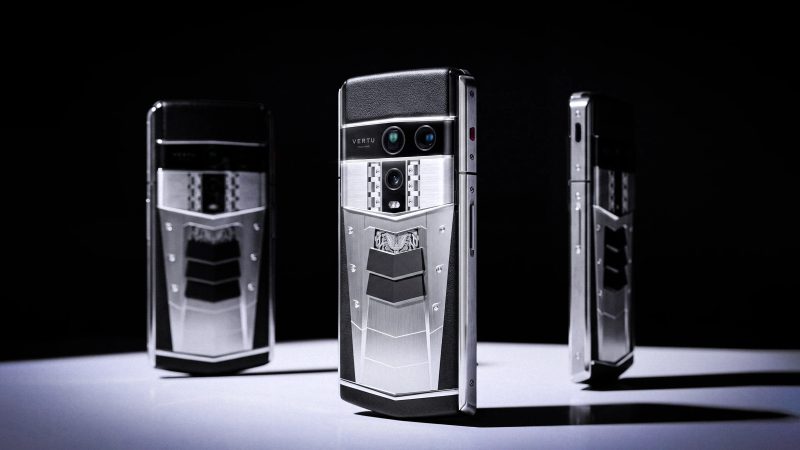
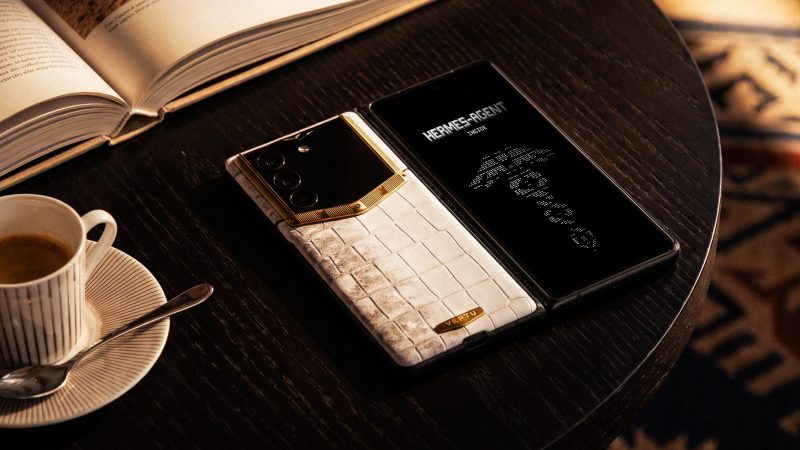
According to VERTU’s product messaging for AlphaFold, it is designed as a private work environment that brings Private Space and encrypted communication into a single “private workspace,” alongside an on-device assistant experience (Hermes Agent) and a service layer (VERTU Concierge). In that framing, Private Space isn’t a cosmetic add‑on—it’s part of how the device separates sensitive business context from everyday use.
Practically, that’s the test you should apply when evaluating any phone:
Can you keep a small set of sensitive apps and accounts behind an extra boundary?
When locked, does that boundary reduce exposure surfaces (notifications, Recents, quick-share mistakes)?
Can you deliberately move in and out of the space without it becoming friction you abandon?
If that matches your operating style, you can explore VERTU AlphaFold as one example of a foldable positioned around boundary-first workflows.
Next steps
If you want a simple starting point, do this in under 10 minutes:
Pick 5–8 apps that represent your most sensitive operations.
Move only those into the separated space.
Lock it automatically.
Treat cross-space sharing as an exception, not a default.
If you’d like to explore how AlphaFold approaches boundary-first workflows, you can also browse the AlphaFold collection.
Disclosure: This article references VERTU pages. Editorial judgment remains the priority.