
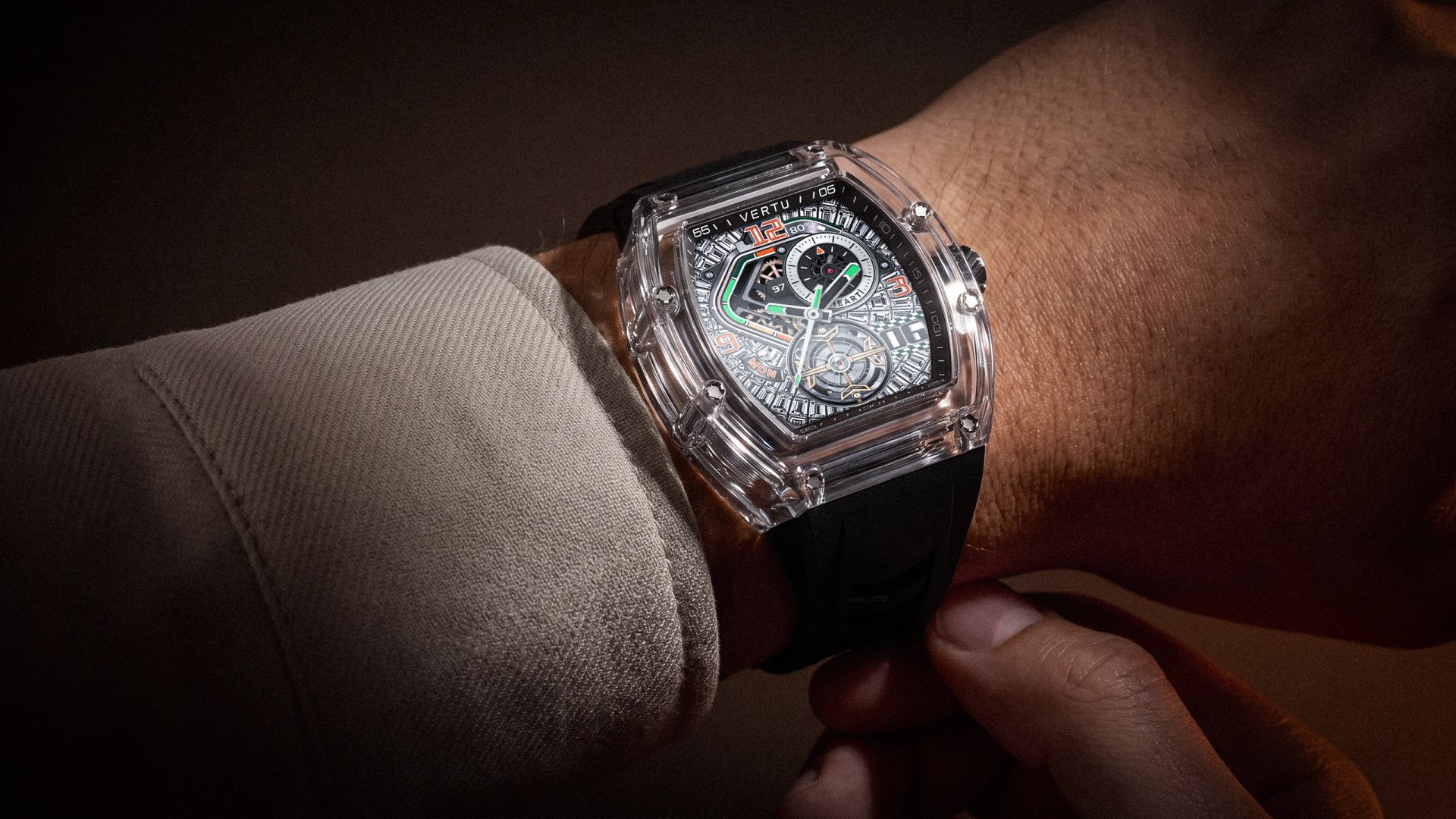
If your smartwatch keeps disconnecting, first confirm which link has failed, bring the paired devices together and check their connection status. Then follow the manufacturer's sequence for settings, updates and restarts, testing after each change. Leave unpairing and factory reset until you understand the model's recovery process and have protected the information you need.
Key Takeaways
- A missing notification, failed voice request and disconnected watch are different observations.
- Start with the correct paired phone nearby and the manufacturer's connection checks.
- Change one thing at a time and record whether the same task works afterwards.
- Read the reset and recovery instructions before erasing or removing anything.
Why does your smartwatch keep disconnecting?
Look at the watch's connection indicator and the companion app's device status, using the descriptions in the supplied instructions. Record what each says. Do not decide that the entire connection has failed solely because one message or feature is missing.
Choose a simple supported action to repeat during diagnosis. That might be the manufacturer's connection check or a manual synchronisation action if the app provides one. Avoid using an unrelated online feature as the only test of a local phone-to-watch connection.
Write the symptom in concrete terms: the watch reports disconnected; the app cannot find the paired device; or the app reports connected but a specific notification is absent. These descriptions leave room for the correct diagnosis. A blanket report that Bluetooth is broken can hide the distinction you need to resolve.
| What you observe | What to investigate next |
|---|---|
| Both devices show a lost pairing connection | Follow the manufacturer's reconnect sequence. |
| The connection is shown as active, but one app is silent | Check that app's supported notification configuration. |
| A phone-dependent voice task fails | Check the phone-side service as well as the watch link. |
| Disconnection occurs after a repeatable event | Record that event and reproduce it without changing several settings. |
Why does a smartwatch keep disconnecting at a distance?
Bring the watch and its paired phone together for the first check. Verify that this is the phone named in the watch's current setup, particularly if you recently changed handsets or restored one. Do not begin a second pairing on another phone simply to see what happens.
Google's Wear OS connection guidance starts with moving the devices closer, then checking Bluetooth and Airplane mode. It also explicitly warns that steps can vary by manufacturer, device and software. Use the relevant controls for your product rather than copying a screen path from a different platform.
For an Apple Watch and iPhone, Apple's reconnect instructions likewise begin with the paired devices close together and connection settings checked before restarting. This is a second platform example, not evidence that Apple menus apply to a VERTU watch.
Make a note of any deliberate setting you change. If Airplane mode was on intentionally, consider what you need enabled for the task before proceeding. Do not override a workplace device policy or managed-phone restriction as a generic troubleshooting experiment.
Can app or software versions explain why a smartwatch keeps disconnecting?
Compare your actual configuration with the manufacturer's current compatibility information. Record the watch model, phone model, operating-system version, watch software and companion-app version. An older setup guide or a screenshot from a different phone is insufficient to establish the right configuration.
Google includes phone, watch and companion-app updates in its Wear OS troubleshooting sequence. Where the manufacturer recommends an update, read its requirements and complete it through the supported route. Keep the relevant devices available and follow the displayed instructions.
If the problem began around a change, record the timing without declaring that change the cause. A new phone, app update or altered setting provides a useful starting point for support, but an event occurring before a fault does not prove the mechanism behind it.
For settings concerning permissions or background activity, consult the instructions for the actual phone and app. Do not disable every battery restriction or grant every permission on the basis of an online comment. Ask which setting is required for the supported watch function and change only that setting when appropriate.
Use restarts as a controlled step
Follow the ordinary restart instructions for the watch and phone when the manufacturer recommends them. Both Google and Apple include restarting in their respective connection guides. A restart is not the same operation as removing the watch or erasing its contents.
After restarting, repeat the same connection check you used initially. Observe the watch indicator, the companion-app status and the specific feature you were trying to use. Record these separately rather than marking the whole issue resolved because the watch briefly appeared in a list.
If it reconnects, continue an ordinary activity that previously exposed the problem. Do not invent a fixed observation period or promise that a successful first check proves permanent stability. Record the conditions and outcome so you can explain any recurrence clearly.
How does this apply to VERTU Agent Watch?
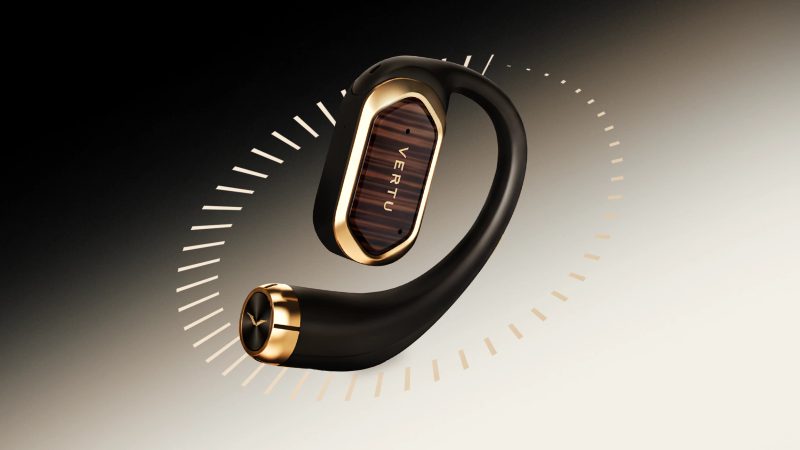
The current VERTU Agent Watch product information lists support for iOS13.0 or later and Android9.0 or later. It also explains that Agent requests are handled through the phone: the watch captures the request and receives the spoken confirmation. These facts make the phone part of the diagnostic picture.
If the watch shows a connection but an Agent request fails, ask support how to check the required phone-side configuration for that function. Do not treat a failed request alone as proof of damaged watch hardware. Equally, the stated minimum phone operating system does not supply every app, account, permission or service requirement.
The public product page is not a complete connection-recovery manual. Use the supplied instructions or obtain the correct procedure from VERTU before forgetting the device, changing pairing records or performing a reset. A Wear OS reset sequence should not be presented as a confirmed Agent Watch procedure.
Look for a reproducible pattern
Keep a short record of the circumstances surrounding each disconnection. Choose observations you can actually verify rather than inferring a radio fault from the room you were in. The purpose is to make the next support conversation precise.
- What did the watch and app show immediately before and after the event?
- Was the paired phone nearby, locked or being actively used?
- Which supported task had been attempted?
- What single setting or restart had just been tried?
- Did the same task work again without another change?
As a hypothetical example, if opening the companion app is repeatedly followed by reconnection, report exactly that sequence. Do not label it a proven battery-management fault without the manufacturer's assessment. Your observation is useful even when the underlying cause remains unknown.
Understand what unpairing or reset will do
Read the recovery instructions before taking a destructive step. Google warns that factory reset erases apps, settings and data on a Wear OS watch. That warning applies to its documented platform; the exact backup and recovery options for another watch must be checked separately.
Before proceeding, establish how to preserve supported data, which credentials will be needed and how the watch will be paired again. Ask about any account or activation requirement relevant to the device. If you cannot confirm the recovery route, stop and request support rather than experimenting with several reset methods.
When escalating, provide the configuration record, exact messages and completed steps. Include the timing of the fault and whether the issue is persistent or intermittent. Exclude personal notification content and account credentials from screenshots. This gives the support team evidence to work with while keeping the next action tied to your particular watch.
How should you record reconnection attempts and interference?
Test with the devices together in one room, then record the time, approximate separation, whether a wall or metal surface is between them, the connection type and each successful or failed reconnect. Google’s Wear OS troubleshooting starts by moving devices closer and checking Bluetooth, but gives no universal distance or successful-reconnect count for every model. A measured log for the actual pair is more useful than an invented range.
Conclusion
When a smartwatch keeps disconnecting, a clear sequence is more useful than repeated resets: identify the failed link, confirm the paired devices and settings, check supported software, restart as instructed and record the result. Treat model-specific recovery as the final stage, with its data and setup consequences understood before you proceed.