
Learning how to change smartwatch face designs starts with the right instructions for your watch: open its supported face gallery, choose a design, apply it and check the result on your wrist. Selecting a different face and customising an existing one are separate tasks. Use the controls documented for your model rather than assuming that a gesture or phone app from another brand will work.
Key Takeaways
- Identify the watch model and software before following a menu sequence.
- Try an already installed face before downloading an additional design.
- Separate choosing a face from changing its colours, layout or information fields.
- Check the actual watch after applying the change, including any information you rely on.
Which app changes your smartwatch face?
Find the model name in the watch's information screen, original order or supplied manual. Record the software version if it is available. Then open the manufacturer's guidance for that model. A tutorial headed simply “smartwatch” may demonstrate an interface that your watch does not use.
If the instructions use a phone app, confirm that it is the supported companion app for the watch currently paired to that phone. Where the app lists several devices, select the intended watch before changing anything. Do not install an unrelated app because a video shows a convenient face gallery.
Decide what you want to do before opening the editor. Changing from an analogue-style dial to a digital display means selecting a face. Keeping the same face but altering its colour means customising it. Adding a design you do not already have introduces a separate compatibility and download question.
How do you choose an installed smartwatch face?
Begin with a face already available on the watch. This provides a clear, limited task: can the device select and display one of its own designs? Keep the previous face's name or a photograph so that you can return to it if you prefer.
For Wear OS, Google's watch-face instructions describe waking the screen, touching and holding it, browsing the available designs and tapping the chosen face. Google notes that some watches instead require a swipe to reach the list. These are Wear OS instructions, not a universal gesture for every smartwatch.
- Return to the ordinary time display.
- Use the face-selection gesture documented for the model.
- Browse the existing designs without opening a purchase or installation screen.
- Select one clearly different from the current face.
- Return to normal use and confirm that the selected design appears.
The final check matters more than the preview. If the watch still shows the old face, record whether you merely highlighted the new one or completed the documented apply action. Avoid changing several unrelated settings while establishing this first result.
Can you change a smartwatch face from your phone?
A supported phone interface can provide another way to select a design, but follow that manufacturer's steps. In Samsung's Galaxy Watch guide, the phone route for applying a downloaded face uses the Wearable app, the current watch face, the desired design and Apply. Samsung also documents selection directly on the watch.
Keep the watch available to inspect while you use the phone. Compare the phone preview with the actual display after applying the change. If the app shows a transfer or confirmation message, let that process finish according to its instructions rather than repeatedly sending the same selection.
Use one route at a time. If a change from the phone is unresolved, do not simultaneously choose a different face on the watch and download another design. Establish whether the first operation completed, then decide what to try next. This is a troubleshooting method rather than a claim that all watches synchronise in the same way.
Customise only the options the selected face offers
After selection works, edit the face if its own controls permit it. Google describes optional information fields or shortcuts as complications in its Wear OS guidance. Samsung explains that customisation options differ between faces and that some faces cannot be customised.
Choose one change first, such as a supported colour or information field. Save it using the documented control, then check the result on the watch. This helps distinguish an unavailable feature from a change that was never applied.
Do not assume a photograph can be used as a background, that every analogue design has editable hands, or that a blank area accepts any app. If the option does not appear, check the selected face's documentation. Selecting a different supported face may be the appropriate answer; forcing an unrelated installation is not the next necessary step.
What should VERTU Agent Watch owners confirm?
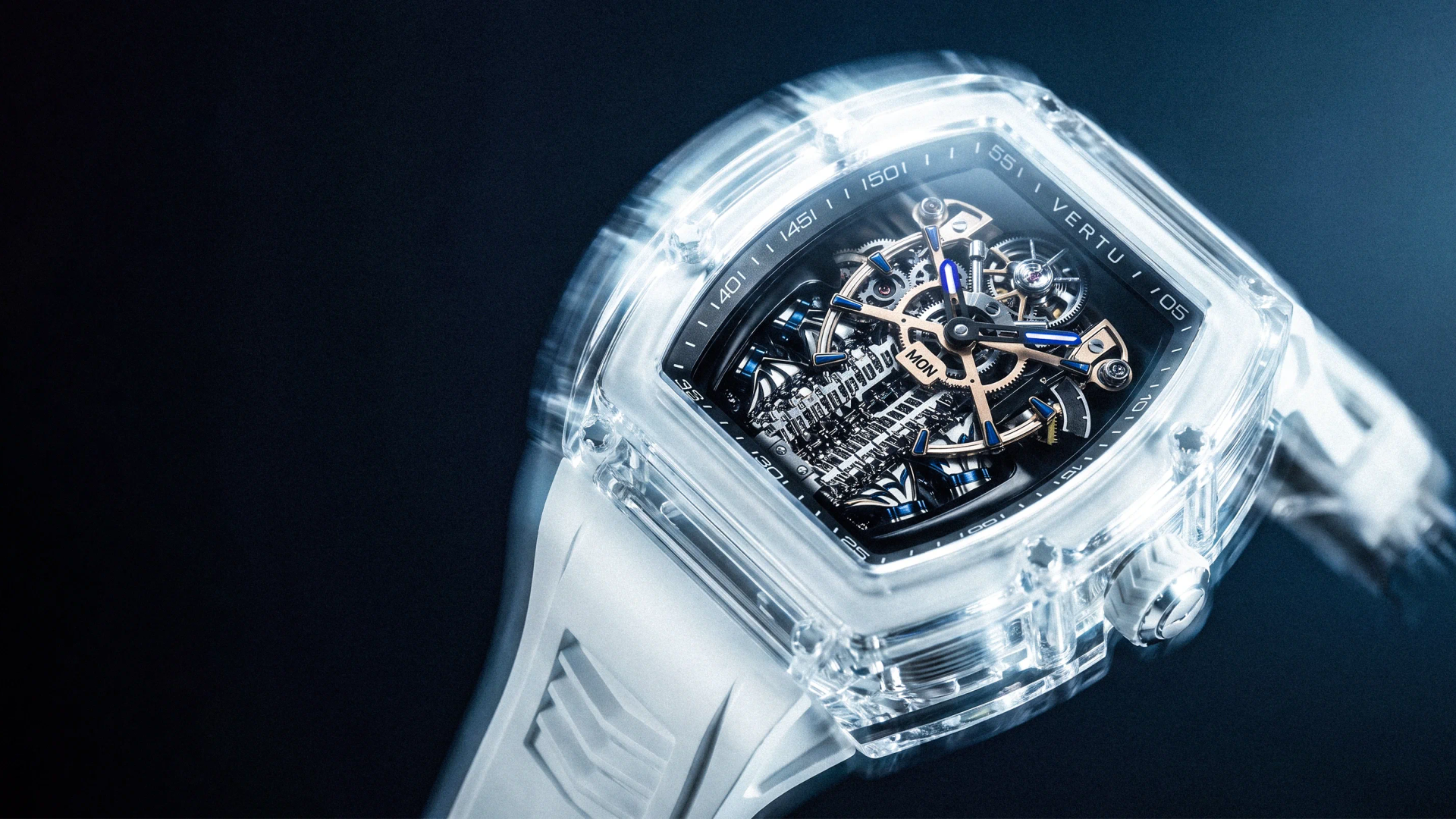
The official VERTU Agent Watch information describes 27 three-dimensional digital watch faces, including mechanical-inspired detail and animated effects on the screen. The designs are digital faces; their appearance does not establish a physical mechanical movement.
The public product information confirms that selection of faces is part of the watch's design, but it does not supply a complete face-changing menu sequence. Use the supplied user manual or ask VERTU support for the instructions matching your watch and software. Do not substitute a Galaxy Wearable or Wear OS procedure as a confirmed Agent Watch instruction.
Ask a precise question: “How do I select one of the built-in faces on this Agent Watch, and where do I confirm the selection?” If you want photo backgrounds, downloadable faces or editable information fields, ask about each separately. The stated number of digital dials does not by itself confirm those additional capabilities.
If the new design does not appear, identify the failed step
Describe what happened at selection, application and display rather than treating every problem as a failed download. Use this sequence to decide what information to check next.
| Observed result | Next check |
|---|---|
| No face gallery appears | Confirm the model's documented gesture or menu. |
| A face appears in the phone preview only | Check the correct paired device and the required apply action. |
| The design changes, but editing controls are absent | Check whether that particular face permits customisation. |
| The face appears, but an information field is empty | Check that field's supported data source and permissions. |
| A newly acquired design is unavailable | Confirm its supported watch and software before attempting another installation. |
Google documents permission controls for complication data on supported Wear OS configurations. Use that platform's instructions if applicable; do not grant every requested permission simply to make a decorative design appear. Establish what the field needs and whether you want to share that information.
Check readability before keeping the change
Judge the design on the watch rather than on a large preview image. Read the time at an ordinary glance, then inspect the date or other fields you actually need. Try the display in the lighting where you normally use it, without treating this personal check as a laboratory test.
For example, you might prefer a simple face during meetings and a more detailed design at another time. Make that a preference about your own use, rather than assuming one arrangement is best for everyone. If the decorative detail competes with the time display, compare another built-in option before searching for more downloads.
When seeking help, send the watch model, software version, companion-app name, selected face and the exact step that failed. A screenshot of the relevant menu is more useful than a general report that customisation does not work. Keep personal notification content out of support images.
How many watch faces and how much storage are available?
VERTU lists 27 three-dimensional digital faces for Agent Watch. That is an exact model claim, not a count for every smartwatch or a guarantee that every face uses equal storage. A universal megabyte figure for watch-face memory was not verified; check available storage on the exact watch and remove unused downloads if its own instructions permit it.
Conclusion
The useful answer to how to change smartwatch face designs is a short, model-specific sequence: identify the platform, select a supported face, apply it and verify the actual display. Customise only the options that design provides, and use the supplied instructions when a public product page confirms the faces but does not explain the controls.