
If you are searching for “how to pair earbuds with laptop”, start by putting the exact earbud model into its documented pairing mode, then connect it through Windows or macOS Bluetooth settings. Select the earbuds as the sound output afterwards, and check the microphone separately if you need calls. A successful Bluetooth connection is only the first part of a usable listening setup.
These instructions cover laptop settings and practical checks. Use the instructions supplied for your exact VERTU Phantom or CRUSH edition for its pairing controls.
Key Takeaways
- Make the earbuds discoverable using their own instructions, rather than a generic button hold.
- Use Windows 11 Bluetooth controls or the Mac’s Nearby Devices list for a first connection.
- Select playback and recording devices separately before joining an important call.
- Distinguish a saved pair that needs reconnecting from a device that has never been paired.
- Test your normal meeting app as well as music before calling the setup complete.
What should you prepare before pairing?
Have the earbuds, their charging case and the correct instructions together. Check their charge using the manufacturer’s method, and identify the name you should expect in the laptop’s device list. This prevents you from connecting to a similarly named accessory nearby.
Confirm that the laptop has working Bluetooth. Microsoft’s pairing guidance explains that Windows needs Bluetooth hardware and that a compatible USB Bluetooth adapter can add it when it is absent. A missing Bluetooth control should therefore lead you to the laptop’s support information, rather than repeated attempts to reset the earbuds.
Keep another previously connected phone out of the initial test where practical. Follow the earbuds’ instructions for changing the connected device. Do not assume that a model can maintain phone and laptop connections at the same time simply because it can be paired with each separately.
How do you pair earbuds in Windows 11?
Enable Bluetooth, make the earbuds discoverable and select their correct name. Microsoft’s current Windows 11 instructions use the taskbar’s Bluetooth quick settings for the pairing step.
- Open Start, then Settings, then Bluetooth & devices, and make sure Bluetooth is on.
- Put the earbuds into pairing mode using the instructions for that exact model.
- Select the Network, Sound or Battery area beside the taskbar clock.
- Open Manage Bluetooth devices from the Bluetooth tile.
- Under New devices, select the earbuds and follow any additional prompts.
Microsoft notes that you may need to scroll through Your devices to see New devices. If the name does not appear, check the discoverable state described in the earbud manual before changing unrelated settings. Menu presentation can vary with the installed Windows version.
Once connected, open Settings, then System, then Sound. Under Output, choose the earbuds. Microsoft’s connected-but-silent troubleshooting specifically calls out the selected output device. Play a short passage at a modest volume and confirm that it reaches the earbuds rather than the laptop speakers.
How do you pair earbuds with a Mac?
Open Bluetooth in System Settings and connect the discoverable accessory. Apple’s MacBook Air accessory guide describes the first pairing as a separate step from later reconnection.
- Turn on Bluetooth on the Mac.
- Prepare the earbuds for pairing according to their own documentation.
- Open System Settings and choose Bluetooth.
- Find the correct accessory in Nearby Devices.
- Click Connect and complete any applicable prompts.
For a pair you have already used, look in My Devices instead. Apple’s guide says to connect there if the accessory does not reconnect automatically. Use the documentation version appropriate to your Mac if labels differ.
Next, open System Settings, then Sound, and choose the intended output. Apple’s Sound settings guide also provides a separate list of input devices. Check that list when you need the earbud microphone; do not assume the desired input was selected because playback works.
How do you check calls and the microphone?
Test the actual application you plan to use. Open its audio controls and inspect both the speaker and microphone selections. Where the app offers a local test or preview, use that before making an important call.
Say a short sentence and look for the input indication provided by your system or app. Then listen to the test result or arrange a brief, appropriate test call. Ask whether the other person can hear you clearly; hearing them through the earbuds does not answer that question.
Keep the test reproducible. Use the same app, seat and normal speaking voice when comparing a change. If music works but the microphone does not appear, record that exact symptom rather than describing the entire connection as broken.
You may prefer the laptop’s microphone and the earbuds for playback. Select that arrangement deliberately if your software supports it and test it in the same way. The goal is a working setup for your task, rather than using every available earbud function for its own sake.
What if the laptop cannot find the earbuds?
Check identity, power and discoverability before a full reset. Confirm that the manual’s pairing state is active, that the case or earbuds have the required charge and that you are searching on the intended laptop.
| What you observe | Next check |
|---|---|
| No Bluetooth control on the laptop | Confirm its Bluetooth hardware and manufacturer support guidance |
| Other accessories appear, but not the earbuds | Recheck the exact model’s discoverable state and device name |
| The pair is listed as saved | Try its normal reconnection path before adding it again |
| Connection succeeds, but sound uses speakers | Inspect output selection and volume |
| Music works, calls do not | Inspect the meeting app’s playback and microphone choices |
If another phone is involved, follow the manufacturer’s connection-switching instructions. A phone connection is useful context, but not proof that the laptop’s setup is complete or that simultaneous connections are supported.
Do not install an unfamiliar “pairing utility” merely because a search result promises a quick fix. Use laptop-maker, operating-system and earbud-manufacturer support routes for the relevant component.
What should VERTU Phantom and CRUSH owners verify?
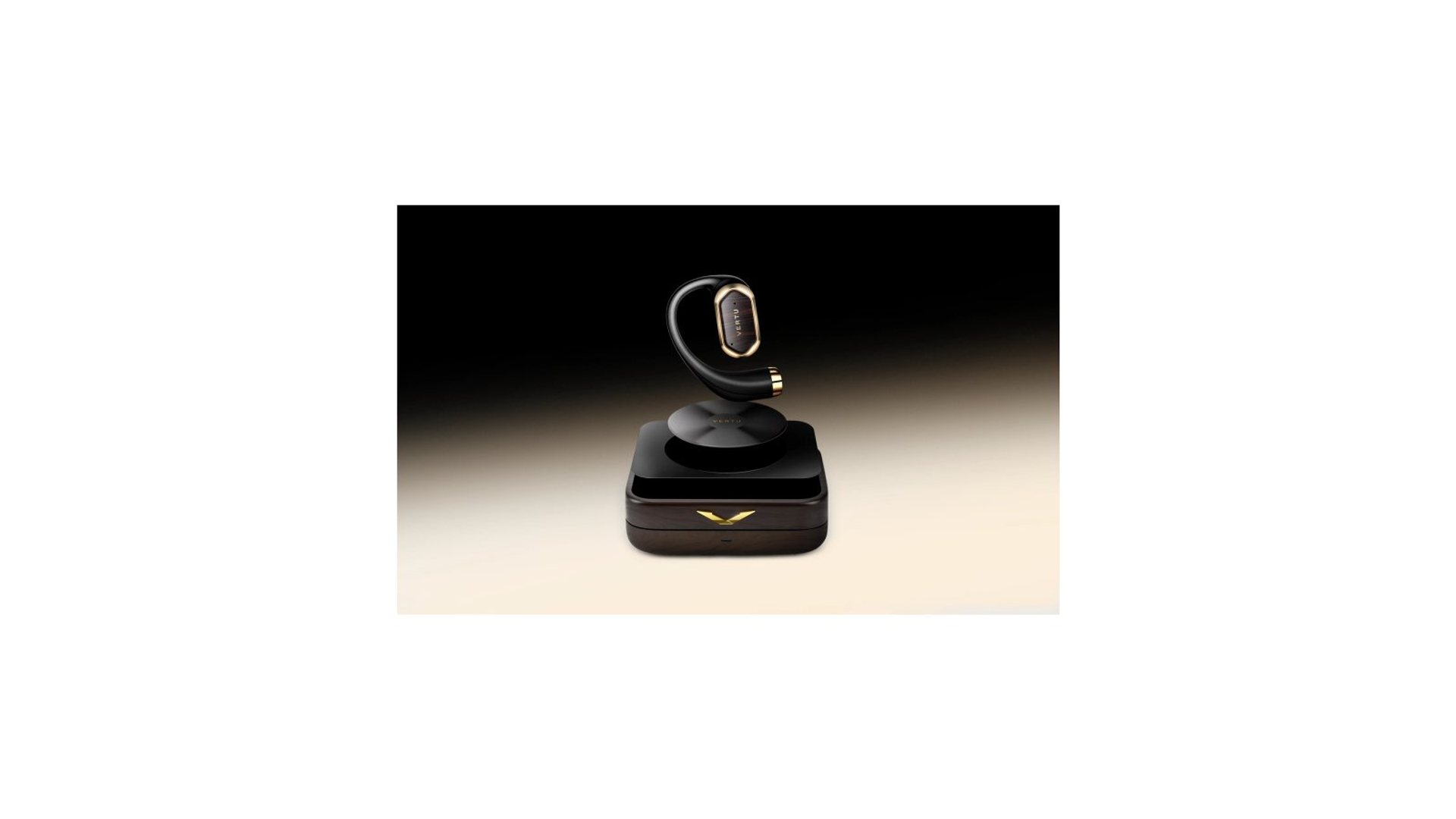
The Phantom Series OWS AI Earbuds combine a retro vinyl-inspired design with documented wood materials. Their material character makes them a distinct daily accessory, but it does not establish a special Windows or Mac pairing shortcut.
The VERTU CRUSH Series OWS AI Earbuds are a different product. Use the exact edition name when requesting the pairing instructions and expected Bluetooth device name. Do not transfer Phantom controls, charging assumptions or indicator patterns to CRUSH.
For either pair, separate three questions: how to enter pairing mode, whether ordinary laptop playback is supported, and which additional functions require a particular phone, app or service. A product’s AI or translation description is not evidence that those functions are available in every laptop meeting application.
Keep the case and instructions available until the complete setup has been tested. Before a meeting, check the normal reconnection routine and the app’s audio devices, then put the case somewhere convenient. This is an ownership workflow to try, not a claim that this guide tested either model with your laptop.
When should you forget or reset a pair?
Use those actions when they match the documented troubleshooting path. Forgetting a saved Bluetooth entry and resetting the earbuds themselves are different operations. Before doing either, note the model, laptop software and symptom so you can tell whether the next attempt changed anything.
The separate Bluetooth earbud reset guide explains that distinction. Keep a full reset for the manufacturer’s applicable procedure rather than making it the first response to an output-selection problem.
If the documented steps still fail, give support a compact record: the laptop and operating system, exact earbuds, visible device name, whether pairing completed, and whether playback or recording failed. That is more useful than a list of unrelated button holds.
Frequently Asked Questions
Do I need to pair the earbuds every time?
Usually you reconnect a saved accessory rather than repeat first pairing. Use the system’s saved-device list and the model’s normal reconnection instructions.
Does a connected label mean the microphone works?
No. Select and test the intended microphone in system and application settings separately.
Can my earbuds stay connected to a phone and laptop?
Only if the exact model supports that arrangement. Check its documentation rather than assuming simultaneous connections.
Conclusion
The useful answer to how to pair earbuds with laptop is a complete sequence: prepare the exact model, connect it through the operating system, select output and input, and test your real application. Use saved-device reconnection for everyday use and model-specific support for unresolved pairing or reset problems.