| Operating System | Version Required |
|---|---|
| iOS | 13.0+ |
| Android | 6.0+ |
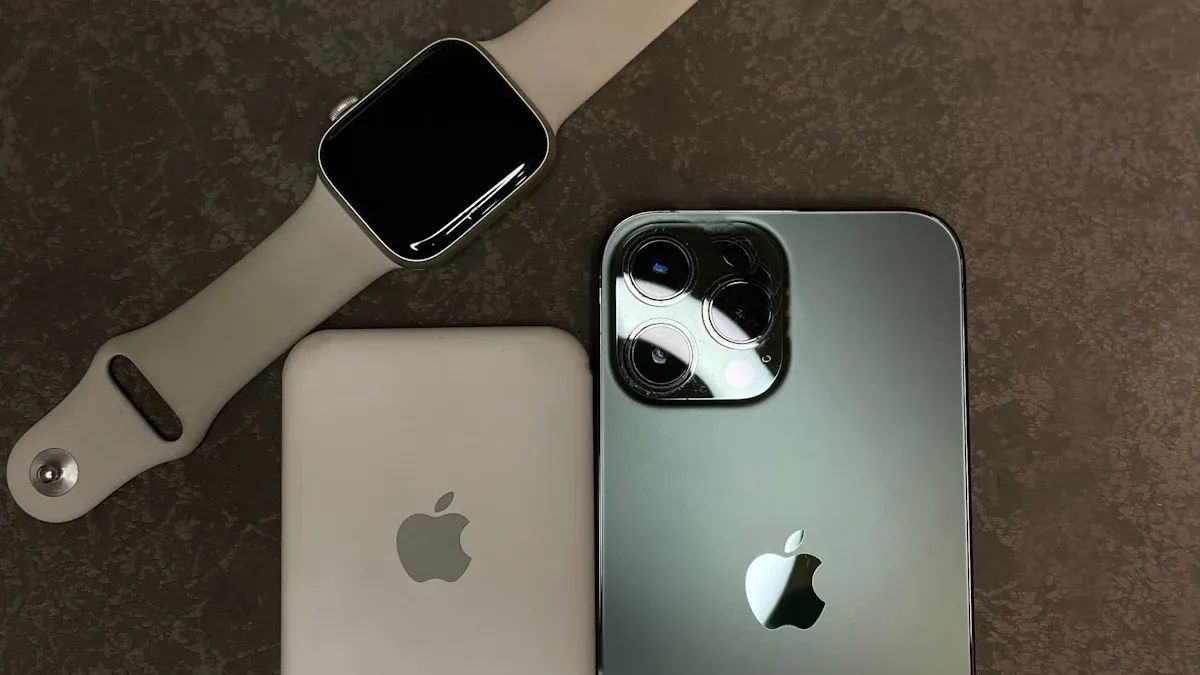
Image Source: pexels
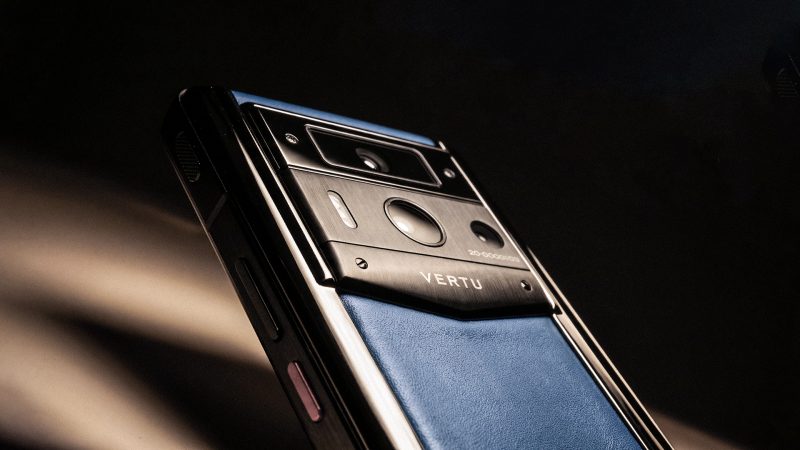
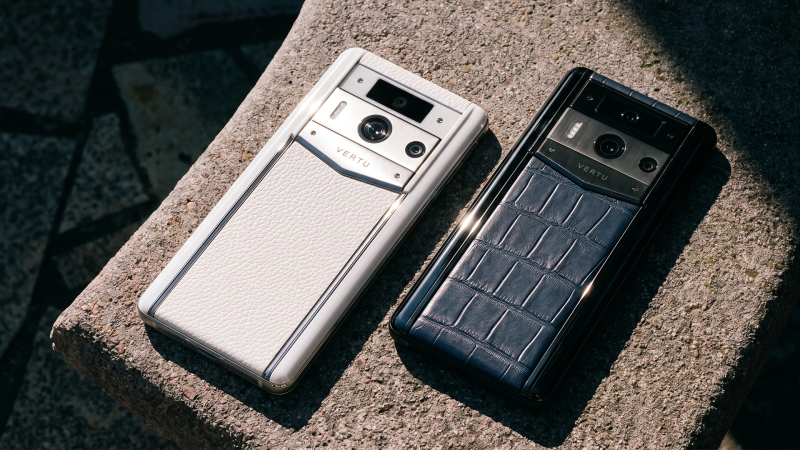
Ready to step up your style? When you think about pairing a luxury watch with a luxury phone, start by checking if your devices work well together. Maybe you own the VERTU Agent Q, known for its craftsmanship and advanced technology. Take a moment to look at your watch and phone models. You don’t need to be a tech expert. You’ll find this process easy if you follow each step.
Key Takeaways
- Find out which luxury watch and phone you have. Look at the back or in the settings for the model name and number. This helps you make sure they work together.
- Make sure both devices have a full charge before you start. This stops problems from happening while you set them up. It also helps everything go smoothly.
- Get the official app for your smartwatch . Go to the app store on your phone. Search for the right app for your watch brand. Download and install it.
- Turn on Bluetooth and Wi-Fi on both devices. This lets them connect safely. It also helps them talk to each other while you pair them.
- Change your smartwatch settings after you pair them. Pick which notifications you want. Set your preferences so your smartwatch fits your needs.
Compatibility for Pairing a Luxury Watch with a Luxury Phone
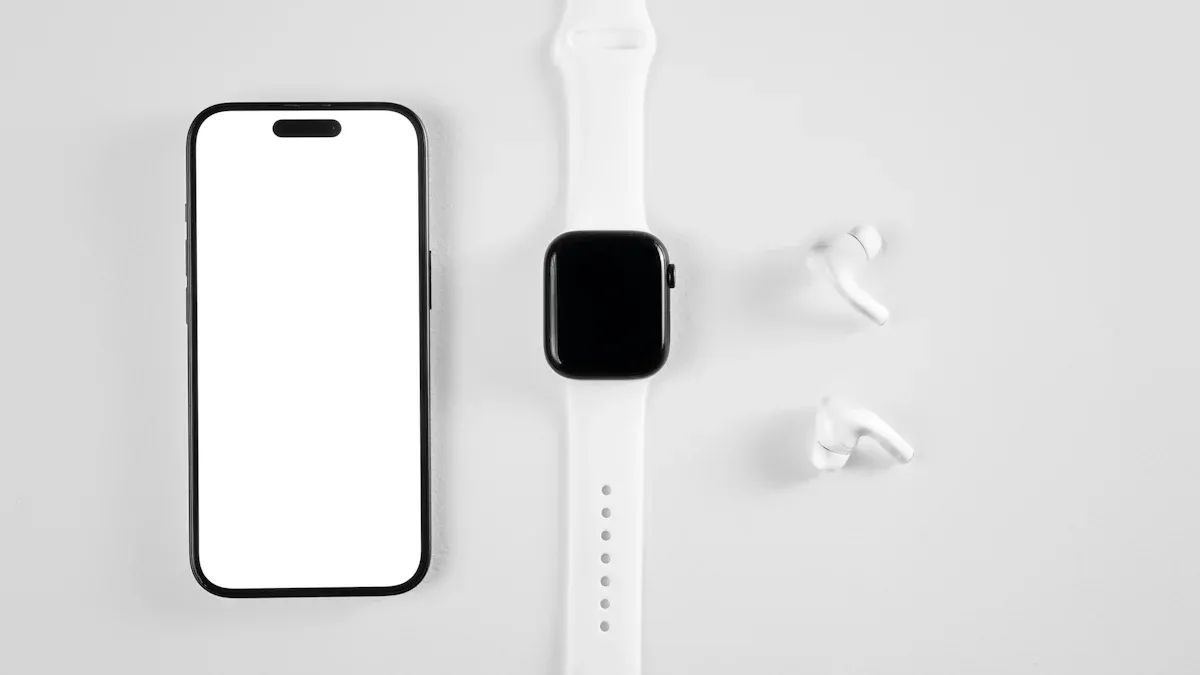
Image Source: pexels
Identify Device Models
You should know which watch and phone you have. Look at your watch and phone closely. Find the model name and number. You can see this on the back or in the settings. If you have a VERTU Agent Q, your phone is special. It has great style and smart features. Watches like TAG Heuer or Montblanc also have model names. Write down these names and numbers. You will use them soon.
Tip: Keep your device boxes or manuals nearby. They show important details about your models and features.
Check OS and App Requirements
Next, check if your watch and phone can work together. Each device needs the right software. Most luxury smartwatches need your phone to have a certain system version. If your phone uses iOS or Android, look at the version in settings. Here is a simple chart :
If your phone has the right version, you can keep going. The VERTU Agent Q uses VAOS, which works with new smartwatch apps. Make sure your watch’s app is ready for your phone’s system. Some watches need you to get a special app first.
Always check both hardware and software before you begin. This helps you avoid problems later. When your devices match, you get the best luxury experience.
Prepare and Update Devices
Charge and Power On
Before you start pairing a luxury watch with a luxury phone, make sure both devices have enough battery. You don’t want your smartwatch or phone to run out of power halfway through the process. Charging your devices is simple, but it’s important to do it right, especially with luxury smartwatches and high-end phones like the VERTU Agent Q.
- Most luxury smartwatches, such as TAG Heuer Connected, need to be charged every night , just like your phone.
- Charging usually takes about 1 hour and 30 minutes.
- Battery life depends on how many features you use and how often you interact with your devices.
Plug in your phone and watch. Wait until both show a full battery or at least 80%. This helps you avoid interruptions. Once charged, press the power button on each device. You should see the welcome screen or logo. If your smartwatch has a special power-on animation, enjoy the show! Now you’re ready for the next step.
Tip: Charging both devices at the same time saves you time and keeps your routine simple.
Update Software and Firmware
Now that your devices are powered on, check for updates . Updates keep your phone and smartwatch running smoothly. They also help with security and add new features. On your VERTU Agent Q, open the settings and look for the software update option. For your smartwatch, use the companion app or the watch’s settings menu.
Follow these steps:
- Connect both devices to Wi-Fi.
- Check for updates on your phone first.
- Update your smartwatch next.
- Restart both devices after updates finish.
Keeping your devices up to date makes pairing a luxury watch with a luxury phone much easier. You’ll also get the best experience from your luxury tech.
Install and Set Up Companion Apps
Download Official Watch App
You need the right app to connect your luxury smartwatch to your phone. Start by finding the official app for your watch. Most brands, like TAG Heuer or Montblanc, have their own apps. Open the app store on your VERTU Agent Q or any other luxury phone. Type the name of your smartwatch brand in the search bar. Look for the app with the brand’s logo and good reviews.
- Tap “Download” or “Get.”
- Wait for the app to install.
- Make sure you have a strong Wi-Fi connection.
Tip: Always use the official app from the brand. This keeps your data safe and gives you the best features.
If you have more than one smartwatch, repeat these steps for each one. You want the right app for every device.
Configure App on Your Phone
Once you have the app, open it on your phone. The app will guide you through the setup. You may need to sign in or create an account. Follow the steps on the screen. The app might ask for permission to use Bluetooth or send notifications. Tap “Allow” so your phone and watch can talk to each other.
- Turn on your smartwatch.
- Keep your phone and watch close together.
- Look for a “Pair” or “Connect” button in the app.
The app will search for your smartwatch. When you see your watch’s name, tap it. You may see a code on both devices. Make sure the codes match, then tap “Confirm.” Now your luxury smartwatch and phone are ready for pairing a luxury watch with a luxury phone.
Note: If you get stuck, check the help section in the app. Many luxury smartwatches also offer live chat or support.
You have finished the setup. Enjoy your new luxury tech experience!
Pair Your Luxury Watch with Your Phone
Pairing a luxury watch with a luxury phone feels exciting, especially when you use advanced devices like the VERTU Agent Q . This phone gives you fast, secure connections, making the process smooth and enjoyable. Let’s walk through each step so you can connect your devices with confidence.
Enable Bluetooth and Wi-Fi
First, you need to turn on Bluetooth and Wi-Fi on both your phone and your smartwatch. These features help your devices find each other and talk securely. On the VERTU Agent Q, you can swipe down from the top of the screen and tap the Bluetooth and Wi-Fi icons. Most luxury smartwatches have similar steps—just look for the settings menu.
Tip: For the best security, connect to Wi-Fi networks that use WPA3 or WPA2. WPA3 gives you stronger protection and keeps your data safe. Always avoid public or open Wi-Fi when pairing a luxury watch with a luxury phone.
Bluetooth security matters, too . Make sure you only pair your devices in a safe place, like your home or office. This helps keep your information private.
Activate Pairing Mode
Now, you need to put your smartwatch into pairing mode. This step lets your phone find the watch and start the connection. Each brand has its own way, but here’s a simple guide you can follow for most luxury smartwatches:
- Put your smartwatch on your wrist .
- Press and hold the main button until you see the logo or a welcome screen.
- Open the companion app on your phone.
- Keep your phone close to your watch. Wait for the pairing screen to pop up.
- Tap “Continue” or “Set Up” in the app.
- Hold your phone over your watch if the app asks you to scan a code or image.
Some watches show a code on the screen. Others use a camera to scan a pattern. Just follow the instructions in your app. The VERTU Agent Q’s advanced connectivity makes this step quick and reliable.
Match Codes and Confirm Pairing
When your phone finds your smartwatch, you’ll see a code on both screens. Check that the codes match. This step keeps your connection safe and stops other devices from joining by mistake.
- If the codes match, tap “Confirm” or “Pair” on both devices.
- If the codes do not match, cancel and try again.
Note: Always check the codes carefully. This is one of the best ways to make sure you are pairing the right devices.
After you confirm, your phone and watch will finish the setup. You might see a spinning icon or a message that says “Pairing Complete.” Now your devices are connected!
Best Practices for Secure and Successful Pairing
You want your connection to be safe and private. Here are some best practices to follow every time you pair your luxury watch:
- Update your phone and smartwatch software before you start.
- Set a passcode or lock on both devices.
- Only allow notifications you really need. Hide sensitive previews if you want extra privacy.
- Limit sharing of health or personal data to just what you use.
- Turn off features like “Unlock with Phone” if others can access your phone.
- Enable “Find My Device” or similar features. Test them to make sure they work.
- Review app settings to stop unwanted apps from installing on your watch.
Tip: If your watch or phone asks for permissions, read them carefully. Only allow what you trust.
Pairing a luxury watch with a luxury phone should feel simple and secure. With these steps, you can enjoy all the smart features your devices offer. The VERTU Agent Q’s advanced technology helps you stay connected, stylish, and safe.
Customize, Sync, and Test
Set Up Notifications and Preferences
You want your smartwatch to work just the way you like. Start by opening the companion app on your phone. Look for the settings menu. Here, you can choose which notifications you want to see on your wrist. Maybe you want calls, texts, or calendar alerts. You can turn off things you don’t need. This helps you stay focused and keeps your watch looking clean.
Try these steps:
- Tap “Notifications” in the app.
- Pick the apps you want to get alerts from.
- Decide if you want sound, vibration, or just a silent pop-up.
- Set “Do Not Disturb” times for meetings or sleep.
Tip: If you use luxury smartwatches , you can often set custom vibration patterns or even change the way alerts look. This adds a personal touch to your style.
Sync Data and Test Features
After you set your preferences, it’s time to sync your data . Make sure your smartwatch and phone stay close together. Open the app and tap “Sync.” You should see your steps, heart rate, and other stats move from your watch to your phone.
Here’s a quick table to help you check what you can sync:
| Feature | How to Test |
|---|---|
| Steps | Walk around, check app |
| Heart Rate | Measure, compare readings |
| Messages | Send a text, see alert |
| Calendar Events | Add event, check watch |
Test each feature one by one. If something doesn’t work, restart both devices and try again. You want everything to run smoothly. When you finish, your smartwatch will feel like a true part of your daily routine.
Note: Always check for updates in the app. New features come out often, and you don’t want to miss them.
Troubleshooting and Support
Fix Pairing Failures
Pairing your luxury watch with your phone should feel easy, but sometimes things don’t go as planned. You might see an error or your devices just won’t connect. Don’t worry. You can fix most problems with a few simple steps.
The most common reasons for pairing failures include using the wrong steps, Bluetooth issues, outdated software, or compatibility problems. Sometimes, your devices are too far apart, or the room is too hot or cold. These things can mess with the connection.
Here’s what you can do:
- Check if Bluetooth is turned on for both your phone and smartwatch.
- Move your devices closer together. Try to keep them within a few feet.
- Make sure you follow the pairing steps in the app. Skipping a step can cause trouble.
- Update your phone and smartwatch software. Old versions can block pairing.
- Restart both devices. This clears up small glitches.
- Avoid pairing in places with lots of wireless signals. These can cause interference.
Tip: If you use luxury smartwatches, always check the brand’s support page for extra help . They often have quick guides and chat support.
Reset and Retry
If you still can’t pair your devices, it’s time to reset and try again. This sounds tricky, but it’s actually simple.
- Turn off your smartwatch and phone.
- Wait for about 30 seconds.
- Turn them back on.
- Open the companion app and start the pairing process from the beginning.
You might need to “forget” the device in your phone’s Bluetooth settings before you retry. This removes old connections that could block new ones.
| Step | What to Do |
|---|---|
| Forget Device | Go to Bluetooth settings |
| Restart | Power off, then on again |
| Retry Pairing | Use the app to reconnect |
If you follow these steps, you’ll usually get your devices working together. If not, reach out to your phone’s concierge or support team. They can help you solve even the toughest problems.
Style Guide for Luxury Watch and Phone Integration
Image Source: pexels
Wearing Both Devices Elegantly
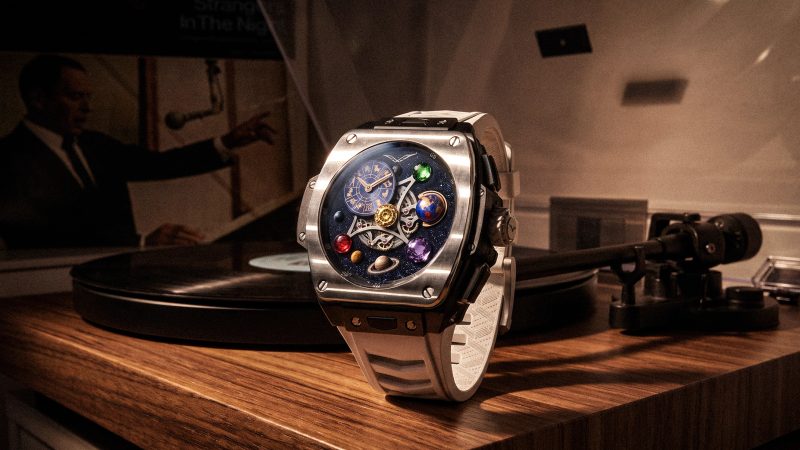
You want your smartwatch and luxury phone to look good together. The right pair can help you feel confident and show your style. Pick a watch strap that matches your phone’s color or finish. Leather bands are great for work clothes. Metal bracelets look cool for casual days. If you have a VERTU Agent Q, its special details go well with classic watches.
Think about how you wear your devices. Put your smartwatch on your non-dominant wrist. Hold your phone in your main hand. This makes it easy to use both. Try not to wear too many accessories. A simple watch and a nice phone look strong together.
Tip: Change your watch face to match your outfit or mood. Many luxury smartwatches let you switch styles fast.
Custom Watch Faces and Personalization
Making your smartwatch personal is fun. You can choose watch faces with your favorite colors, photos, or initials. Some brands have special designs for holidays or events. If you want more, look at engraving or custom marks.
Here’s a quick look at personalization choices from top luxury watch brands:
| Personalization Type | Description | Cost Complexity |
|---|---|---|
| Engraving | Put initials, messages, or designs on the watch | Varies by brand |
| Custom Designs | Full custom designs made just for you | Usually costs more |
| Simple Markings | Basic engravings on the back of the watch case | Cheaper option |
You can use your phone to set up new watch faces. The VERTU Agent Q makes this easy with its smart app features. Try different styles until you find one you like. Personal touches make your smartwatch special and fit your life.
Note: Personalization choices can change by watch brand. Always check what your brand offers before you choose.
Pairing your luxury watch with your phone is simple when you follow these steps:
- Check compatibility for both devices.
- Download the right app for your watch.
- Enable Bluetooth on your phone and smartwatch.
- Power on your watch.
- Start pairing in the app and follow the prompts.
- Confirm the codes to finish.
Luxury smartwatches keep getting smarter with new AI features and hybrid designs. If you need help, reach out to your concierge or support team for a smooth experience.
FAQ
How do I know if my luxury watch will work with my phone?
Check your watch and phone models. Look at the brand’s website or manual. Most luxury smartwatches list supported phones and operating systems. If you use the VERTU Agent Q, check for VAOS compatibility in your watch’s app info.
What should I do if my devices won’t pair?
First, restart both devices. Make sure Bluetooth is on. Keep your phone and watch close together. If you still have trouble, open the companion app and try pairing again. You can also check for software updates.
Can I use my luxury watch with more than one phone?
Most luxury smartwatches only pair with one phone at a time. If you want to switch phones, unpair the watch from the first phone. Then, follow the pairing steps with your new device.
How do I keep my data private when pairing?
Always use secure Wi-Fi and Bluetooth. Set a passcode on both devices. Only allow trusted apps and notifications. The VERTU Agent Q uses Edge Autonomy to keep your data safe, even without a network.
Can I personalize my luxury watch after pairing?
Yes! You can change watch faces, set custom alerts, and even engrave your watch with initials or designs. Use your phone’s companion app to explore all the personalization options your brand offers.