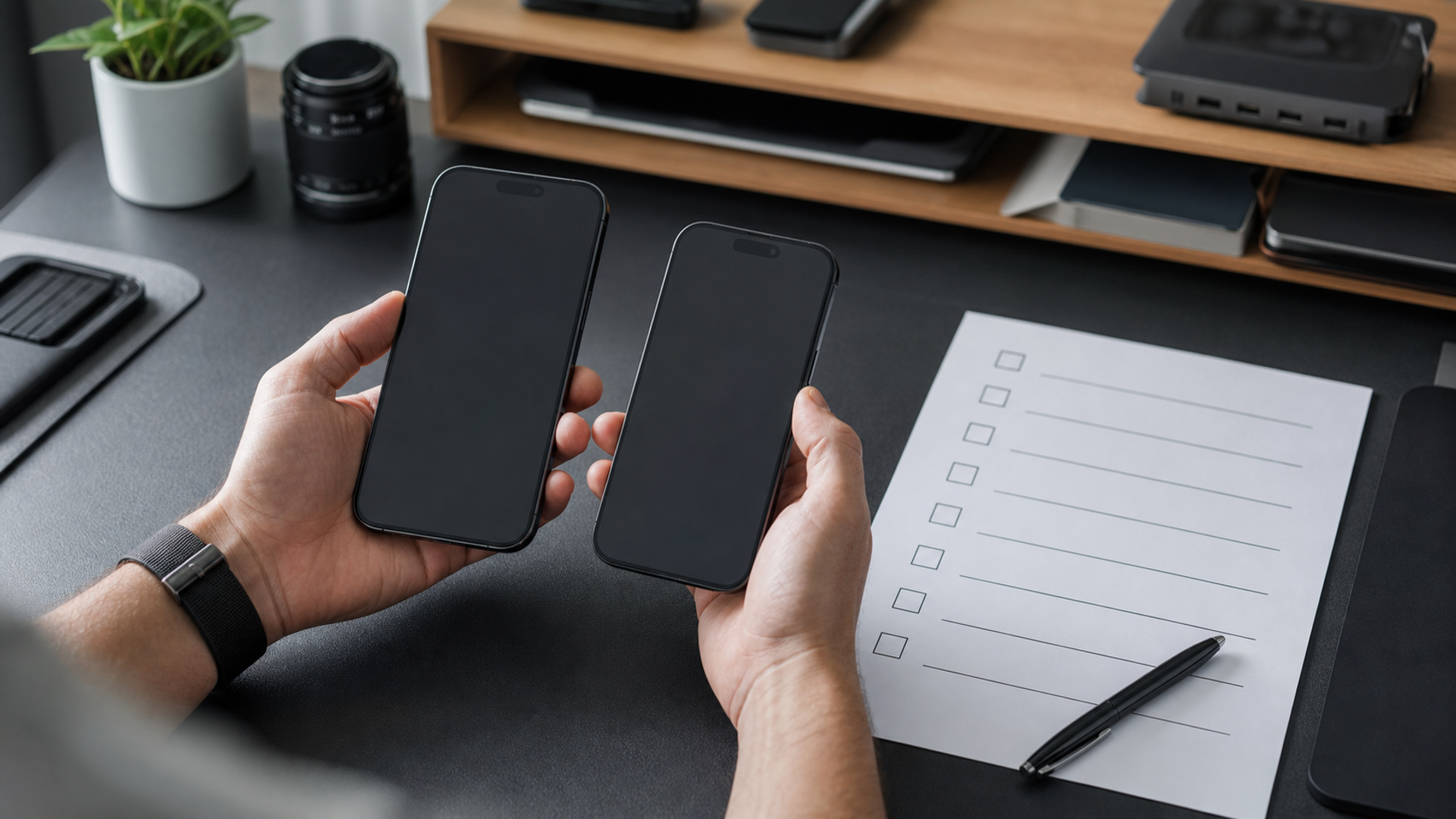
For most people, the correct place for the iOS 27 public beta is a spare compatible iPhone—not the one that holds payment cards, travel tickets, work authentication and the only working copy of family photographs. A public beta is designed to widen testing before the finished release. It may be stable enough for curious users, but “public” does not mean “production-safe for every workflow”.
The decision changes if you are a developer, IT administrator, accessibility tester or power user with a complete rollback plan. It also changes if the phone is disposable for a week. Use the matrix below before pressing Download and Install.
The primary-device risk matrix
| Phone role | Beta recommendation | Why | Minimum preparation |
|---|---|---|---|
| Only personal phone | Wait | A bug can affect calls, battery, banking, travel, photos and recovery at once | Stay on the current release and follow official updates |
| Executive work phone | Do not install without IT approval | MDM, VPN, authentication and compliance tools may not support beta software | Written IT approval, tested apps and recoverable business access |
| Travel phone during an active trip | Wait | Wallet passes, roaming, hotel keys and ticket apps are time-sensitive | Finish the trip or move the test to another device |
| Spare compatible iPhone | Reasonable test device | Failure is inconvenient rather than operationally disabling | Encrypted backup, restore cable, credentials and time |
| App-development device | Appropriate | Early compatibility work is the purpose | Test plan, logs, clean restore path and representative data |
| Accessibility-dependent primary phone | Usually wait | Voice, hearing, switch or display regressions can be disproportionately disruptive | Verify required features on a secondary device first |
Apple’s iOS 27 announcement introduces a new generation of Apple Intelligence and Siri features, but Apple also notes that availability can vary by language, region, device and regulatory requirements. A beta may expose only part of the announced experience, and the behaviour can change before release. Install it to test the beta—not to obtain a guaranteed finished feature early.
Read Apple’s iOS 27 and Apple Intelligence announcement alongside the release notes and beta agreement rather than relying on a social-media clip of one build.
What can actually go wrong
Beta risk is broader than an occasional crash. A small failure can land on a critical dependency:
A banking or identity app may refuse to run on prerelease software.
A passkey or authenticator may work differently after an account reset.
Battery drain can turn a normal travel day into a charging problem.
Bluetooth behaviour can affect a car, hearing device or conference headset.
Camera, photo indexing or cloud sync can behave unpredictably.
A work profile, VPN or MDM policy may flag the device as non-compliant.
A hotel key or event-ticket app may not have been tested on the beta.
An older backup may not contain the messages, files or credentials you assumed it did.
None of these is certain. That uncertainty is the point. A beta test is a controlled acceptance of unknown defects. If the owner cannot absorb those defects, the device is not a suitable test platform.
The rollback trap: a backup is not a magic undo button
Many users assume they can install the beta, make a fresh backup, then restore that backup to the previous public iOS release. Apple’s beta-removal guidance warns that returning to the shipping version can require erasing and restoring the device. A backup made while the beta is installed may not be compatible with an earlier iOS version.
Apple’s instructions for uninstalling beta software should be read before installation, not after a failure. The safe sequence is to create an archived computer backup while the phone is still on the current public release, confirm that the backup completed, and keep the credentials needed to restore accounts. An iCloud backup is useful, but a device owner who depends on a precise rollback should understand what is and is not included.
Use this rollback checklist:
| Requirement | Evidence before install | Failure consequence |
|---|---|---|
| Current-release backup | Timestamped encrypted Finder or Apple Devices backup | You may be unable to return to the earlier state |
| Restore computer | Mac or PC updated, cable tested, storage available | Recovery can stop when the phone is already erased |
| Account access | Apple Account password and trusted number verified | Activation or data restoration can stall |
| Critical app recovery | Banking, authenticator and work enrolment procedures documented | Access may be lost even when photos restore |
| Time window | Several uninterrupted hours available | A weekday experiment can become a missed meeting or flight |
| Alternate phone | Calls, payments and travel credentials available elsewhere | The test phone becomes a single operational failure |
Apple’s general restore-from-backup process explains the supported restoration routes. Test your assumptions against that process while the current phone is healthy.
Decide by dependency, not enthusiasm
List the five things that would create the highest cost if they stopped working for 48 hours. For an executive, that may be an authenticator, managed email, encrypted messaging, ride-hailing and a payment wallet. For a parent, it may be school communications, family location, photographs, medical contacts and transport. For a traveller, it may be airline, hotel, ticket, roaming and banking apps.
Then classify each dependency:
Replaceable: another device or browser can complete the task.
Recoverable: there is a documented recovery process and enough time.
Single point of failure: only this phone can complete the task under current conditions.
If two or more critical dependencies are single points of failure, do not install the beta on that phone. Moving the beta to a spare device is not timid; it is correct test design.
A seven-day secondary-phone test plan
If you have a spare compatible iPhone, test the beta with purpose rather than merely browsing the new interface.
Day 1: baseline and recovery
Record battery health, free storage, current iOS version and backup timestamp. Install the beta, confirm activation and verify that you can still reach account-recovery settings.
Day 2: communication
Test calls, voicemail, SMS, iMessage, preferred messaging apps, Bluetooth audio and a real conference call. Do not add confidential production data solely for the test.
Day 3: identity and work
Test passkeys, authenticator flows, VPN and managed apps using a non-critical account or an IT-approved environment. Record any policy warnings.
Day 4: travel and wallet
Check maps, mobile data, roaming controls, airline and hotel apps, but do not make the beta device your only holder of a live ticket. The World Cup mobile-ticket checklist illustrates why a prerelease phone and a time-sensitive credential are a poor untested combination.
Day 5: camera and cloud
Capture photographs and video, edit a copy, share it and verify cloud sync from another device. Keep originals elsewhere.
Day 6: endurance
Run a normal day without unusual charging. Note heat, background drain, connectivity and whether new AI features increase power use for your pattern.
Day 7: keep, reset or wait
Review defects by impact, not count. One failure in authentication outweighs ten cosmetic glitches. If the phone is needed for real work, return it to the public release or keep it isolated as the test device.
Do not confuse beta access with an upgrade decision
The beta can help you judge interface direction and app compatibility. It cannot settle whether you need a new iPhone, whether every announced AI function will ship in your market, or whether battery performance represents the final build. Prerelease software, background logging and incomplete optimisation can distort those conclusions.
If your real question is whether to change phone platforms, use a threat and ownership comparison such as Android vs iPhone security in 2026. If the question is whether your current phone should become a beta device, use the dependency matrix above.
The considered answer
When to revisit the decision
Reassess after two signals: the apps you depend on publish compatibility confirmation, and Apple releases a later beta or final build with resolved defects relevant to your device. Do not treat another person’s stable experience as proof for your own phone; carrier, model, region, peripherals and managed policies differ.
If curiosity is the only driver, watch demonstrations and read release notes. If testing is the driver, write the test and success criteria first. That single distinction prevents a primary phone from becoming an uncontrolled experiment.
Install the iOS 27 public beta on a secondary device when you have a specific feature or compatibility test, a current-release backup and a rehearsed restore path. Wait on a primary phone that carries irreplaceable access, especially during travel or a critical work period.
The newest software is easy to obtain. A calm route back to a known-good state is the more valuable capability.