Key Takeaways
- Use the narrowest access that will do the job: share one item, pin one app, or use a separate user or guest profile where available.
- App pinning keeps someone within one app, but does not restrict what they can see inside that app.
- Hide sensitive lock-screen notifications and never share your device PIN or password.
- Android menus and features vary by device and software version, so check your phone’s Settings before handing it over.
To share an Android phone with less risk of exposing personal data, give the other person only the access they need: share a specific item, use a Guest or separate user profile if your phone supports it, or pin a single app to the screen. Before handing over the device, hide sensitive notifications and consider what the person could reach while the phone is unlocked.
No single setting makes every kind of phone sharing private. The right approach depends on whether someone needs to view one photo, use an app briefly, or borrow the device for longer. A useful rule is simple: avoid lending your main unlocked profile when a narrower option will work.
Which Android sharing method should you use?
Choose a sharing method based on the task, not convenience alone. A separate profile is generally better for broader temporary access; app pinning is more suitable when the person needs only one app. If they only need a file or image, sharing that item directly may avoid handing over the phone at all.
| What the other person needs to do | Method to consider | Important limitation |
|---|---|---|
| View one photo, document or contact detail | Share only that item through the relevant app | Check the sharing options and recipient before sending; a link may have its own access settings. |
| Use one app briefly | App pinning | The person may still access data and screens available inside that app. |
| Use several apps or browse for longer | Guest mode or a separate user profile, if supported | Availability and setup vary by phone; a profile is not a substitute for supervising sensitive activity. |
| Keep selected apps separate from your main space | Private Space, on supported Android devices | It is designed to separate selected apps, not to create a temporary guest session. |
How to share an Android phone more privately
1. Share the item instead of the device
If someone needs a boarding pass, photograph, address or document, send or display that item rather than handing over your unlocked phone. This keeps the interaction focused and avoids exposing unrelated apps, messages or account notifications. Before sharing a link, check whether it is restricted to a recipient or can be opened by anyone who has it.
For an in-person viewing, open the item yourself and keep the phone in your hand. If the other person needs to interact with the screen, app pinning can add a boundary, but only if the app itself does not expose other personal content.
2. Use Guest mode or a separate user profile for broader access
A Guest profile is intended for short-term use, while a separate user profile can suit someone who uses the device more regularly. Android’s guidance says user profiles have their own space for items such as home screens, accounts, apps and settings. A Guest profile also has its own space and can be easier to remove when the session is over.
To check whether your phone supports these options, open Settings and search for users or multiple users. On some devices, the setting appears under System. If there is no option to add a user or Guest profile, the device may not support it. The exact route and available controls vary by manufacturer and Android version; see Google’s guidance on adding, switching and deleting Android users.
Before handing over the phone, switch into the new profile yourself and check what is available there. When the person is finished, switch back to the owner profile and remove the temporary Guest profile if you no longer need it. Do not assume that a profile will automatically carry over every app, account or setting from your main space.
3. Pin one app when the task is narrow
App pinning keeps one selected app on screen until it is unpinned. It can be useful when someone needs to view a page, complete a simple form or use a single-purpose app without freely switching to other apps. Google’s Android screen-pinning instructions explain how to enable and use the feature; on supported setups, unpinning can require the device’s PIN, pattern or password.
Pinning is a navigation limit, not a privacy filter inside the app. For example, pinning a gallery does not necessarily prevent someone from browsing other images in that gallery. Open the exact screen they need before pinning, and avoid pinning an app that contains messages, saved files or account details the person should not see.
4. Hide sensitive lock-screen notifications
Message previews, one-time codes, calendar details and email subjects may appear while the phone is locked. Before lending the device, review which notifications are visible on the lock screen. Android lets users adjust lock-screen notification visibility, but menu names and available controls differ across devices. You can also change notifications for specific apps rather than turning them all off.
Open Settings and search for lock screen notifications or sensitive notifications. Choose an option that hides message content or stops notifications from appearing on the lock screen. Google notes that notification settings can vary by device; its Android notification guide covers the main controls.
5. Treat an unlocked phone as accessible
Once a phone is unlocked, someone may be able to open apps that are already signed in, inspect recent items or see information that is not protected by a separate lock. Do not give out your device PIN or password to make sharing easier. If you need to unlock the phone, do it yourself and select the profile or app they are meant to use.
For sensitive tasks, stay present. A guest profile or pinned app reduces some forms of access, but it cannot decide whether an action within an app is appropriate, prevent someone from seeing information already displayed, or replace your judgement about what to share.
6. End the session deliberately
When the phone comes back, check that it has returned to your owner profile and that no temporary account or profile remains active. Review any files downloaded during the session and sign out of accounts only if the other person used them. If a Guest profile was created for a one-off handover, remove it when finished.
Avoid deleting app data or clearing broad categories of device storage as a routine clean-up step. Those actions may remove information you want to keep. A quick, deliberate review is usually more useful than a sweeping reset.
Is Android Private Space the same as Guest mode?
No. Android Private Space is intended to separate selected apps from the main space on supported devices; Guest mode is intended for another person’s temporary use of the device. Google states that Private Space requires a supported device and Android version, and that it cannot be used from a Guest or secondary user profile. Read Google’s Private Space guidance before relying on it.
Private Space may help an owner organise certain apps separately, but it is not a handover mode that automatically limits what a visitor can do in the main profile. If your goal is to let someone borrow the phone, look first for Guest mode, a separate user profile or app pinning.
Where VERTU AlphaFold’s privacy features fit
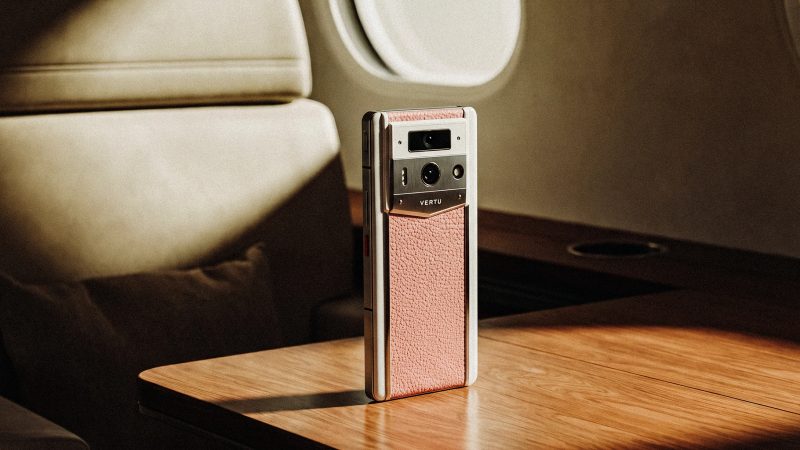
VERTU’s AlphaFold product page lists features including Private Space, end-to-end encryption, encrypted V-Talk and isolated system spaces. These are part of the phone’s stated privacy approach, but they should not be confused with Android’s Guest profile or app-pinning controls. A device privacy feature does not, by itself, create a temporary sharing session or guarantee that personal information cannot be seen when the main profile is unlocked.
For anyone considering a privacy-oriented phone, the practical question remains the same: what boundary does the specific feature create, and does it match the way the phone will be shared? See the official VERTU AlphaFold page for the product’s listed features.
Frequently asked questions
Does every Android phone have Guest mode?
No. Android’s user and Guest options depend on the device and software version. Search Settings for users or multiple users; if you cannot add a user or Guest profile, use another method such as app pinning or share only the item needed.
Can someone see my photos and messages in Guest mode?
A Guest profile is separate from the owner profile, but do not treat it as a guarantee that every type of data or interaction is isolated on every phone. Confirm what your device exposes, hide lock-screen previews and avoid switching back to your unlocked owner profile while lending the device.
Is app pinning enough to protect my personal data?
Not in every situation. App pinning restricts navigation to a selected app, but the person may still be able to view information available within that app. Open the intended screen first and use pinning only when the app’s contents are appropriate to share.
What should I do if my phone has no Guest mode?
For a single task, share the specific item or pin one app. If the person needs broader access, consider whether you can use another device instead. Do not hand over your main unlocked profile or share your device passcode simply because a separate profile is unavailable.
Does Private Space work like a temporary Guest profile?
No. Private Space is an owner’s separate area for selected apps on supported devices; it is not designed as a temporary profile for visitors. For short-term device sharing, use Guest mode if available, app pinning for a narrow task, or avoid lending the phone.
Conclusion
Sharing an Android phone without exposing personal data is mainly a matter of limiting access. Share one item when that is enough; use Guest mode or a separate user profile for broader temporary use where supported; and pin a single app when the task is narrow. Hide sensitive notifications, keep your passcode private and review the device after hand-back. These steps reduce unnecessary exposure while recognising that no single setting fits every Android phone or sharing situation.


![Top 10 Luxury Smartwatches for Business Travel [2026]](https://cdn.sanity.io/images/e0gp1l2g/production/8b5e5b21db42a1c5f040e828bd041857353a8eb2-2560x1382.webp?w=800&h=450&q=82&auto=format&fit=crop)