Key Takeaways
- For company access, use the Android Enterprise enrollment process provided by your employer; the exact steps depend on its IT or EMM setup.
- Some local tools can use Android’s Work Profile feature for app isolation, but that is not the same as enrolling in an employer’s EMM.
- Work apps are usually marked with a briefcase icon. Pausing the profile temporarily stops work apps and notifications.
- Removing only the Work Profile deletes its local work apps and data; it does not factory-reset the personal side of the phone.
To set up an Android Work Profile for company access, follow the enrollment instructions supplied by your employer’s IT team. For personal app isolation, some local tools can create a managed profile on supported phones, but that does not replace corporate EMM enrollment. The distinction is important when comparing a Work Profile with other ways to separate spaces on a phone.
What Is an Android Work Profile?
An Android Work Profile is a managed profile that separates work apps and data from personal apps and data on one device. In an employer-managed setup, IT uses an enterprise management process to provision the profile, distribute work apps and apply relevant policies. Google’s help guidance says Work Profile is available on Android 5 or later, but the supported devices and enrollment methods depend on the organisation and its management provider. Check the current Android Work Profile guidance and confirm your exact phone and Android version with IT.
There are two different reasons people may want a profile:
- Corporate access: Your organisation provisions or manages the Work Profile so approved work apps and data follow its policies.
- Personal app isolation: A user may create a local managed profile on some supported devices to keep selected apps separate, without joining an employer’s management system.
These profiles use Android’s managed-profile functionality, but they do not serve the same purpose. A locally created profile does not, by itself, register your phone with your employer’s EMM, satisfy company compliance rules or grant access to company resources.
What to Confirm Before You Enrol a Personal Phone
Before enrolling a personally owned phone, check the organisation’s policy and the device requirements. Work Profile support on Android does not automatically mean that every phone, software build or EMM configuration is approved by your employer.
- BYOD eligibility: Confirm that your employer allows personal devices for work access and that your role is eligible.
- Device support: Give IT the exact phone model and Android version. Ask whether the organisation’s EMM supports them.
- Enrollment instructions: Get the correct account, EMM app, enrollment link, QR code or other method directly from IT.
- Work requirements: Ask which apps, passwords, screen locks, updates or compliance checks are required.
- Privacy boundaries: Find out what the organisation manages on your personally owned device, and whether its rules differ for company-owned phones.
- Offboarding: Check how work data will be removed if you leave the organisation or change devices.
Do not add a work account or install a management app based on a generic online walkthrough. Android enrollment flows can differ between employers and EMM providers. IT’s instructions help ensure that the profile is connected to the right organisation and receives the required policies.
How to Set Up an Employer-Managed Android Work Profile
For corporate access, begin with your employer’s enrollment flow rather than trying to create a profile manually. The organisation may use a managed work account, an EMM management app, a QR code, an enrollment link or another supported method.
- Request the current setup instructions from IT. Confirm your phone is eligible and identify the exact account or enrollment method to use.
- Prepare the device. Install any Android updates requested by IT, connect to a reliable network and make sure you can unlock the phone.
- Start the authorised enrollment flow. Use the EMM app, managed account, QR code or link specified by your organisation. Do not substitute a different management app.
- Authenticate with your work credentials. Follow the on-screen prompts and review any notices about device management and work policies before accepting.
- Allow Android to create the Work Profile. Keep the phone online while the profile and required management components are installed and configured.
- Open the Work tab or app drawer. Work apps are commonly marked with a briefcase badge. Your employer may install required apps or make approved apps available through its managed app store.
- Test your work setup. Open the essential work apps and check that your account, notifications and required services work. If an app is missing or enrollment reports an error, contact IT.
Settings names and enrollment screens vary by Android version and phone manufacturer. If the flow asks you to remove an existing account, profile or management app, stop and confirm with IT before proceeding; removing the wrong item can affect access or local work data.
Can You Create a Local Work Profile Without an Employer?
Yes, on some supported Android phones, a local app can use Android’s Work Profile feature to create an isolated space without enrolling in an employer’s EMM. For example, the Shelter project describes using Android’s Work Profile functionality to install or clone apps into an isolated profile. That can serve a personal app-separation use case, but it does not itself enrol the device with a company or provide company-managed apps, policies or access. Review the tool and its limitations before installing it, and do not use a local profile to bypass your employer’s device policy.
This distinction can be summarised simply:
| Question | Employer-managed Work Profile | Locally created profile |
|---|---|---|
| Who initiates it? | Your organisation’s IT or EMM enrollment process | The user, through a compatible local profile tool |
| Primary purpose | Separate and manage work apps and data for corporate use | Keep selected personal apps in a separate profile |
| Provides company policies or access? | Potentially, according to the organisation’s EMM configuration | Not by itself |
| Suitable substitute for corporate enrollment? | It is the corporate enrollment route when approved by IT | No |
What Can IT Manage on a BYOD Work Profile?
On a personally owned device, a Work Profile is designed to keep the organisation’s management focused on work apps and work data. The organisation can apply policies to the managed profile, and may be able to remove its work data. That is different from having the same access to your personal profile.
Do not assume every deployment has identical controls. The EMM, employer policy, device ownership and Android configuration all matter. A company-owned phone may have additional device-level policies, even when it also has a Work Profile. Review the setup notice and ask IT what it can manage before you accept enrollment, especially if you use the same device for personal communications and files.
How to Pause or Resume a Work Profile
Pausing a Work Profile temporarily disables its work apps and notifications; it does not delete the profile. On many Android phones, you can pause it from the Work tab in the app drawer or from a Work tile in Quick Settings.
- Swipe down from the top of the screen to open Quick Settings. Swipe down again if needed.
- Find the Work tile. If it is not visible, check whether it can be added using the Quick Settings edit control.
- Tap the tile to pause or resume work apps. On supported devices, a dimmed tile indicates that the Work Profile is paused.
You can also check for a pause switch in the Work tab. Menu labels and availability vary by device, and some company-owned setups may limit how long the profile can remain paused. See Google’s instructions for pausing or turning on a Work Profile if the controls are not obvious on your phone.
How to Remove a Work Profile Safely
Removing only the Work Profile deletes its local work apps and data; it does not factory-reset the personal side of the device. Make sure you choose Remove Work Profile, not Factory reset. On a company-owned device, the organisation may need to release the phone or approve removal first.
On many Android devices, the removal option is under Settings → Passwords and accounts → Work → Remove Work Profile. The exact path can vary. Before confirming, check with IT if you need to retain or transfer work information, if you may need to enrol again, or if the device belongs to your employer. Removing the profile deletes its local data, so do not treat it as a substitute for synchronising or handing over work records through the company’s approved process.
How METAVERTU Max Relates to Work Profile Separation
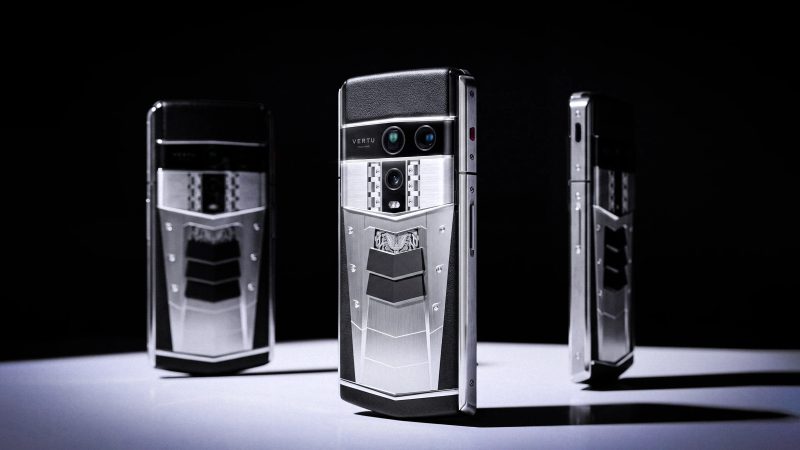
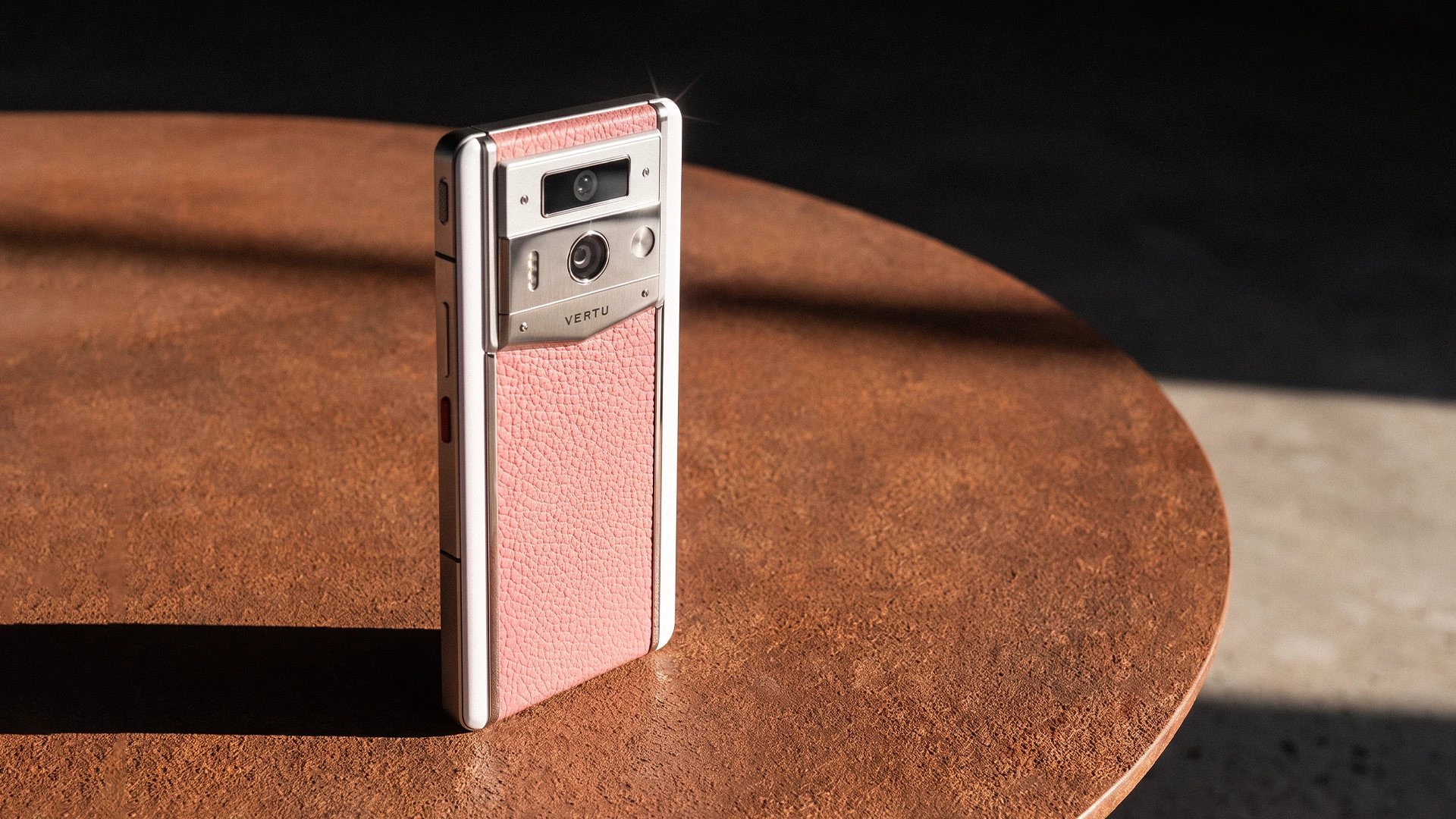
METAVERTU Max offers a useful point of comparison, but it answers a different question from Android Enterprise enrollment. The current VERTU product knowledge base identifies the model and its official product page; that page describes “one device, three systems” and “independent systems” for switching and privacy.
That published product positioning should not be read as confirmation that METAVERTU Max is an Android Enterprise Work Profile, that it is approved by a particular EMM provider, or that it meets an employer’s device policies. A Work Profile is an organisational app-and-data management arrangement; the phone’s three-system description is a separate product-level feature. If you plan to use any phone for corporate access, ask IT to verify the exact model, software version and EMM requirements. You can review the published details on the METAVERTU Max product page.
FAQs
Can I create an Android Work Profile without IT?
Yes, for local app isolation on some supported phones; tools such as Shelter can use Android’s Work Profile feature to create an isolated profile. For employer-managed work apps and corporate access, use the organization’s approved enrollment process.
Can my employer see my personal photos and apps on a BYOD phone?
A personally owned Work Profile is designed to keep personal apps and data separate from the managed work profile. Company-owned devices may have broader policies, so review your employer’s enrollment notice for the controls that apply to your device.
Does pausing a Work Profile delete work data?
No. Pausing temporarily turns off work apps and notifications; it does not remove the profile. Resume it to access work apps again.
Does removing a Work Profile factory-reset my phone?
No, removing only the Work Profile deletes its local work apps and data, not the personal side of the device. Avoid choosing a factory-reset option unless you intend to erase the whole phone.
Conclusion
An Android Work Profile can separate managed work apps and data from personal use, but the right setup depends on whether you need corporate enrollment or only local app isolation. For work access, follow your employer’s IT instructions, check the device policies and confirm EMM compatibility before enrolling. For broader device-selection considerations, see VERTU’s guide to choosing a phone for business and personal use; treat company enrollment support as a separate question for your IT team.