Key Takeaways
- To use a phone as a webcam, connect it through a built-in operating-system feature or compatible companion app, then select it in your meeting software.
- Windows 11 can use certain Android phones as connected cameras; Mac users can use Continuity Camera with a compatible iPhone.
- USB can provide a steadier connection and keep a phone charged; wireless setup offers more flexible placement.
- A phone’s camera specifications do not confirm webcam compatibility. Check support for the exact phone, operating system and app combination.
To use a phone as a webcam, connect it through a built-in operating-system feature or a compatible companion app, then select it as the camera in your meeting software. This setup process differs from choosing a phone for video calls: a phone can have capable cameras but still require specific software and operating-system support to work as a computer webcam.
How Do You Use a Phone as a Webcam?
First check whether your computer and phone have a native camera-sharing feature. If they do not, use a compatible companion app on both devices. After connecting, open your video-conferencing app and choose the phone or its companion camera from the camera menu.
| Phone and computer | Starting option | Connection | What to check |
|---|---|---|---|
| Android and Windows | Windows connected camera, where supported | Wireless or USB, depending on setup | Windows version, Android version, Link to Windows app and permissions |
| iPhone and Mac | Apple Continuity Camera | Wireless or USB | Compatible iPhone and Mac, Apple Account, Wi-Fi and Bluetooth |
| Other phone and computer combinations | Compatible companion app, such as Camo | App-supported wireless or USB connection | Current app support for both devices and the meeting software |
How to Use an Android Phone as a Webcam on Windows
Windows 11’s connected-camera feature works with supported Android phones. Microsoft lists Windows 11 or later, Android 10 or later and Link to Windows app version 1.24022.0 or later among the requirements. The available options can depend on the phone and software version, so check Microsoft’s connected-camera setup instructions before relying on this route.
- Update Windows, Android and the Link to Windows app on the phone.
- On the PC, open Settings → Bluetooth & devices → Mobile devices.
- Add or pair the phone if prompted, then enable Use as a connected camera for that device.
- Allow the required camera permissions on the phone.
- Open your meeting app and select the phone as the camera. If it does not appear immediately, close and reopen the meeting app after pairing.
If the phone does not appear, check that it is paired with the correct Windows account, that Link to Windows has the required permissions, and that another app is not already using the camera. Menu labels may vary between phone manufacturers and software versions.
How to Use an iPhone as a Webcam on a Mac
Apple’s Continuity Camera lets a compatible iPhone act as a Mac webcam, either wirelessly or over USB. The current requirements include an iPhone XR or later with iOS 16 or later and a Mac compatible with macOS Ventura 13 or later. Both devices must use the same Apple Account with two-factor authentication, with Wi-Fi and Bluetooth enabled.
- On the iPhone, open Settings → General → AirPlay & Continuity and make sure Continuity Camera is enabled.
- Keep the iPhone near the Mac, mounted securely with its rear camera facing you.
- Open FaceTime or another app that can use a camera.
- Choose the iPhone from the app’s camera or video menu.
- For a wired connection, connect the iPhone to the Mac and approve any trust or accessory prompt.
If Continuity Camera disconnects over Wi-Fi, try connecting the iPhone to the Mac with a USB cable. Apple also recommends checking device requirements, Wi-Fi and Bluetooth, mounting position, and software updates. Its Continuity Camera guide lists current setup requirements and troubleshooting steps.
How to Use a Phone as a Webcam with a Companion App
A companion app can be useful when the phone and computer do not share a native webcam feature. Camo is one option for connecting a phone camera to a computer. Check its current requirements for your phone, computer and video-call software; support can change as apps and operating systems are updated.
- Install Camo Studio on the computer and the Camo Camera app on the phone.
- Open both apps and allow camera and microphone access where needed.
- Pair the devices using a connection method supported by the current app versions.
- In the meeting app, select Camo as the camera source.
- Check the framing and audio in a preview call before joining an important meeting.
Use Camo’s phone-camera setup information to confirm its current app and device requirements. A companion app can add compatibility options, but it does not guarantee identical image quality or latency across every phone, connection and conferencing platform.
USB or Wi-Fi: Which Connection Should You Choose?
USB is often a practical choice for longer calls because it can reduce reliance on a wireless link and may keep the phone charged while it is in use. It also makes placement less flexible, and some cables support charging but not data transfer.
Wi-Fi or another supported wireless connection gives you more freedom to position the phone, but the result depends on the app, network and nearby interference. If a wireless feed stutters, move the phone closer to the computer or access point, reduce competing network activity, or test a wired connection.
Whichever method you use, secure the phone in a stable mount. A well-positioned camera at eye level is usually more useful than an unstable close-up angle, even when the phone has a high-resolution camera.
How Can You Improve Phone Webcam Picture and Sound?
- Set the camera at eye level. Position the phone so you can look toward the lens without looking sharply down or to the side.
- Use soft light in front of you. A window or lamp behind you can leave your face too dark.
- Keep the lens clear. Wipe it before the call and check that the mount or case does not block the camera.
- Test the microphone separately. Camera selection does not always change the audio input; choose the microphone you intend to use in the meeting app.
- Watch temperature and battery level. A long video stream can use substantial power. Keep the phone ventilated and connect it to power if appropriate.
- Check framing in the actual meeting app. Preview and recording quality can differ between apps and settings.
What Should You Check if the Phone Camera Does Not Appear?
If your phone is connected but missing from the camera menu, check compatibility, permissions and the connection before changing advanced settings.
- Confirm that the phone, computer and companion apps meet the current system requirements.
- Check camera permissions for the operating-system feature, companion app and meeting software.
- Close other apps that may be using the camera, then reopen the meeting app.
- Reconnect the devices. If wireless pairing is unstable, try USB with a data-capable cable.
- If a companion app repeatedly stops or the stream pauses, check whether Battery Saver, Low Power Mode or manufacturer-specific background controls are limiting it. Temporarily allow the app to run without aggressive background restrictions and test again; this is a device-specific troubleshooting check, not a guaranteed fix.
- Restart the phone and computer, then install available updates for the operating system and camera app.
Hardware vs. Compatibility: A VERTU Agent Q Case Study
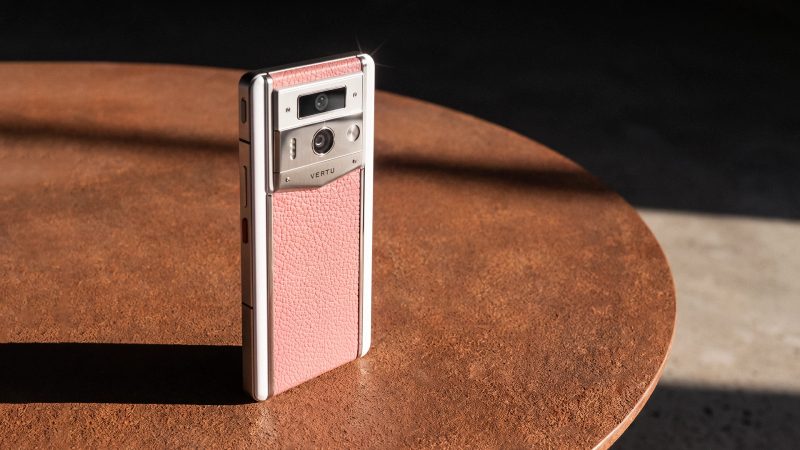
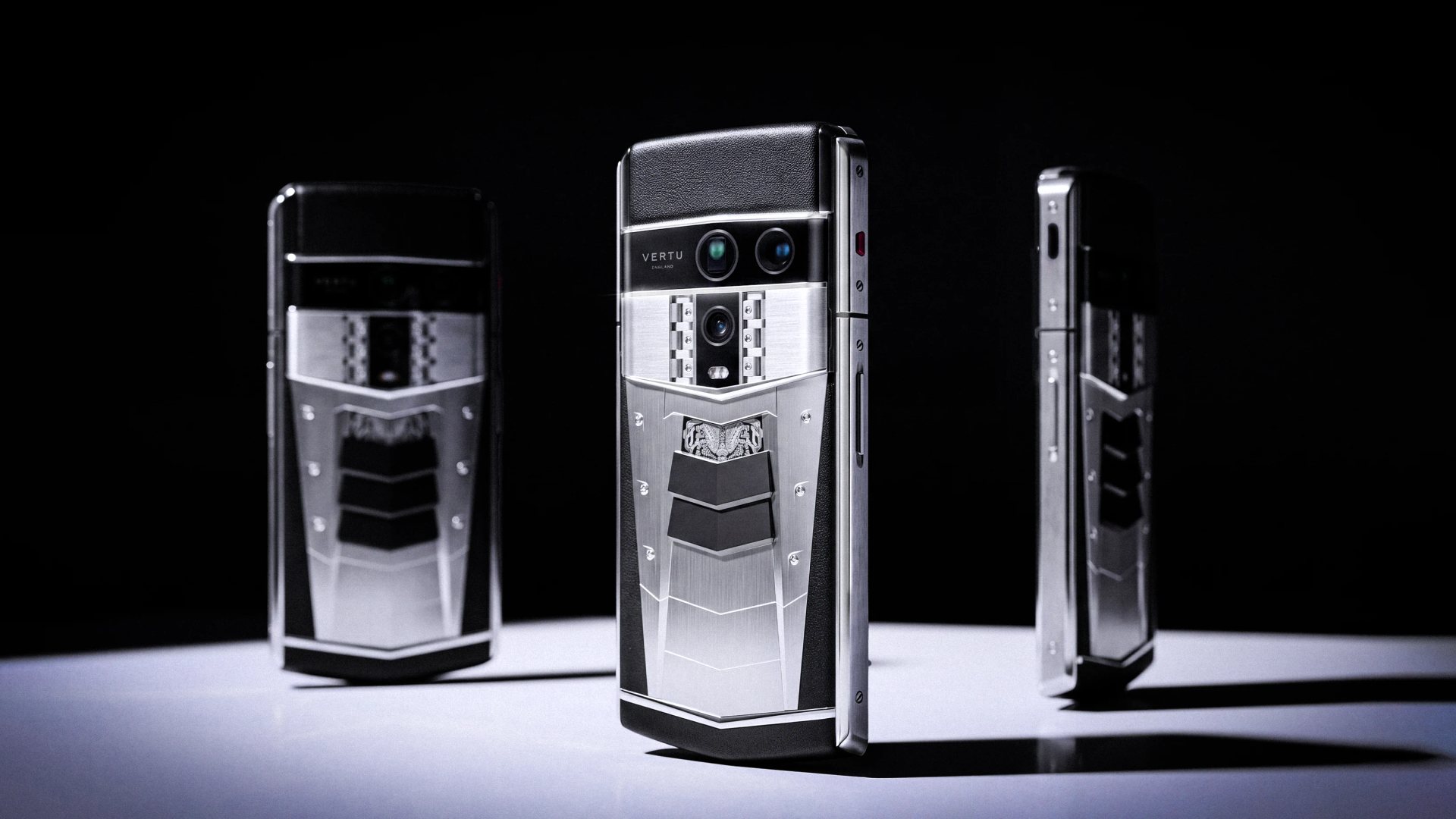
Camera specifications describe the phone’s imaging hardware; they do not establish that the phone can act as a webcam for a particular computer. VERTU’s published Agent Q specifications list a 32MP front camera and a 50MP main camera with OIS. Those details provide camera-hardware context, but they do not confirm compatibility with Windows connected camera, macOS Continuity Camera or any specific third-party webcam app.
For any phone model, verify the exact operating-system and app combination before depending on it for meetings. If computer-webcam use is essential, test the connection, camera selection, audio routing and call stability on the actual devices you plan to use.
FAQs
Can I use an Android phone as a webcam on Windows 11?
Yes, if the phone and PC meet the requirements for Windows’ connected-camera feature. Check Android, Windows and Link to Windows versions, then enable the phone under the PC’s mobile-device settings.
Can I use an iPhone as a webcam on a Mac?
Yes. Continuity Camera supports a compatible iPhone and Mac, and works wirelessly or over USB. Both devices need the required software, account settings and nearby Wi-Fi and Bluetooth connection.
Can I use my phone as a webcam over USB?
Yes, when the operating-system feature or companion app supports a wired connection. Use a data-capable cable, approve any trust prompt and select the phone or camera app in your meeting software.
Does a higher-megapixel phone camera guarantee better webcam quality?
No. Webcam quality also depends on the app, camera selection, lighting, connection, framing and video settings. Test the full setup in the meeting software you use.
Conclusion
To use your phone as a webcam, choose a native feature when your devices support it or use a compatible companion app. Confirm requirements, select the phone in your meeting software, and test camera framing, audio and connection stability before an important call. Compare compatible devices in the VERTU Agent Q range if you are considering a VERTU phone, and verify webcam support for the exact model and software combination.