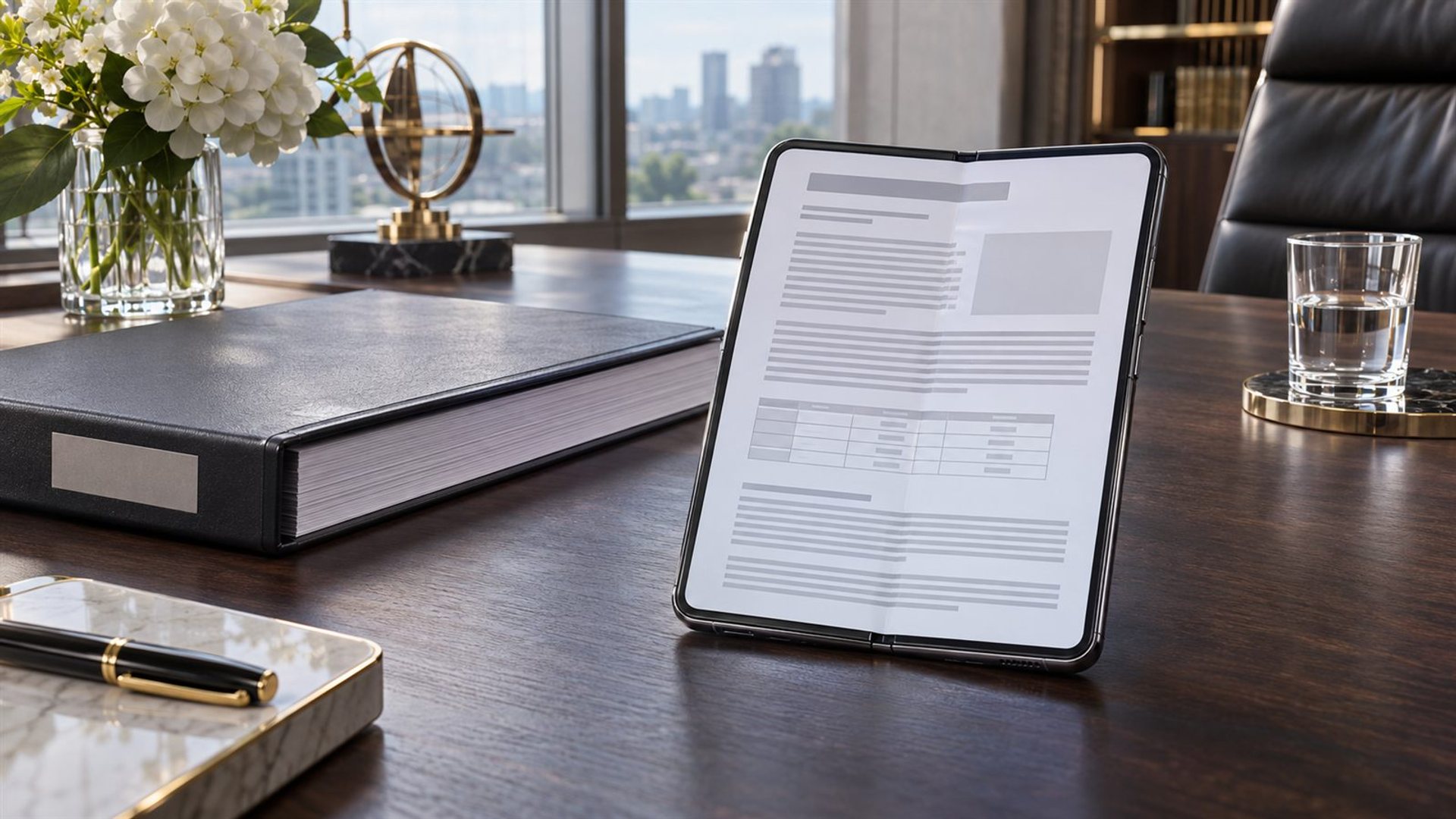
You can read a 200-page report on a foldable phone, especially when its pages contain searchable text and clear headings. The larger inner display makes more of a page visible than a narrow phone screen, but it does not automatically fix tiny tables, scanned pages or awkward navigation. A realistic decision depends on the actual PDF, the reader app and whether you need to skim, annotate or check figures precisely.
What does “read” mean for a long report?
Reading from the first page to the last is only one job. A lawyer may need to compare clauses, an executive may need the conclusions and exceptions, and a reviewer may need to comment on several charts. These tasks place different demands on the screen. A foldable may be comfortable for a narrative section yet cumbersome for a wide financial table. Define the task before judging the hardware.
Make a small sample of the document: opening summary, a normal text page, the densest table, an appendix and one page with a footnote. If these five pages are usable, the rest is more likely to be manageable. If the appendix requires constant pinch-and-pan movement, a larger device may still be needed for that part. Do not infer full-report comfort from the cover page or a short brochure.
Why does the PDF layout matter more than page count?
Answer 200-page file may be a clean text report, a scan of paper, a slide deck exported as PDF or a collection of tables. Each behaves differently. Search and text selection usually depend on a proper text layer; a scan may require optical character recognition before those functions work. Even when the page count is identical, file size, font size and column structure change how much scrolling and zooming the reader must do.
Mobile reflow can help with straightforward prose. Adobe's Liquid Mode documentation says supported PDFs can be rearranged for easier reading without changing the original document. It also states that the mode does not apply to files with more than 200 pages. That makes a 200-page report a notable boundary case: it may satisfy the page-count condition, but other restrictions still determine whether the mode is available.
Adobe's technical requirements list other potential blockers, including files over 10 MB, scans, encrypted files and complex layouts with many tables or images. Those are Adobe Acrobat mobile conditions, not limits of every foldable or PDF app. A report of exactly 200 pages can still fail to reflow. Keep the original page view available for checking figures and citations even when a simplified reading mode works.
How should you navigate 200 pages?
Bookmarks, a table of contents and reliable search are more important than a quick page swipe. Before starting, check whether the PDF has internal bookmarks and whether your app displays them. Search for a phrase you know appears in the middle, then return to the original position. If you cannot move between two passages without losing your place, the report will feel longer than its page count suggests.
For a structured review, record page numbers and section names as you go. A comment such as “page 117, risk table, third row” is more useful to a colleague than “near the end”. Some reflow modes change visual pagination or move elements; verify the original-page reference before sharing a note. A foldable can be a good reading surface while a separate note-taking method preserves precise citations.
Try both orientations. Portrait may suit a single text column; landscape can help with a wide chart but may reduce vertical context. On a foldable, the hinge and app layout can influence whether a two-page view is helpful or simply makes text too small. Do not force a book-like spread because the device resembles a book. Choose the view that reduces zooming for the page type in front of you.
What happens with tables and footnotes?
Tables are the hardest common case. A full-width table may require zooming until only a few columns fit, then panning repeatedly to keep row labels aligned with values. Reflow may alter the layout, but it does not guarantee that every relationship remains obvious. For financial or technical decisions, return to the original page view and cross-check column headings. If a table cannot be read without losing context, defer that section to a laptop or larger external display.
Footnotes create another challenge. A note marker may be easy to tap on a desktop but small on a phone; moving between the main text and footnote can interrupt the argument. Test one heavily footnoted page. If the app supports links, check that the return path works. If not, use bookmarks or page thumbnails to move deliberately. This is a software and document-design issue as much as a screen-size issue.
Where does ALPHAFOLD fit?
VERTU ALPHAFOLD lists an 8.05-inch inner display and a 6.53-inch outer display. The inner screen is the relevant canvas for a long report; the outer screen is useful for a quick lookup while travelling. The product page presents it as a foldable phone for documents and work, but no public product specification can guarantee that a particular 200-page PDF or reader app will handle every table well.
Test the exact file on the device if the report is central to your work. Open it from the storage location you actually use, switch between pages, search, add one comment and export or share a copy. Check whether corporate permissions allow the file to be opened in the chosen app. A larger screen is valuable only when the whole document workflow remains reliable.
When should you use another screen?
Use a laptop or tablet for intensive cross-referencing, very wide tables, simultaneous source comparison or detailed markup that demands a keyboard and precise cursor. This does not make the foldable a failure. It can still be the best device for reading the executive summary on a flight or checking a specific page before a meeting. The honest goal is to place each part of the work on the most suitable screen.
A practical trial takes fifteen minutes: load the actual file, read three prose pages, navigate to the densest table, search for a term, add a comment and reopen it. Note the number of zoom and pan actions and whether you lost your place. This is a proposed test, not a measured ALPHAFOLD performance result. If the workflow feels clear under real conditions, the remaining pages are a question of time and comfort rather than an unknown promise.
Frequently asked questions
Is a 200-page PDF too large for a foldable?
Not necessarily. The document's file size, text layer and layout matter more than page count alone.
Will Adobe Liquid Mode work at exactly 200 pages?
It may, but other limits still apply. Adobe says files with more than 200 pages are excluded and lists separate content and size restrictions.
Can I review dense tables on ALPHAFOLD?
You can try the inner display, but verify the actual file and app. A laptop may be more efficient for wide, high-stakes tables.
Should I annotate in reflow view?
Use the app's supported tools and confirm that comments remain attached to the correct original page before sharing.