Key Takeaways
- An Android phone hotspot shares the phone’s mobile data connection over Wi-Fi. A laptop or tablet joins it using the hotspot name and password.
- Use a strong password and check connected devices. Some supported Galaxy phones also offer QR-code sharing; show the code only to people you trust.
- Hotspot performance depends on mobile signal, Wi-Fi band, device compatibility and carrier rules. Check your data allowance, roaming terms and battery before a long session.
- USB and Bluetooth tethering are alternatives to Wi-Fi. Their speed, power use and device support vary, so choose based on the receiving device and the task.
To use your Android phone as a Wi-Fi hotspot, turn on Mobile Hotspot, set a network name and password, then connect your laptop or tablet from its Wi-Fi menu. Check your mobile plan first: carriers may limit tethering or charge extra. If you are comparing phone tethering with a separate travel connection, see these portable Wi-Fi and phone hotspot options for international travel.
What does a phone hotspot do?
A phone hotspot shares the phone’s internet connection with other devices. Most commonly, the phone uses mobile data to create a Wi-Fi network that a laptop, tablet or another phone can join. This is also called mobile hotspot or Wi-Fi tethering.
The phone needs mobile data coverage, and tethering must be allowed by the carrier and plan. The hotspot does not create additional data allowance: connected devices use the phone’s mobile data. Video calls, software updates, cloud backups and streaming can consume data quickly, particularly when a laptop is set to download updates automatically.
2 Ways to Use Phone as Hotspot on Android
On most Android phones, turn on the hotspot from Quick Settings or the phone’s network settings. The exact menu names vary by manufacturer and software version. If the steps below do not match your screen, search Settings for “hotspot.”
Use Quick Settings
- Swipe down from the top of the screen. On some phones, swipe down again to expand Quick Settings.
- Tap Hotspot or Mobile Hotspot.
- If the tile is missing, use the edit control to add Hotspot to Quick Settings, or find it through Settings search.
- To check or change its name and password, touch and hold the tile or open the hotspot setup screen.
- Turn the hotspot on, then connect from the receiving device.
Use Samsung Galaxy settings
On Samsung Galaxy phones, the usual path is Settings → Connections → Mobile Hotspot and Tethering → Mobile Hotspot. Turn on the switch, then open the hotspot settings to review the network name, password, security and available Wi-Fi bands. Menu labels and options can vary by model, carrier, region and software version.
Some Android instructions apply only to Android 14 and later. For the general Android steps, read Google’s Android hotspot and tethering instructions. Samsung’s Galaxy Mobile Hotspot settings describe the Galaxy menu, QR-code option and band settings.
How do you connect a laptop or tablet to the hotspot?
Connect from the laptop or tablet’s Wi-Fi settings by choosing the hotspot’s network name and entering its password. Keep the devices within range, then open a browser or app on the receiving device to confirm that internet access works.
- Open Wi-Fi settings on the laptop, tablet or other device.
- Select the network name displayed on the phone’s hotspot screen.
- Enter the current password and choose Connect.
- Test the connection by loading a webpage or using an app that requires internet access.
Can you connect with a QR code?
Some Samsung Galaxy phones let you share a hotspot by displaying a QR code in Mobile Hotspot settings. On a supported model, open the hotspot screen and tap the QR-code option; the receiving device can scan it instead of manually entering the password.
This feature and its menu location vary by device. A QR code makes joining easier, but it also makes the network credentials easier to pass on. Show it only to the intended person, and turn off the hotspot when sharing is finished.
What is the difference between 2.4 GHz and 5 GHz hotspot bands?
When both options are available, 2.4 GHz generally works with a wider range of devices, while 5 GHz may offer better performance with compatible devices at shorter range. Actual results depend on the phone, laptop, surroundings, network congestion and regional settings.
If a laptop cannot see the hotspot, try 2.4 GHz if the phone offers it. This can help when the laptop’s Wi-Fi adapter does not support the band currently selected by the phone. If the hotspot appears but feels slow, check signal strength and move the devices closer before changing settings. Do not assume a band change will increase internet speed if the mobile signal itself is weak.
Wi-Fi hotspot vs USB vs Bluetooth tethering: which should you use?
Wi-Fi is the most convenient option for connecting devices without a cable. USB gives a direct wired connection when both devices support it. Bluetooth tethering can be useful for lighter data needs, but it is generally not the choice for bandwidth-heavy work. Performance and device limits vary by phone, computer, carrier and connection.
| Method | Typical speed and behaviour | Power considerations | Best suited to and limits |
|---|---|---|---|
| Wi-Fi hotspot | Performance varies by band, signal, interference and the number of connected devices. | Keeping mobile data and Wi-Fi sharing active can use noticeable battery during long sessions. | Convenient for laptops, tablets and multiple devices where the phone and carrier allow them. |
| USB tethering | A direct wired link; actual internet speed still depends on mobile coverage, cable, ports and device support. | The computer may supply power, but charging and heat depend on the connected devices and cable. | Useful for a compatible computer and cable. Google says Android USB tethering does not work with Mac computers. |
| Bluetooth tethering | Usually better suited to lighter data tasks than video streaming or large downloads. | Power use varies by phone and connection; it is not a guarantee of longer battery life. | Useful when Wi-Fi is unavailable or unnecessary. Pairing steps and device support vary. |
For long work sessions, include the phone’s power needs in your travel planning. This business travel phone battery checklist covers related considerations beyond hotspot use.
How can you stop a laptop using too much hotspot data?
Set the hotspot network as a metered connection on Windows to help reduce background data use. This setting can limit some automatic updates and syncing, but it is not a hard data cap and does not control every app.
On Windows 11, open Settings → Network & Internet → Wi-Fi, select the connected hotspot network, open its properties and turn on Set as metered connection. Microsoft explains how metered connections in Windows affect updates and app syncing.
You can also pause cloud backups, large downloads and operating-system updates until you are back on an unlimited or trusted network. Check the phone’s data-usage screen during the session, especially when travelling or using a limited plan.
What does “No internet, secured” mean on a Windows laptop?
If Windows shows “No internet, secured,” the laptop has joined a password-protected Wi-Fi network but Windows has not detected internet access. The message does not, by itself, identify whether the cause is the phone, mobile signal, carrier plan or laptop.
- Check whether the phone itself can load a page using mobile data.
- Confirm mobile data is on and the carrier plan permits tethering.
- Turn the hotspot off and on, then reconnect the laptop using the current password.
- If the laptop cannot see the hotspot, try 2.4 GHz if available and supported by both devices.
- Test with another device. If no device gets internet, focus on the phone’s mobile connection or carrier; if only the laptop fails, forget the hotspot network on Windows and reconnect.
VERTU ALPHAFOLD: voice control for hotspot activation
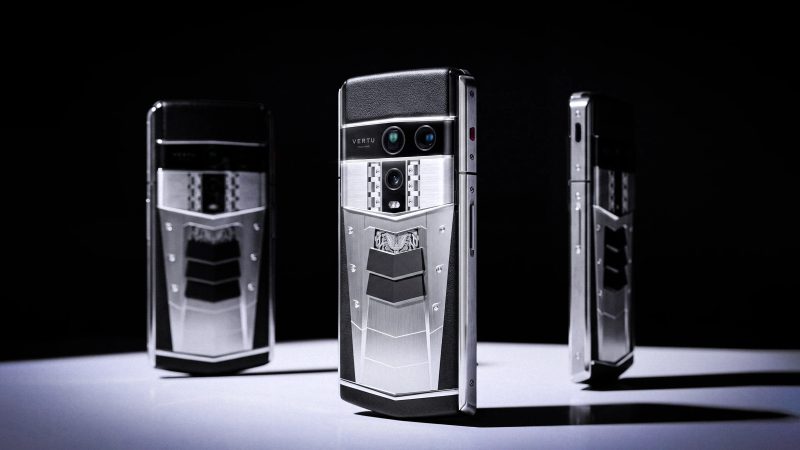
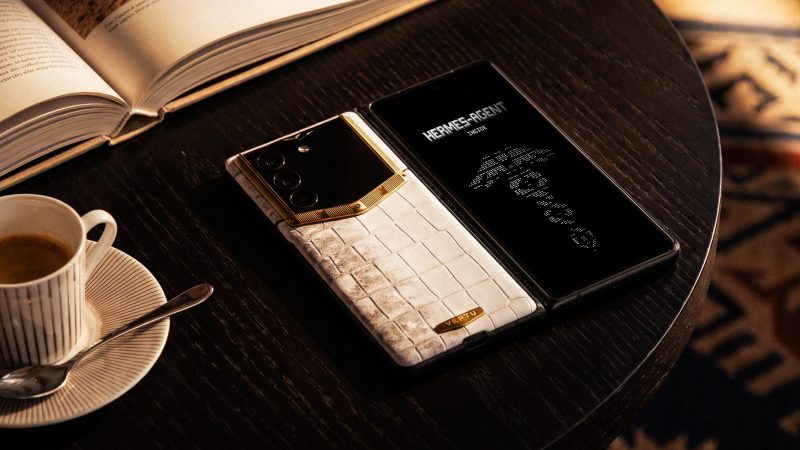
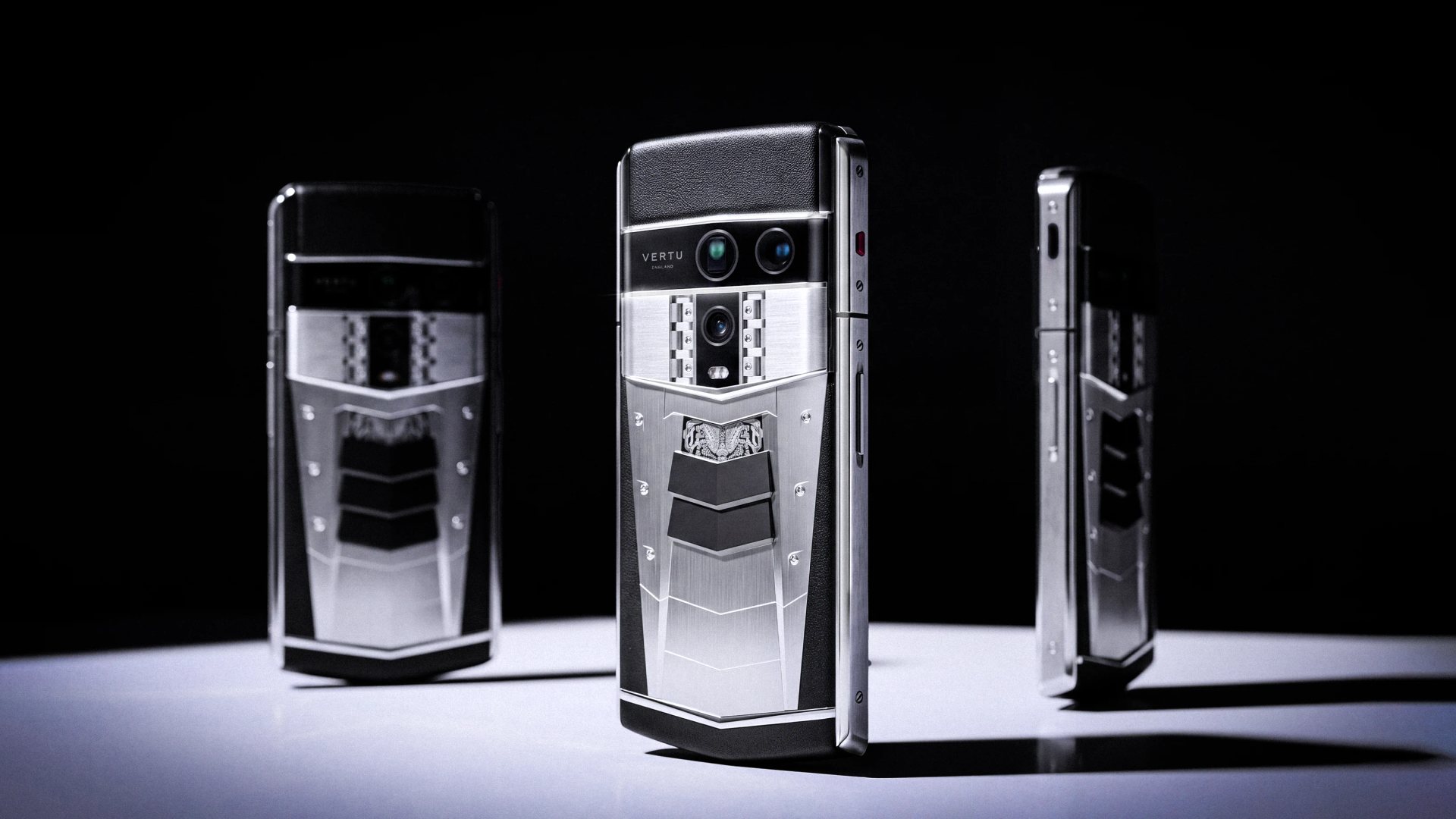
The published VERTU ALPHAFOLD feature list includes voice control for turning on a hotspot. That can provide another way to reach the phone control; it does not change the mobile plan, strengthen the carrier signal or guarantee tethering availability in every market. See VERTU ALPHAFOLD with Hermes Agent for the product’s listed voice-control features.
After activation, the same setup checks apply: confirm that mobile data works, secure the hotspot with a password, connect the intended device and monitor data use. Feature availability can depend on software version, regional availability and user authorisation.
Frequently Asked Questions
Can I use my phone as a hotspot without Wi-Fi?
Yes. A mobile hotspot can share the phone’s mobile data connection without the phone being connected to a Wi-Fi router. You still need mobile coverage and a plan that permits tethering.
Does a phone hotspot use my mobile data?
Yes. Data used by connected devices generally counts toward the phone’s mobile data allowance. Video, updates and cloud backups can use data quickly, so check your plan and the laptop’s background activity.
Can I share my phone’s internet with a computer using USB?
Yes, if the phone, computer and cable support USB tethering. Connect them with a data-capable cable and enable USB tethering in the phone’s settings. Android USB tethering is not supported with Mac computers according to Google’s Android Help.
Why does my laptop connect to the hotspot but have no internet?
The phone may have mobile data turned off, weak coverage, a carrier tethering restriction or a data limit. Check that the phone can access the internet over mobile data, then reconnect the laptop and verify the plan.
Should I leave my phone hotspot on all day?
Usually, turn it off when you have finished sharing the connection. This limits unnecessary battery use and reduces the time the hotspot remains available to nearby devices.
Conclusion
A phone hotspot gets a laptop or tablet online by sharing the phone’s mobile connection. Choose Wi-Fi for convenience, USB for a compatible wired connection, or Bluetooth for lighter use; check the plan, band compatibility, data settings and battery before a long session. Explore VERTU’s practical phone guides for more advice on using mobile technology while travelling and working.