Key Takeaways
- On many Android phones, open the first app, go to Recents, choose its split-screen command and then select a second app.
- On supported foldables and large-screen devices with a visible Taskbar, you may be able to drag a second app into the display to start split screen.
- Menu labels and gestures vary by device, Android version and app support. Not every app can run in split screen.
- A foldable’s larger inner display provides more room for two panes, but does not by itself guarantee a specific split-screen feature or app compatibility.
To use split screen on Android, open one app, select its split-screen command from Recents, then choose a second app. On some supported foldables and large-screen devices, you can instead drag an app from the Taskbar. Controls vary by phone and software version; this guide covers both common methods. For context on using a large-screen foldable for productivity, see the related VERTU guide.
Before you start: check app and device support
Split screen requires support from both the phone’s software and the apps you want to use. Some apps do not offer a split-screen option, and menu names or gestures can differ between manufacturers and software versions.
Open both apps once before starting. If your phone uses gesture navigation, learn how to open Recents; with three-button navigation, use the Recents or Overview button. On a foldable, unfold the device if you want to use its larger inner display.
Split screen is different from picture-in-picture. Split screen gives each app part of the display, while picture-in-picture places supported content—often a video—in a small floating window over another app.
How to use split screen from Recents
On many Android phones, open the first app, find it in Recents and choose the split-screen command from its app menu.
- Open the first app. Start with the app you want to keep visible.
- Open Recents. With gesture navigation, swipe up from the bottom and pause. With three-button navigation, tap Recents or Overview.
- Open the app menu. In Recents, tap the app icon above its preview card. Depending on the phone, you may need to tap a menu button instead.
- Choose the split-screen command. It may be labelled Split screen, Split screen view or Open in split screen view.
- Select the second app. Choose it from Recents or another app-selection screen offered by your phone.
- Confirm both apps appear. If the second app opens full-screen, try again with an app that supports split screen.
For example, Google’s Pixel instructions use the app’s Recents menu, while Samsung calls its option “Open in split screen view.” These are common patterns, not universal labels.
How to start split screen from a Taskbar
On supported large-screen devices that provide a Taskbar, you can often drag an app icon from the Taskbar to one side of the display to start split screen. The Taskbar is not present or used in the same way on every Android phone.
- Open the first app. On a foldable, unfold the device if the Taskbar is available only on its inner display.
- Reveal the Taskbar. On some devices, slowly swipe up from the bottom edge to show it.
- Touch and hold the second app icon.
- Drag the icon to a screen edge. The supported position may be left, right, top or bottom, depending on the device and orientation.
- Release the icon and check the layout. If it opens as a full-screen app instead, use the Recents method or check your manufacturer’s instructions.
Android 12L introduced Taskbar-based multitasking for large-screen devices, including dragging apps into split screen. Actual Taskbar availability and controls still depend on the device’s software and interface. Google documents the drag method for Pixel Fold, and Samsung documents it for supported Galaxy Z Fold devices.
Split-screen methods by Android interface
The Recents method is the most broadly useful starting point, while Taskbar and edge-panel shortcuts are specific to supported devices.
| Device or interface | Common method | What to keep in mind |
|---|---|---|
| Pixel phones | Open Recents, tap the app icon and choose Split screen. | Some steps and labels depend on the Android version; not all apps support split screen. |
| Pixel Fold | Use Recents, or reveal the Taskbar and drag an app to one side. | Taskbar instructions apply to the supported Pixel Fold experience, not every Android phone. |
| Samsung Galaxy | Open Recents, tap the app icon and choose Open in split screen view. | Supported models may also offer Taskbar, Edge panel or Multi window shortcuts. |
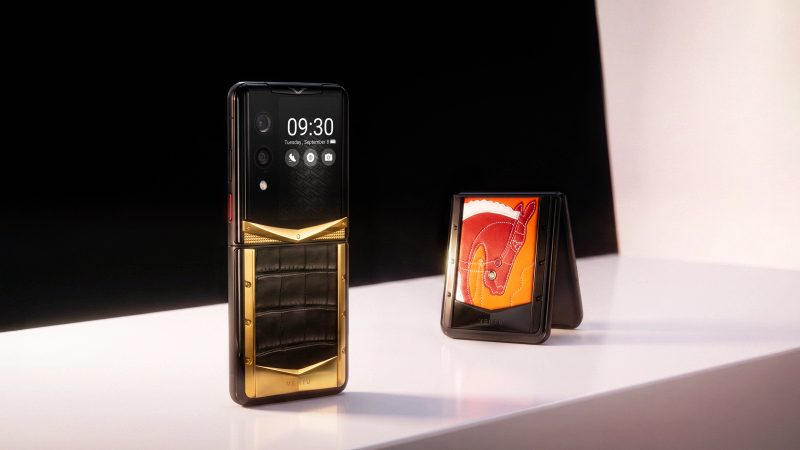
| VERTU ALPHAFOLD | Use the method provided by the device’s installed Android interface, if available. | VERTU lists an 8.05-inch inner display; its public product information does not establish a specific Taskbar or split-screen procedure. |
For the exact steps on your model, follow the device maker’s current support instructions: Google’s Pixel split-screen instructions, Google’s Pixel Fold Taskbar and split-screen instructions and Samsung’s Taskbar guide for Galaxy Z Fold devices.
How to resize the split-screen panes
Drag the divider between the two apps to give one pane more space. The available divider positions depend on the device and app layout, so fixed ratios should not be assumed.
- Touch the bar or handle between the apps.
- Drag it toward the app you want to make smaller.
- Release it when the two panes are comfortable to use.
If the divider will not move, the layout may be fixed or one app may limit resizing. Rotating the device may change the arrangement, but some apps restart or do not support the new orientation.
How to exit split screen
Drag the divider all the way toward a display edge to return one app to full screen. On a portrait phone, that is usually the top or bottom edge; the direction can change with orientation and device software.
You can also press Home to leave the split-screen view. The apps may remain in Recents, so leaving the view does not necessarily close them.
What to do if split screen is missing or will not work
If the split-screen command is missing, the app or the phone’s software may not support that combination.
- Try another app pair. Keep the first app open and test with a different app.
- Check the app menu in Recents. Some phones show the option only after you tap the app icon on its preview card.
- Look for a device-specific shortcut. Some Samsung devices offer Multi window or an Edge panel; supported foldables may provide a Taskbar.
- Update the phone and apps. Menu behavior and multi-window support can change with software updates.
- Restart the phone if the option should be available but does not respond. Then test again with a different app.
Do not assume every app can be forced into split screen. Developers and device software can restrict how an app behaves in a multi-window layout.
Does a foldable change how split screen works?
A foldable gives two apps more display area, but its split-screen controls still depend on the installed software and app support. The larger screen changes the available workspace; it does not guarantee that every app can run side by side.
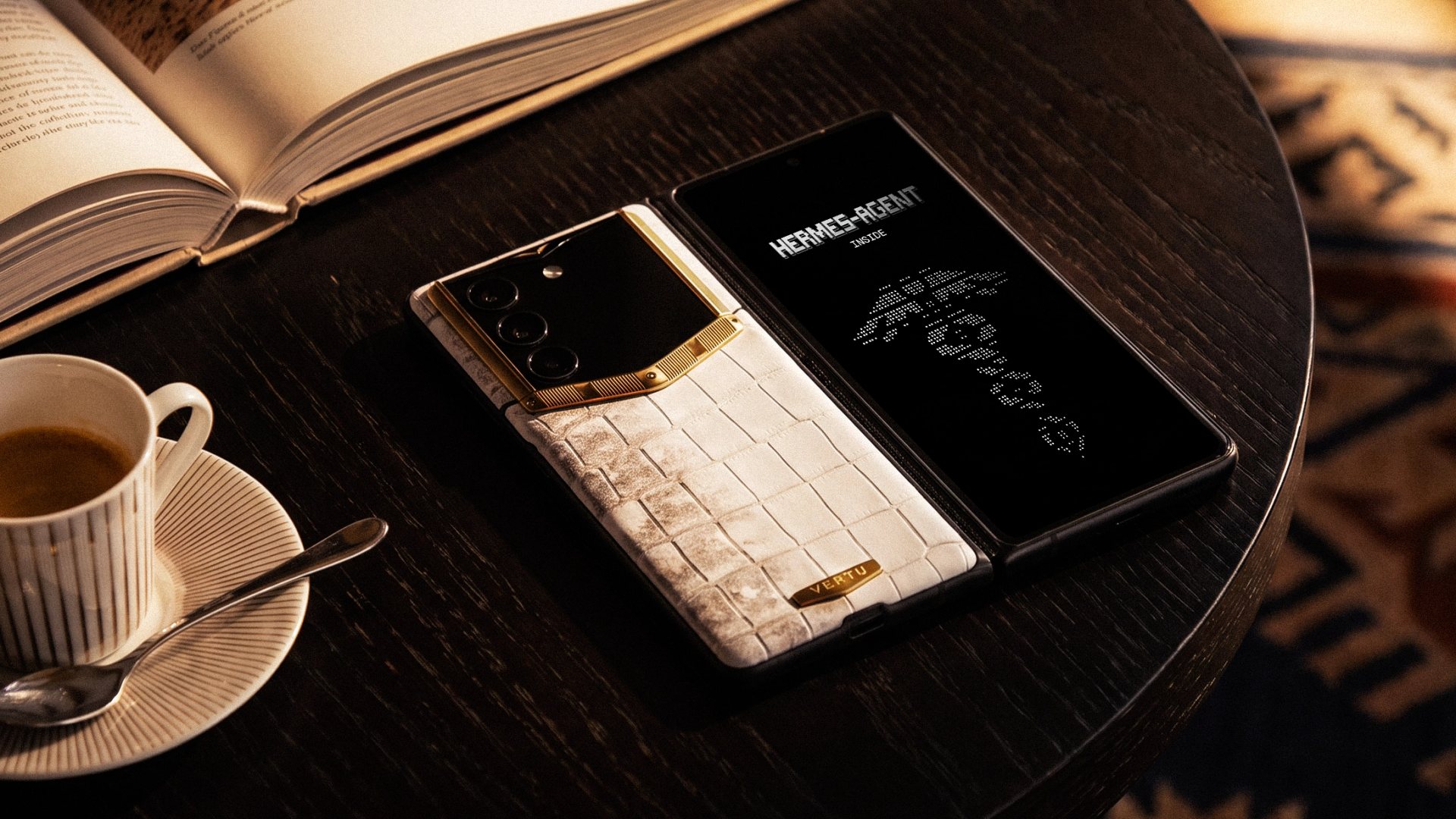
VERTU lists an 8.05-inch inner display for ALPHAFOLD, which provides a larger canvas for viewing content. That display size is useful context when considering a foldable, but it does not by itself confirm a Taskbar, a particular split-screen sequence or compatibility with every app. For a separate perspective on AI multitasking on foldable phones, see the related VERTU article.
FAQ
Can every Android app be used in split screen?
No. Split screen works only when the app and device software support multi-window use.
How do I open two apps at once on Android?
Open the first app, choose its split-screen command from Recents, then select the second app.
Can I use Taskbar drag-and-drop on every Android phone?
No. Taskbar drag-and-drop is available only on devices whose software provides a compatible Taskbar.
How do I resize apps in split screen on Android?
Drag the divider between the apps toward the pane you want to make smaller; available positions vary by device and app.
Conclusion
Start with Recents if you are unsure which split-screen method your Android phone uses. On a supported large-screen device, Taskbar drag-and-drop may be a quicker alternative. Because app support and controls vary, check the exact model and software rather than assuming foldables work alike. See the VERTU ALPHAFOLD display details for the listed inner-screen size.