An Android to Android transfer works best when both phones are charged, connected to reliable Wi-Fi, and available during the new phone's initial setup. Make a current backup, confirm that you can sign in to your Google account and important apps, then use the setup screen to copy data by compatible cable or wireless connection. Before resetting the old device, verify photos, messages, files, authenticator access and payment apps on the new one. A transfer-complete message is not the same as a complete personal handover.
Key Takeaways
- Start the copy during initial setup when possible; some Android transfer options are limited afterwards.
- Back up the old phone and check available space on the new one before connecting.
- A compatible cable and wireless transfer can copy similar categories; follow the prompts for your exact devices.
- Downloads, hidden folders, some app data and non-Google accounts may need separate attention.
- Keep the old phone active until you have tested calls, messages, photos, banking and two-factor authentication.
What should you do before touching the new phone?
Charge both devices and check that the old one can unlock. Know the Google account password and screen-lock code, and have any work-account credentials available. Google recommends an internet connection for copying data and Wi-Fi on both phones. Set aside more time than the optimistic progress bar suggests: the amount of local media and the network connection can make the process last from minutes to hours. Put the phones where they will not be interrupted by a low battery or a temporary public network.
Open the old phone's storage settings and compare used space with the capacity of the new phone. If the destination is smaller, decide in advance which photos, videos or offline downloads can stay in cloud storage or on another backed-up drive. This is also the moment to update the old device and apps if an important transfer tool requests it. Do not delete anything solely to make room until a verified copy exists elsewhere. Write down unusual data sources such as a work profile, a local note app or a folder outside your camera roll.
How do you make and verify a backup?
On a standard Android device, Google's current help path is Settings, Google, All services, then Backup under Backup and restore. Choose “Back up now” and inspect Backup details to see what is included. Menus can vary by maker and Android release. Photos and videos may rely on Google Photos backup; local files may need Google Drive or another file backup. Do not assume one device-backup switch covers every folder and every application. Check the date of the latest successful backup before starting the handover.
Google says some apps cannot back up or restore all their settings and data. Message apps, password managers, authenticator apps, banking apps and games may have their own transfer or sign-in steps. Open those apps on the old phone and read their official move-device instructions. For WhatsApp, Google notes that chats are restored from cloud backup after sign-in, so enable its backup on the old device before switching. Keep recovery codes and an alternative sign-in method accessible without relying on the phone you are about to erase.
How do you run an Android-to-Android transfer during setup?
- Power on the new phone and connect it to Wi-Fi or mobile data.
- When the setup flow offers “Copy apps & data,” choose Copy.
- Select a compatible cable if available, or follow the wireless path shown on screen.
- Unlock the old phone, approve the connection and check that both devices show matching prompts.
- Choose the categories to copy and let the process finish without unplugging or interrupting the phones.
- Sign in to your Google account when prompted and allow additional app restoration time.
These are the general steps in Google's Android transfer guide. A manufacturer may add its own screen or transfer app. Google says cable and wireless methods support the same broad data categories in the standard Android flow. Cable is a convenient first option if you have the proper connectors or adapter; wireless remains useful if you do not. Do not connect an unknown computer or install an unverified “transfer helper” from a pop-up advertisement.
What normally copies, and what may not?
| Often included in standard setup copy | Requires separate checking |
|---|---|
| Contacts, text messages and call history | Contacts or calendars in non-Google accounts |
| Photos, videos and music in supported locations | Media in hidden folders and offline downloads |
| Apps and some app data | Apps outside Google Play and apps without backup support |
| Many device settings | Ringtones and settings that differ by phone or Android version |
Google explicitly lists downloads such as PDFs, media in hidden folders, non-Play apps, non-Google account data and some app data among items that may not copy in its standard setup flow. Use that list as a prompt for verification, not as a promise that every other item will be identical. A photo service may show cloud images before the full local library has downloaded. A messaging app icon may appear before its message history is restored. Check content, not merely whether an app opens.
How do you handle eSIM, SIM and service access?
Phone number transfer and data copy are related but separate tasks. If you use a physical SIM, you may need a SIM tool to move it, subject to the new device's support. For an eSIM, follow your carrier's activation or transfer procedure. Keep the old phone connected until calls and SMS arrive on the new one. This matters because some account sign-ins send a verification code to that number. If you are changing carrier or region at the same time, do that deliberately rather than assuming Android setup will resolve the service plan.
Test an incoming and outgoing call and a text from another phone. Then test mobile data away from Wi-Fi. A successful Wi-Fi-based setup can hide an unactivated mobile line. Also check voicemail, emergency-contact information and any carrier app you rely on. If a bank or payment wallet has locked itself to the old device, follow its official enrollment path. Do not share one-time passcodes with a supposed support agent during the move.
What about two-factor authentication and work apps?
Authenticator apps can be the most consequential exception to a routine transfer. Some sync through an account; others require an explicit export, QR-based migration or fresh enrollment. Consult the app's official instructions while the old device still works. Verify that you can generate or receive codes on the new device for at least one important account before discarding the old one. Save recovery codes in a secure location outside either phone. If you use a hardware security key, confirm that it works with the new connector or wireless method.
Business or school management can restrict what is copied. Google's help notes that organization-managed phones may not transfer all data. Contact your IT administrator about work profiles, device management, VPN certificates and approved app enrollment. A personal cloud backup should not be used to move restricted business information against policy. Separate personal and work checklists make the process clearer and reduce the risk of mixing accounts on the wrong device.
How do you verify an Android transfer before erasing the old phone?
- Compare the newest photo and a few older albums on both devices.
- Open a downloaded PDF and a file from a non-camera folder.
- Check contacts, call history and a recent message thread.
- Sign in to banking, messaging, email and work apps.
- Test authenticator codes, passkeys or recovery methods.
- Place a call and send a text over the new mobile line.
- Confirm paid apps, subscriptions and offline maps where relevant.
Use representative samples, not just a total count. A thousand restored thumbnails can hide one missing folder that contains the documents you need. Let app restoration finish; Google says the full restore process can take up to 24 hours. If something is missing, investigate while the old phone remains available. Once you have a verified backup and successful sign-ins, follow the manufacturer's instructions to remove accounts and factory-reset the old device before sale or recycling. Do not reset it because the new phone merely looks usable.
How does this apply to VERTU Agent Q or ALPHAFOLD?
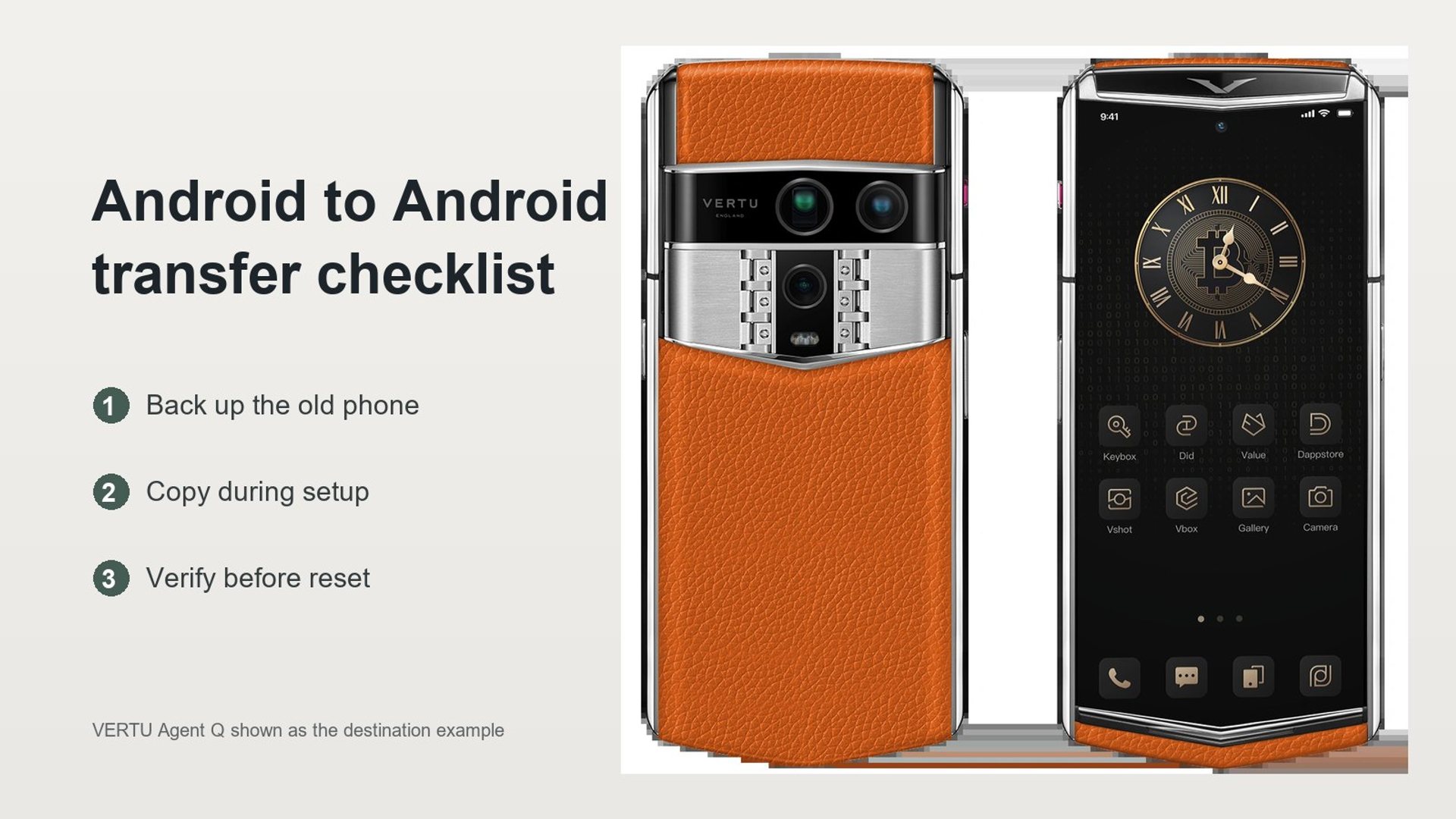
VERTU positions Agent Q and ALPHAFOLD as distinct phones with their own software and service features. The general Android-to-Android checklist remains useful, but a VERTU buyer should follow the on-device setup prompts and the current support instructions for the exact model. Do not assume every Google Pixel or Samsung menu appears identically. Confirm storage capacity, app availability, account permissions and any VERTU-specific service enrollment separately from the basic data copy.
For an executive handover, add a second verification pass for encrypted communications, concierge or agent permissions, work profiles and any private storage area used on the old phone. Those may require new authorization rather than a copied setting. The article does not claim a tested migration between particular VERTU models. It supplies a controlled sequence that preserves the old device until personal and business workflows actually work on the new one.
How much time and free space should an Android transfer have?
Google’s Android transfer instructions say to check storage on both devices and allow anything from a few minutes to a few hours. The exact transfer time depends on the amount copied and connection, so there is no honest universal MB-per-second promise. If the destination has insufficient free space, choose a smaller set to copy and verify omitted downloads separately.
Frequently asked questions
Can I transfer Android data without a cable?
Yes. Google's standard setup supports a wireless path when a compatible cable or adapter is unavailable. Keep both devices charged and follow the pairing prompts on each screen.
Will every app's data transfer?
No. Some apps do not participate fully in Android backup or need their own sign-in and restore steps. Check important apps individually before erasing the old phone.
Can I copy data after initial setup?
Some devices offer additional options, but availability varies. Google recommends doing the main copy during setup because the initial transfer opportunity may not be available later.
When can I reset my old Android phone?
After you have verified a backup, restored critical content, tested your mobile line and confirmed access to important accounts and two-factor authentication on the new device.
Conclusion
An Android to Android transfer is complete only when the new phone passes a real-use checklist. Back up first, copy during initial setup, then verify files, messages, service activation and account access while the old phone is still intact. Whether your destination is a standard Android device, VERTU Agent Q or ALPHAFOLD, keep the original device available until every critical workflow has been checked.