

A task tracker app should help a person capture the next action, decide when to do it and find the information needed to finish it. For an individual, the best tool is usually the one that is quick enough to use every day and clear enough to trust after a busy week. This guide explains how to choose a personal task system without building an elaborate board that demands more attention than the work itself.
Key Takeaways
- Capture tasks as actions with a clear completion condition, not vague topics.
- Separate a personal plan from a team’s official task record.
- Test quick capture, review, reminders and export before choosing an app.
- Use a one-week pilot and measure missed commitments, not how many tasks you enter.
What should a personal task tracker do?
A useful tracker stores commitments outside your memory and gives you a reliable view of what matters next. It should let you add a task quickly, attach enough context to resume it, choose a due date only when there is a real deadline and mark the action complete when the outcome is verifiable. A list of “finance”, “presentation” and “client” is less helpful than three actions such as “confirm the approved invoice amount”, “send the revised slide deck to the reviewer” and “call the client about the delivery date”.
Personal planning is distinct from team accountability. You may keep a reminder to review a report, but the official project task may belong to someone else. If both live in separate tools, link your reminder to the team record rather than copying the whole project into a private list. That makes it easier to find the latest status and avoids two conflicting versions of the work.
Five features that matter more than a long menu
Fast capture
During a meeting, can you add a task in a few seconds without deciding on a folder, colour, priority and due date first? Capture should be low friction; organising can happen during review. Test the device you actually use when work arrives, including keyboard and mobile input.
A useful daily view
The “Today” list should show what you intend to do, not every task in the database. Check how the app handles overdue items. A growing wall of red dates may create noise rather than clarity. Prefer a view that lets you renegotiate a commitment, defer it with a reason or identify the next small action.
Review and search
Set aside a short weekly review to find unassigned commitments, tasks waiting on others and items with no next action. Test whether you can find a task by person, project or phrase without remembering exactly where it was stored. A tracker is only dependable if old commitments can be resurfaced.
Context and links
A task should point to the source document, email or official project record. Avoid pasting sensitive material into a personal tool without confirming the organisation’s rules. A link and a concise note may be enough to resume the work while keeping the underlying information in its authorised location.
Export and continuity
Before adopting an app, export a sample list and see whether titles, dates, notes and completed items remain usable. Check what happens when you change devices or lose connectivity. The best design is of limited value if your commitments are difficult to recover.
A one-week test that reveals the fit
- Write down 15–20 real commitments from the coming week, including one with a deadline, one waiting on someone else and one linked to a team project.
- Capture them as actions. Give each an outcome and add a date only where the date matters.
- Each morning, choose a small set of tasks for the day. Do not treat the entire backlog as a daily obligation.
- At the end of the day, review what moved, what was blocked and whether the app helped you find the next step.
- After a week, count missed commitments, duplicate entry and time spent organising the tool. Export the list once.
If you repeatedly avoid opening the app, the problem may be friction rather than discipline. Remove unnecessary fields before switching products. If you can capture quickly but cannot distinguish personal reminders from shared obligations, add links to the official team system or use a tool designed for collaboration.

When the work outgrows a personal app
A useful hand-off from personal to shared work
When a reminder affects someone else, create or update the official team task and keep a link in your personal app. Check that the shared record has an owner, due condition and the evidence needed for completion. Avoid using a private note to change a deadline or promise work on another person's behalf. This small habit prevents the personal tracker from becoming a parallel project system whose status nobody else can verify.
A private task list is useful for managing your own attention. It becomes insufficient when several people must agree on an owner, share evidence, review completion or see the effect of a delay on a project. In that case the team needs a common record with permissions, status definitions and decision rights. Keep your personal reminder if it helps, but let the shared system hold the official task.
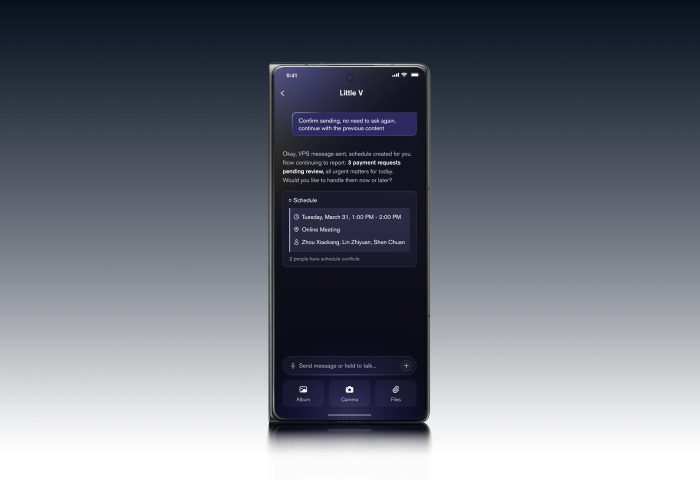
The VERTU VPS page shows project tasks in a broader business workspace. This can be relevant for leaders who need to review authorised team work and the business context around it. The page does not imply that VPS should replace every individual to-do list. Evaluate its role through the particular team workflow and permissions available to your organisation.

Review the cost of the system itself
At the end of a month, ask whether the app still saves attention. Count reminders that were ignored, tasks duplicated from another system and time spent rearranging labels. Keep only the views and fields that improve a decision. If the system requires constant grooming to remain credible, a simpler list or better connection to the official team workspace may work better.
Common mistakes
Adding a due date to everything turns a planning view into a false urgency signal. Treating a recurring reminder as evidence that work was accepted confuses activity with outcome. Duplicating a team task into a personal list without a link can hide changes. And measuring productivity by the number of checked boxes rewards small tasks over important decisions. A tracker should support judgement, not replace it.
How can you measure whether a task tracker saves time?
Run a seven-day baseline and a seven-day app trial using the same type of work. Count tasks captured, tasks completed on time and minutes spent finding or re-entering information. If a hypothetical user spends 25 minutes a day searching for task details before the trial and 15 minutes during it, that is a ten-minute observed difference in the example, not a guaranteed saving from any app. Record interruptions and changed workload so the comparison is interpretable. Microsoft's task guidance documents due dates and reminders, while Asana's project guidance illustrates descriptions, assignees and due dates; neither source promises a universal productivity gain.
FAQ
Do I need priorities for every task?
No. Start with clear actions and a daily review. Use priority labels only if they help you make a real trade-off rather than marking everything urgent.
Should I combine personal and work tasks?
Use a method that lets you plan your day without copying restricted business details into an unauthorised app. Keep the organisation’s official tasks in the approved workspace.
Is a task tracker the same as project management software?
No. A personal tracker focuses on your next actions. Project software also manages shared outcomes, dependencies, owners, risks and approvals.
Conclusion
Choose a task tracker app by testing whether it helps you capture, review and complete real commitments during an ordinary week. Keep the system simple, link personal reminders to official team records and measure missed work rather than the size of your list. Move shared accountability into a common workflow when other people depend on the result.