| Feature | Gboard | SwiftKey | HeliBoard | Grammarly |
|---|---|---|---|---|
| Primary Focus | Ecosystem Integration | AI Prediction | Privacy & Security | Grammar Correction |
| Offline Use | Robust | Supported | Fully Offline | Limited |
| Key Strength | Swipe & Search | Slang Learning | Data Safety | Writing Quality |
| Customization | Themes & Layouts | Theming | Deep Layout Control | Style Suggestions |
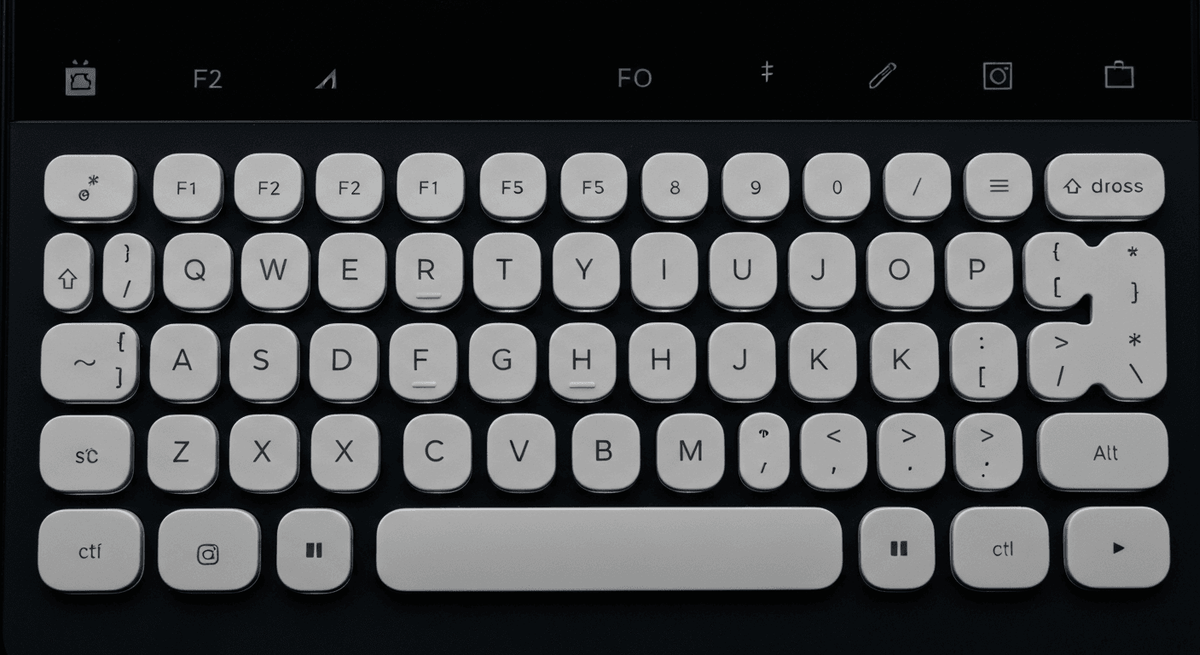
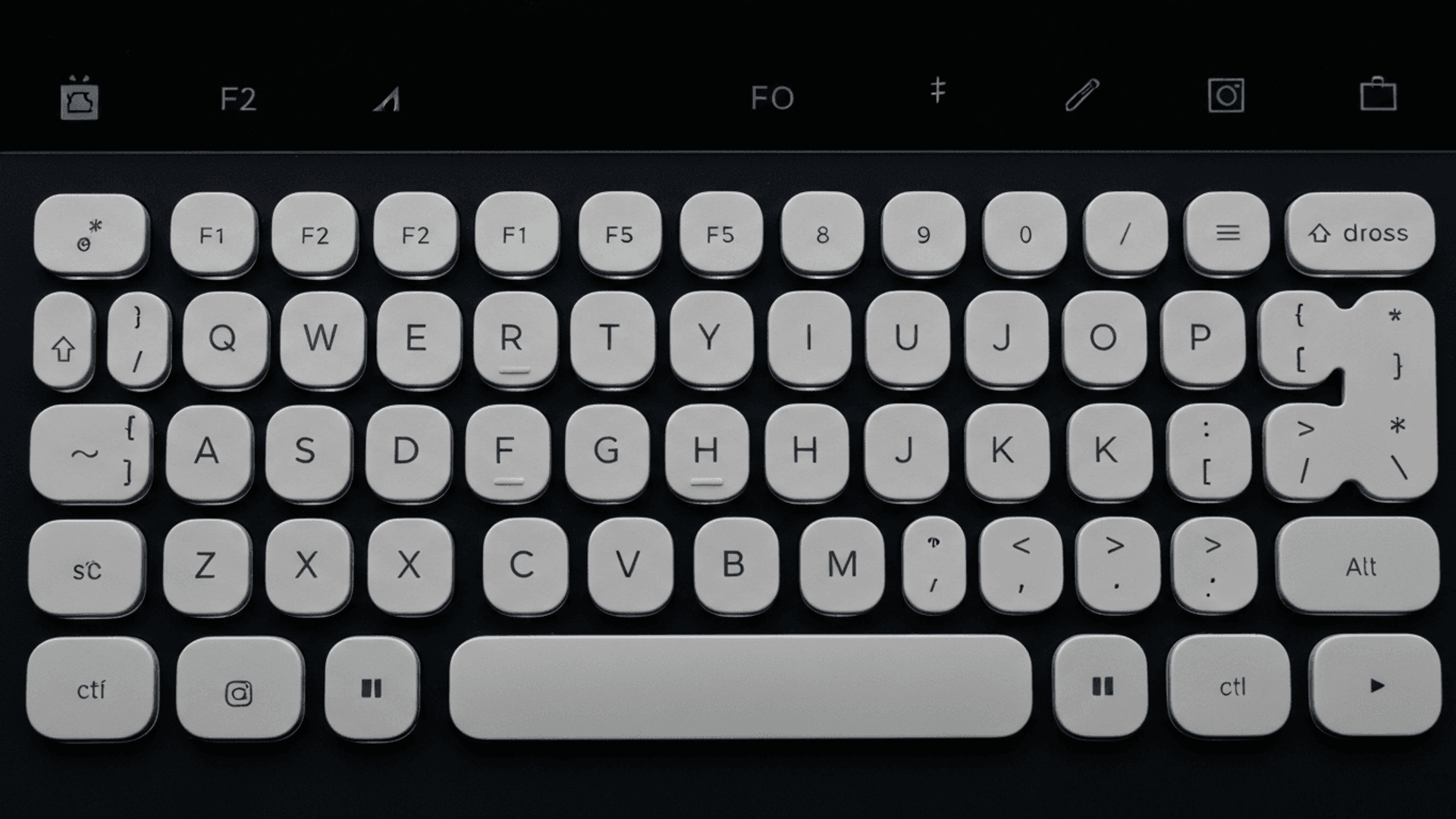
How many times a day do you tap on your screen to send a message, search the web, or draft an important email? In the fast-paced digital landscape of 2026, efficient communication is paramount, making your input method the unsung hero of your daily routine. Your android phone keyboard is arguably the most essential tool on your device, yet its full potential often remains locked behind basic default settings.
If you are still struggling with slow typing speeds or constantly battling aggressive autocorrect, you are missing out on a truly seamless digital experience. This comprehensive guide is designed to demystify the technology right at your fingertips. We will explore the top-rated keyboard options available today, dive deep into essential customization settings, and provide practical solutions for troubleshooting common performance issues. Whether you want to master gesture typing or simply find a layout that better suits your personal style, we have you covered. Read on to transform your daily interactions and optimize your mobile typing experience for maximum efficiency.
Top Android Phone Keyboard Options and Customization
Selecting the right android phone keyboard is essential for optimizing your daily communication. While many devices come with a pre-installed option, the Android ecosystem offers a diverse range of input methods tailored to speed, privacy, and creative expression. Whether you prioritize AI-driven predictions or strict data security, understanding your options allows you to tailor the typing experience to your specific needs.
1. Gboard
As Google's flagship keyboard app, Gboard serves as the default android phone keyboard for millions. It excels due to its seamless integration with the Google ecosystem. Users benefit from accurate swipe-typing , fluid gestures, and intelligent autocorrect that adapts to personal typing habits over time. Key productivity features include a convenient clipboard manager, an always-on number row, and quick access to GIFs and emojis. Furthermore, its robust offline functionality ensures you can type effectively even without an internet connection.
2. SwiftKey
SwiftKey is renowned for its exceptional typing accuracy and smart predictions. Utilizing advanced AI features , it learns your unique slang, nickname usage, and emoji preferences to make typing significantly faster. This efficiency makes it a top contender for users who find standard autocorrect systems lacking in nuance.
3. HeliBoard
For users prioritizing privacy, HeliBoard offers a compelling open-source alternative. Unlike cloud-based options, this keyboard runs entirely offline , ensuring your keystroke data remains strictly on your device. It boasts deep customization options, allowing users to tweak themes, layouts, and custom dictionaries to suit their exact preferences without compromising security.
4. Fleksy
Fleksy targets users who prioritize rapid input above all else. It has earned a reputation for impressive speed, holding a Guinness World Record for the fastest touchscreen typing. Its minimalist design and gesture-based interface remove clutter, allowing for a high-velocity typing experience.
5. Grammarly
The Grammarly keyboard extends powerful real-time grammar checking capabilities directly to your mobile device. It focuses on improving writing quality by catching errors and offering vocabulary suggestions as you type. However, users should be aware of potential privacy concerns, as the service requires data processing to analyze text for grammatical accuracy.
6. Florisboard
Florisboard is an intriguing option currently in active development. It positions itself as a future contender in the open-source space, focusing on extensibility . The goal is to provide a flexible, adaptable user experience that can grow with community contributions, making it one to watch for enthusiasts.
7. FUTO Keyboard
Distinguishing itself with a clean design, the FUTO Keyboard is an alpha-stage application. It offers native swipe typing capabilities and stands out by offering offline voice input . This feature is particularly valuable for users who want voice-to-text convenience without sending voice data to the cloud.
8. Mastering Input Methods
Understanding your phone's input method framework is key to optimizing your experience. Android allows you to install multiple virtual keyboards and switch between them instantly. Managing these settings effectively ensures you can use a grammar-focused keyboard for emails and a privacy-focused one for sensitive messaging.
9. Custom Keyboard Android Options
Exploring custom keyboard android options can significantly enhance your digital life. Whether you seek a simple keyboard for minimalism, an emoji keyboard android powerhouse for social media, or a privacy keyboard for security, the market offers solutions to tailor the virtual interface to your specific requirements.
10. Troubleshooting Common Keyboard Issues
Experiencing keyboard issues is common, but often easily resolved. To fix android keyboard issues —ranging from unresponsive keys to autocorrect malfunctions—users should first try clearing the app's cache or checking for updates. If problems persist, switching to a different input method via the settings menu often restores a smooth typing experience.
Note: When selecting an alpha-stage product like FUTO or a dev-focused app like Florisboard, expect occasional bugs as these platforms are refined.
By exploring these diverse options, you can transform your android phone keyboard from a basic tool into a personalized asset for productivity and privacy.
Understanding Your Android Keyboard Settings
Your smartphone experience hinges significantly on how efficiently you can input text. Mastering the settings of your android phone keyboard can transform daily communication from a tedious chore into a seamless, personalized experience. By diving into these configurations, you can tailor the interface to match your specific aesthetic preferences and typing habits.
Customizing Layouts and Themes
Don't settle for the default factory look. Modern Android keyboards, such as Gboard or Samsung Keyboard, allow you to personalize layouts to fit your hand size and visual taste. You can choose from various themes—ranging from high-contrast dark modes to vibrant gradients—or even use a personal photo as a background.
Tip: If you have a large screen, explore the "One-handed mode" or adjust the keyboard height setting to reduce thumb strain.
Beyond aesthetics, efficiency is key. You can set up custom dictionaries (personal shortcuts) where typing "omw" automatically expands to "On my way!" for a truly personalized virtual keyboard experience.
Adjusting Autocorrect and Prediction
The goal of smart typing is assistance, not interference. Fine-tune autocorrect and prediction settings to match your typing style. If you use technical jargon or multiple languages, aggressive autocorrect might be a hindrance. You can adjust sensitivity, block offensive words, or disable suggestions entirely to improve your typing experience.
| Feature | Function | Best For |
|---|---|---|
| Next-word Prediction | Suggests words based on context | Speeding up common phrases |
| Auto-correction | Automatically replaces typos | Fast, approximate typists |
| Spell Check | Underlines errors without changing them | Precision editing |
| Personal Dictionary | Remembers user-specific slang | Niche technical writing |
Enabling and Disabling Gestures
For many users, tapping individual keys is slower than the alternative. Explore gesture typing options, commonly known as "Swipe" or "Glide" typing . This feature allows you to slide your finger from letter to letter without lifting it, which can significantly speed up your input, especially during one-handed use. Learn how to enable or disable these features within your keyboard settings to find the rhythm that works best for you.
Troubleshooting Common Android Keyboard Problems
Nothing disrupts productivity faster than a glitchy android phone keyboard . Whether you are typing an urgent email or a quick text, input delays and erratic behavior can turn a simple task into a frustration. Fortunately, most issues stem from software glitches that are easily rectified with standard maintenance steps.
Fixing a Lagging or Unresponsive Keyboard
Lag often occurs when the app accumulates too much temporary data or runs an outdated version. To resolve lagging or unresponsive virtual keyboard problems, navigate to Settings > Apps > [Your Keyboard] > Storage and select "Clear Cache." If the issue persists, ensure the app is updated via the Google Play Store.
Pro Tip: If the keyboard freezes completely, a "Force Stop" in the app settings can jumpstart the process without deleting your data.
Compare these common solutions to determine the best approach for your specific issue:
| Troubleshooting Method | Function | Best Used For |
|---|---|---|
| Clear Cache | Removes temporary junk files | Minor lag or slow typing response |
| Force Stop | Kills the app process immediately | Frozen or completely unresponsive UI |
| Update App | Installs latest patches/bug fixes | Persistent crashes or known bugs |
| Restart Device | Clears system RAM | System-wide performance issues |
Resolving Autocorrect Errors
If your keyboard is making incorrect predictions or autocorrecting words inaccurately, it likely learned typos from previous usage. To improve your typing experience, you must retrain the algorithm.
Remove specific words: Long-press the incorrect suggestion in the prediction bar and drag it to the trash icon.
Full Reset: Go to the keyboard settings and look for "Reset Dictionary" or "Clear Personal Data." This restores the keyboard's learning capabilities to factory defaults.
Addressing Input Method Conflicts
Users often install multiple third-party apps (like Gboard, SwiftKey, or Grammarly), leading to system conflicts. If the keyboard disappears or switches unexpectedly, check your default settings. Navigate to System > Languages & input > On-screen keyboard . Ensure only your primary keyboard is active to resolve conflicts between multiple input methods.
Choosing the Best Android Keyboard App for You
Selecting the right input method is critical for maximizing productivity and comfort on your mobile device. Whether you are drafting professional emails or sending quick texts, the right android phone keyboard can significantly enhance your typing experience by adapting to your unique style and security needs.
Features to Consider in 2026
As mobile technology evolves, the expectations for keyboard applications have shifted from simple text entry to intelligent assistance. In 2026, the criteria for selecting a top-tier keyboard have expanded beyond basic layout changes.
Advanced Prediction & AI: Look for keyboards that utilize neural networks to understand context, predicting entire phrases rather than just words.
Extensive Customization: The ability to adjust key height, haptic feedback duration, and themes is essential for ergonomic comfort.
Robust Privacy Controls: With data sensitivity at an all-time high, users must verify if a keyboard requires internet access to function.
Note: Modern keyboards should offer a balance between cloud-based AI learning and on-device processing to ensure speed without compromising security.
Privacy-Focused Options
For users prioritizing data security, the landscape has shifted toward open-source solutions that guarantee no data leaves your device. While mainstream apps often sync dictionaries to the cloud, privacy-centric alternatives focus on isolation.
We recommend exploring options like HeliBoard . This app stands out for its commitment to open-source transparency and offline functionality. By removing internet permissions entirely, HeliBoard ensures that your sensitive information—passwords, credit card numbers, and personal conversations—remains strictly on your device. It proves that you do not need to sacrifice a smooth typing interface to achieve peace of mind.
Best Keyboard App for Android: Our Picks
After analyzing the current market, we have identified three standout applications that cater to different user profiles. Our top picks include Gboard for its seamless ecosystem integration, SwiftKey for its legendary predictive power, and HeliBoard for those seeking a simple keyboard with strong privacy.
The following table compares these top contenders to help you decide:
| Feature/Metric | Gboard | Microsoft SwiftKey | HeliBoard |
|---|---|---|---|
| Best For | Google Ecosystem Users | Heavy Typists & Multi-linguals | Privacy Advocates |
| Key Strength | Integrated Search & Translate | Superior Next-Word Prediction | Offline & Open-Source |
| AI Integration | High (Cloud-assisted) | High (Cloud-assisted) | None (On-device logic) |
| Data Privacy | Standard (Data Syncs) | Standard (Data Syncs) | Maximum (No Internet Access) |
| Customization | Moderate | High | High |
By weighing the convenience of AI assistance against the necessity of data privacy, you can select the tool that best fits your digital life in 2026.
FAQ (Frequently Asked Questions)
Q1: How do I change the default keyboard on my Android phone?
A1: Changing your default android phone keyboard is simple. Navigate to Settings > System > Languages & input > On-screen keyboard . From there, tap "Manage on-screen keyboards" to enable your new app, then select "Default keyboard" to switch to your preferred option.
Q2: Which Android keyboard is the safest for privacy?
A2: For maximum privacy, we recommend open-source keyboards that do not require internet permission, such as HeliBoard or AnySoftKeyboard . These apps ensure that your keystrokes and personal data never leave your device or sync to the cloud.
Q3: Can I resize the keyboard if I have small hands?
A3: Yes, most major keyboard apps like Gboard and SwiftKey offer a "Resize" or "One-handed mode" feature. You can usually access this through the keyboard's settings menu or the toolbar above the keys, allowing you to shrink the layout or dock it to one side of the screen.
Q4: Why has my keyboard stopped predicting words correctly?
A4: If predictions have become inaccurate, your personal dictionary may be cluttered with typos. You can fix this by clearing the app's cache or navigating to the keyboard's settings to select "Delete learned words" or "Reset dictionary."
Q5: Is it safe to use third-party keyboards on Android?
A5: Generally, yes, especially if you download them from the Google Play Store or trusted open-source repositories like F-Droid. However, always check the permissions requested by the app. A keyboard asking for unnecessary permissions (like camera or microphone access without a valid reason) should be avoided.
Conclusion
In conclusion, mastering your android phone keyboard is no longer just a technical convenience—it is an absolute necessity for efficient and enjoyable communication as we navigate the fast-paced digital landscape of 2026. Throughout this article, we have demystified the complexities of virtual typing, demonstrating clearly how understanding advanced features and resolving common glitches can fundamentally transform your daily interactions. From leveraging smart shortcuts to troubleshooting unresponsive keys, optimizing your virtual interface is the single most effective way to significantly improve your overall device experience.
To truly unlock your phone's potential, you must move beyond the default configuration. We strongly encourage you to explore the diverse ecosystem of third-party applications available. Whether you prefer the seamless integration of Gboard , the intelligent prediction engine of SwiftKey , or the robust security of privacy-focused options like HeliBoard , the perfect tool exists to suit your specific needs.
Ready to type faster and smarter? Don't settle for the basics. Head to your app store now, download one of our top-rated keyboard recommendations, and customize your settings today to experience the difference firsthand!