How to manage background apps on Android: first identify the app causing a specific problem, then review its battery use and permissions before restricting it. Do not close every recent app simply to save power: Android already manages memory, and broad restrictions can interrupt messages, uploads and other work you expect to continue. Use the smallest change that solves the observed problem, then check whether the app still behaves as needed.
This guide draws on Google Android and Pixel help and Android developer documentation checked on 18 November 2026. Settings labels differ by manufacturer, Android version and app. It offers a diagnosis, not a measured battery-saving claim for a particular phone. Any VERTU example below uses documented product facts and does not imply that its settings exactly match a Pixel interface.
Key Takeaways
- A card in Recent apps does not automatically mean the app is actively draining the battery.
- Use battery-usage information to identify an app before changing its background access.
- Restrict one nonessential app at a time and recheck notifications and syncing afterwards.
- Keep background access for apps whose timely alerts or uploads you rely on.
- If the issue persists, update the app and Android, review permissions and consider removing an unused app.
What are background apps on Android?
The phrase can describe several different states. An app may remain visible in Recent apps yet be paused and use little power. Another may run a permitted task, such as playing audio, completing an upload or delivering a message. A third may request location or network access more often than expected. These situations do not call for the same remedy.
Google's Android app guidance notes that you do not need to close apps merely to prevent the phone running out of memory or battery. Android's developer documentation also describes system controls such as Doze and App Standby that defer background activity under certain conditions. The system is already making choices, so manual intervention should answer a concrete symptom.
How do you identify an Android background app using too much battery?
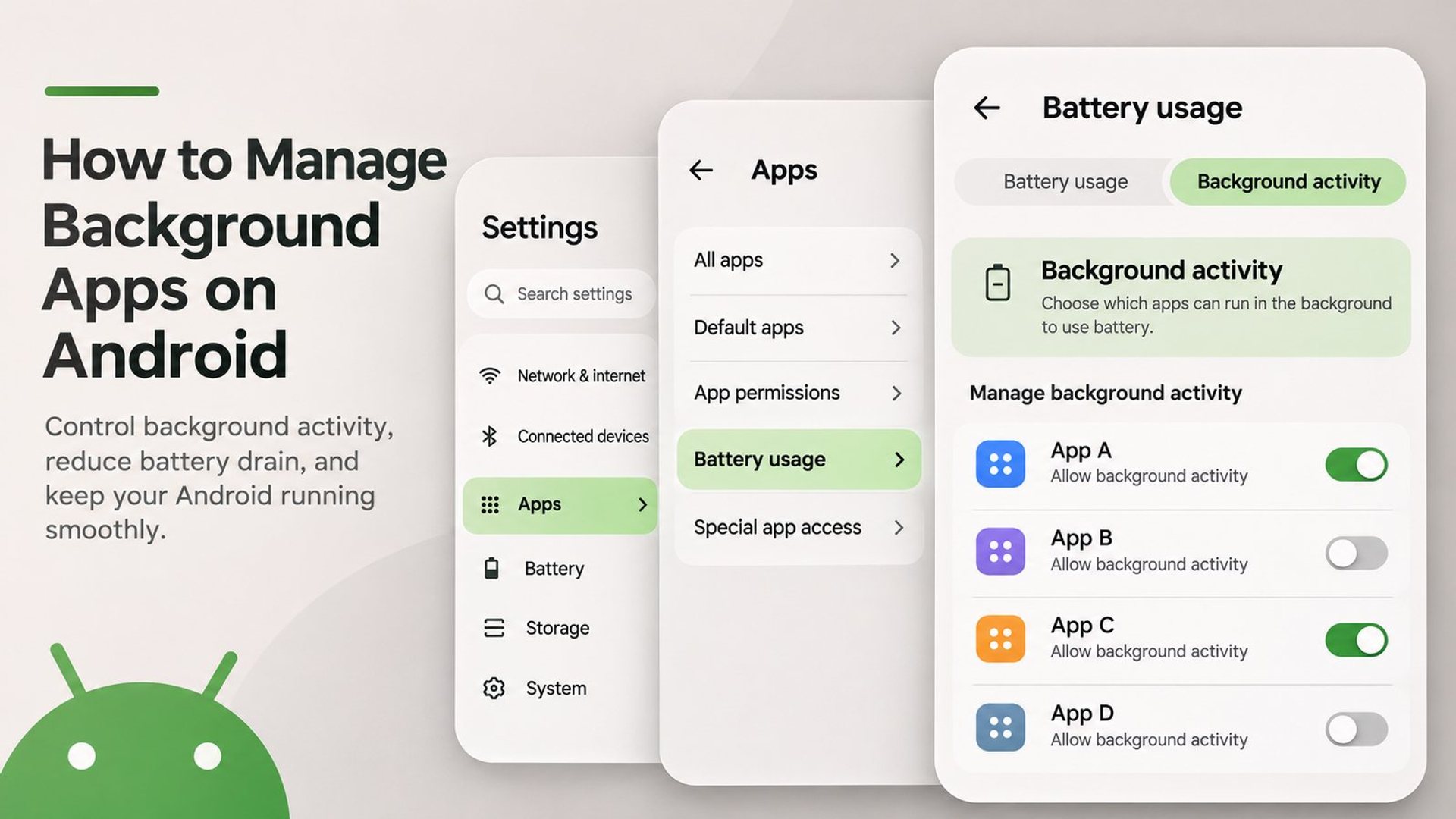
Start with the device's battery-usage screen. On a Google Pixel, Google's battery troubleshooting guide explains how to review an app's usage and its background-use setting. Other Android makers may place this under Battery, Apps or a device-care menu. Look for an app that stands out during the same period in which you noticed drain or heat, rather than assuming the top entry is always faulty.
- Record the symptom: battery drain, delayed alerts, data usage, heat or an app that will not stop.
- Choose a consistent observation period, such as a day of normal use.
- Open Settings and locate Battery usage or the maker's equivalent.
- Inspect the named app's background activity and compare it with what you actually asked the app to do.
- Check whether an upload, navigation session, music stream or software update explains the use before imposing a restriction.
Percentages can mislead when total battery use is low. An app that accounts for a large share of a quiet hour may consume less absolute power than a smaller share during a day of heavy camera or navigation use. The most useful observation is a change in your device's normal pattern tied to a particular app and task.
When should you close an app?
Close an app that is frozen, behaving incorrectly or no longer needed for an active task. Open Recent apps using your device's gesture or navigation buttons, find the app and swipe it away if the interface offers that action. Reopen it if you need to test whether the problem returns. This is a troubleshooting step, not a routine battery ritual.
If an app repeatedly fails, consider Force stop in its App info screen, but understand that this is a stronger interruption. Save any work first. A messaging, navigation, recording or upload app may need to continue a task that a force stop would interrupt. If the phone has a visible “active apps” or foreground-service control, stop only the task you recognise and no longer need.
How do you limit background battery use?
On devices that expose per-app battery controls, open the problem app's details and review the background-usage choice. A Pixel may show an Allow background usage control; another manufacturer may label the choices Optimised, Restricted or Unrestricted. Use the device's own description of each setting rather than copying a path from a different phone model.
Restrict a nonessential app first, then leave the phone in normal use long enough to observe the result. Check both the original symptom and the side effects. Did the drain change? Did notifications still arrive? Did photographs, documents or messages sync when expected? A setting that saves some energy but silently delays an important task is a poor fix for that user's workflow.
| App role | What to consider | What to verify after a change |
|---|---|---|
| Occasional shopping or game | Background restriction may be reasonable if no timely alerts are needed | The app still opens and updates normally |
| Messaging or work approval | Preserve timely background access where needed | New messages or approvals arrive promptly |
| Photo backup or file transfer | Allow the current upload to finish before restricting | Files appear in the expected destination |
| Maps or audio during a journey | Do not interrupt an active route or playback | Navigation or audio continues as intended |
Could permissions be the real issue?
Sometimes the concern is not battery consumption but unwanted location, camera, microphone or notification access. Review the app's permissions separately from its battery setting. A background restriction and a permission change solve different problems. For example, an app using location more often than expected may need a narrower location permission rather than being force-stopped each evening.
Decide which function you still want. If a travel app needs location while you actively use it but not all day, inspect whether the system offers a more limited permission. If an unused app has no purpose on the phone, uninstalling it may be simpler than managing several restrictions. Keep enough access for services whose behaviour you have deliberately chosen.
What if notifications stop after a restriction?
Undo the most recent setting change for the affected app and test again. Android's background controls can delay network work, and manufacturers sometimes add their own battery-saving layers. Google's Battery Saver documentation describes how broader power-saving modes can limit background activity. Check whether Battery Saver is on before blaming a single app.
Use a controlled test with a trusted sender or a harmless reminder. Note the time it should arrive and whether it appears while the phone is locked. If a work-critical alert is delayed, restore the relevant access and consider a different way to address the original drain, such as updating or replacing the misbehaving app.
What should you try before a drastic reset?
Update the app through its trusted store, then check for a current Android or device update. Restart the phone if a process appears stuck. Review recent changes: an app update, new account sync, travel into a weak-signal area or a long upload can alter battery use. If one app still behaves abnormally, consult its support instructions and back up relevant data before clearing its storage or uninstalling it.
A factory reset should not be the first response to an unclear battery graph. It is disruptive and may not fix a behaviour caused by an app you reinstall unchanged. Record what you observed and which single change you tried; that evidence is useful if you need manufacturer or app support.
How does this apply to a VERTU Android phone?
VERTU's Agent Q and ALPHAFOLD are Android-based phones with documented AI and productivity functions, but the exact menus and supported background behaviour depend on the installed software and services. The diagnostic principle remains the same: identify the named app, inspect its activity, change one setting and verify the task still completes.
An owner using agent workflows, travel arrangements or work approvals has a particular reason to avoid broad background restrictions. A missed notification or delayed sync may cost more than a small unmeasured battery gain. Ask VERTU support for the model-specific path if a system screen differs from Google's generic instructions; do not assume a Pixel screenshot is identical to a VERTU device.
Frequently asked questions
Should I close all Android apps every day?
No. Android manages apps and memory automatically. Close a frozen app or stop an unwanted active task, but do not treat every Recent-apps card as a battery problem.
Will restricting an app always improve battery life?
No guaranteed improvement follows. Test one app with unusually relevant activity, then compare your normal usage and check for missed notifications or syncing.
Why did my messages arrive late after changing a battery setting?
The new restriction or Battery Saver may have delayed background network activity. Restore access for the affected messaging app and test delivery again.
Is Force stop the same as uninstalling?
No. Force stop interrupts the current app process; uninstalling removes the app. Save work before stopping a task and back up important app data before removal.
Where can I find the setting on my phone?
Look under Battery usage or the app's App info page. The exact route varies by manufacturer and Android version, so use the labels on your device.
Conclusion
The practical answer to how to manage background apps on Android is to begin with a symptom and the phone's battery or app-use evidence. Close an app when it malfunctions, restrict a nonessential app only when its background activity is relevant, and check that alerts and syncing still work afterwards. This targeted approach preserves the tasks you value while addressing a real problem instead of repeatedly clearing every app by habit.