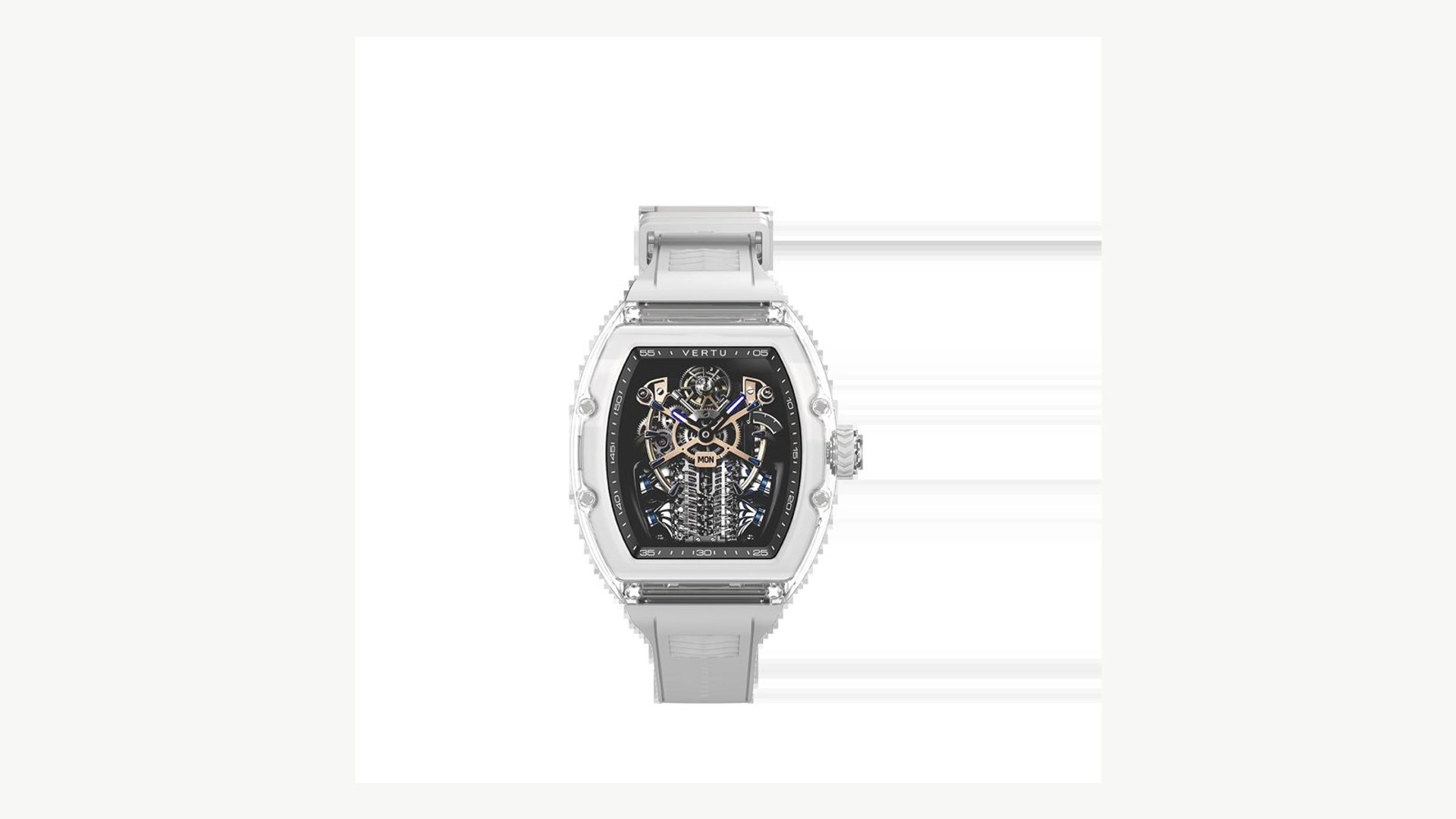
How to connect a smartwatch to iPhone: confirm that the exact watch supports your iPhone and iOS version, install the watchmaker's official companion app, charge and turn on the watch, then start pairing inside that app. Approve the matching code and permissions you want, allow the initial sync to finish, and test one notification or other essential feature. A Bluetooth connection by itself does not prove that the watch's full feature set is available.
This is a source-based setup guide checked on 18 November 2026. Watch menus, companion-app names and permissions vary by model and software. VERTU's Agent Watch product page states iOS 13.0 or later compatibility, but the product knowledge base flags some message-reply and service details for confirmation. Follow the current manual and App Store listing for the exact watch edition before assuming a particular function works on iPhone.
Key Takeaways
- Confirm the exact watch's stated iOS requirement before attempting to pair it.
- Pair through the manufacturer's official companion app, not merely the iPhone Bluetooth list, unless its instructions say otherwise.
- Keep both devices charged and close together while the initial sync and any update completes.
- Grant only the permissions needed for the features you choose, then test notifications and syncing.
- If pairing fails, fix the first broken step—compatibility, app, Bluetooth, account or an old pairing—rather than repeatedly resetting both devices.
Which smartwatches are compatible with an iPhone?
Compatibility is a model-specific claim. A watch may pair with iOS yet support fewer message actions, health integrations, payments or voice functions than it does with another phone. A brand can also sell several generations with different companion apps and minimum software versions. Check the product page for the exact model, then inspect its official App Store listing and current setup instructions before buying or installing anything.
The VERTU Agent Watch product page states support for iOS 13.0 or later and Android 9.0 or later. That establishes a minimum compatibility statement, not universal availability of every advertised service. VERTU's knowledge base describes a watch-to-phone Agent voice flow while flagging iOS message-reply details and overseas service scope for confirmation. Keep those distinctions in mind when defining the feature you must test after pairing.
What should you prepare before pairing?
- Identify the watch's exact model name and check its iOS requirement against your iPhone's current version.
- Charge the watch and iPhone enough to complete setup and a possible firmware update.
- Turn on Bluetooth on the iPhone and keep the devices close together.
- Install the companion app named on the maker's official page or in the watch's manual.
- Have the account credentials required by that app ready, but do not enter them into an unrelated pairing app.
- If the watch was previously used, ask whether it must be unpaired from the old phone first.
A search result for “smartwatch app” is not a reliable way to choose software. The manufacturer may use a branded app and a particular account flow. An unofficial app can request unnecessary permissions or fail to complete the device's firmware setup. Use the link or exact app identity supplied by the watchmaker, then verify its publisher in the App Store.
How do you pair a compatible smartwatch with an iPhone?
Start with the companion app's Add device or Pair watch flow. Turn the watch on and place it in its pairing mode as the manual directs. The app should find the device and display a pairing request. Compare any code shown on the watch and iPhone before approving it; this helps prevent connection to the wrong nearby device.
- Open the official companion app and sign in if required.
- Choose Add device, select the watch model and follow the on-screen discovery instructions.
- Confirm that the watch name or code matches the physical watch.
- Approve the system Bluetooth request and the app permissions relevant to your desired features.
- Wait for the app to report that setup and synchronisation are complete.
- Open the app's device page to check the connection status before testing features.
Do not leave the app mid-update or assume a visible Bluetooth icon means setup has finished. Some watches need account registration, a firmware update or additional permission prompts. An interrupted update can leave the watch apparently paired while the companion app is not ready to sync data or deliver alerts.
Which permissions should you review?
Notification access may be needed if you want messages or calls mirrored to the watch. Location can be relevant to routes or nearby-device discovery, depending on the device and app. Health-data integration is a separate choice and should follow the app's current explanation of what it reads or writes. Grant access deliberately rather than tapping through every prompt without reading it.
| Permission or setting | Potential purpose | Test after allowing |
|---|---|---|
| Bluetooth | Device pairing and communication | Watch shows as connected in companion app |
| Notifications | Mirroring selected alerts | One harmless test message arrives |
| Location | Routes or device discovery where applicable | Only the intended feature uses it |
| Health data | Optional data integration where supported | The specific category appears as expected |
The exact permission set depends on the watch and software. Declining an optional permission may leave basic timekeeping and pairing intact while disabling the associated feature. If a permission request seems unrelated to what you want, consult the maker's current explanation before granting it.
How do you know the connection really works?
Test the reason you bought the watch. For notifications, send yourself a harmless message while the iPhone is locked and note whether it appears on the watch. For an activity feature, record a short session and confirm the result reaches the intended app. If voice interaction is important, test the supported watch-to-phone route described by the manufacturer instead of assuming every voice action operates independently on the watch.
Run the test once with the devices close together, then again in your normal carrying arrangement. Record whether the companion app remains connected after the phone sleeps. A feature that appears in a product description but cannot be demonstrated in your iPhone setup should be investigated before relying on it for travel, work alerts or wellbeing tracking.
Why might pairing fail?
The most common failure categories are an unsupported iOS version, the wrong companion app, Bluetooth or account issues, a watch still bound to another phone, or an unfinished update. Work through these in that order. Restarting both devices can help with a temporary discovery problem, but do not factory-reset the watch until you have checked whether it contains data that must be synced or backed up.
If the watch appears in iPhone Bluetooth settings but not inside the companion app, follow the maker's instructions for removing the incomplete pairing and begin again from the app. If several watches are nearby, isolate the one you intend to connect and confirm its code. If the app cannot be installed, check its App Store country availability and iOS requirement rather than assuming the watch itself is defective.
What is different about VERTU Agent Watch?
VERTU's knowledge base describes Agent Watch with a hand-polished crystal case, a tonneau silhouette, 27 digital watch faces and a voice interaction in which a paired phone Agent carries out a request and sends confirmation back to the watch. Those details explain why a buyer might value pairing beyond basic notifications. They do not establish that every phone Agent action, message reply or regional service is available on iOS.
For an iPhone owner, the sensible purchase test is specific: confirm the watch and app are offered in the market, pair it with the iPhone version you use, and ask to see the particular voice or notification task you care about. Health and activity features are for general personal insight, not medical diagnosis. Check the current product terms for the exact edition and software before relying on any advanced function.
What does Apple recommend checking on the iPhone?
Apple’s Bluetooth accessory instructions explain how to check discovery mode and the Bluetooth device list. For a companion app, Apple’s Bluetooth privacy guide explains where to review the app’s Bluetooth permission. These checks establish a connection path; the watchmaker still determines which watch functions its iPhone app supports.
Frequently asked questions
Can any smartwatch connect to an iPhone?
No. Compatibility depends on the exact model and its companion app. Verify the maker's iOS requirement and App Store availability before buying.
Should I pair the watch in iPhone Bluetooth settings first?
Usually begin in the manufacturer's companion app unless its instructions explicitly say otherwise. A Bluetooth listing alone may not complete account, update or feature setup.
Does a connected watch receive every iPhone notification?
Not necessarily. Review notification permissions and the watch app's alert choices, then test the specific apps whose messages matter to you.
Does VERTU Agent Watch support iPhone?
Its official product page states iOS 13.0 or later support. Confirm the exact app, edition and desired feature, because pairing compatibility does not promise identical service behaviour across phone platforms.
What should I do before resetting a used watch?
Check whether its data has synced and whether the previous owner has removed any account binding. Then follow the maker's unpairing and reset instructions.
Conclusion
To answer how to connect a smartwatch to iPhone, check model-level compatibility, install the official companion app, pair within its setup flow and test the features you actually need. A successful Bluetooth connection is only the beginning; notifications, sync and any agent or health function deserve their own verification. That sequence gives you a working watch rather than a merely connected device.