Foldable stylus note taking is practical when the exact phone, screen and pen are confirmed compatible and the task benefits from precise handwriting. For taps, scrolling, highlights and short comments, a finger may be quicker and requires nothing extra to carry. Never assume that a pen made for one foldable is approved for another: inner displays and pen systems differ, and an unsuitable tip may damage a screen.
Start with the task, not the accessory
“Taking notes” covers several very different actions. A quick reminder in a text field is easier to type or dictate than to write by hand. Highlighting a line in a report can be done with a finger if the app's selection handles are accurate. Drawing a diagram, marking a floor plan or writing comments in the margin calls for greater precision. Decide which action dominates your day before deciding that a stylus is necessary.
For an occasional note, the finger has practical advantages: it is always available, does not need pairing and cannot be left in a meeting room. It also keeps the workflow simple when the phone is closed. Its limitation becomes clear when annotations are small or when a signature, sketch or tightly spaced document is involved. Fingertips cover part of the target, and repeated correction can erase any time saved by avoiding a pen.
A stylus can help with fine placement, but only when the device supports it. Some pens provide pressure or palm rejection; others behave like a passive finger and may be poor at detailed writing. These are accessory-specific functions, not benefits that come automatically with a foldable screen. The first purchasing question is therefore compatibility, followed by comfort, software support and how you will carry the pen.
Why is exact compatibility essential?
Foldable inner displays are not interchangeable glass tablets. The screen surface, digitiser and permitted pen tip can vary even within one manufacturer's range. Samsung's S Pen compatibility guide distinguishes among its pen models and says its pens are not supported on the cover screen of its foldable devices. Samsung's S Pen Pro guide also warns that certain other pens may damage a Galaxy Z Fold screen. Those instructions apply to the specified Samsung devices; they do not approve a pen for VERTU ALPHAFOLD.
Do not infer compatibility because a generic capacitive tip can move a cursor in a brief trial. A pen may register a touch while still being too hard, narrow or abrasive for the surface. Likewise, a screen protector can change how a tip feels and may be covered by separate service rules. Check the exact model's manual or ask authorised support before writing on the inner display. When documentation is silent, use fingers and ordinary text entry until compatibility is confirmed.
Screen location matters too. A pen supported on a main display may not work on the outer one. If your workflow depends on jotting a note while the phone is closed, verify that specific screen, not just “stylus support” in a product listing. The result may change whether a pen is useful at all. A broad claim about foldables is insufficient for a device-specific purchase decision.
When is a finger the better tool?
Use a finger for reading, scrolling, opening files, selecting a short passage and adding a brief typed comment. It is also the sensible default when compatibility is unconfirmed. In a standing conversation or on public transport, holding the opened phone and a pen at once can be awkward. One-handed touch navigation may be easier, especially on the outer display. The point is to reduce handling, not to turn every document interaction into handwriting.
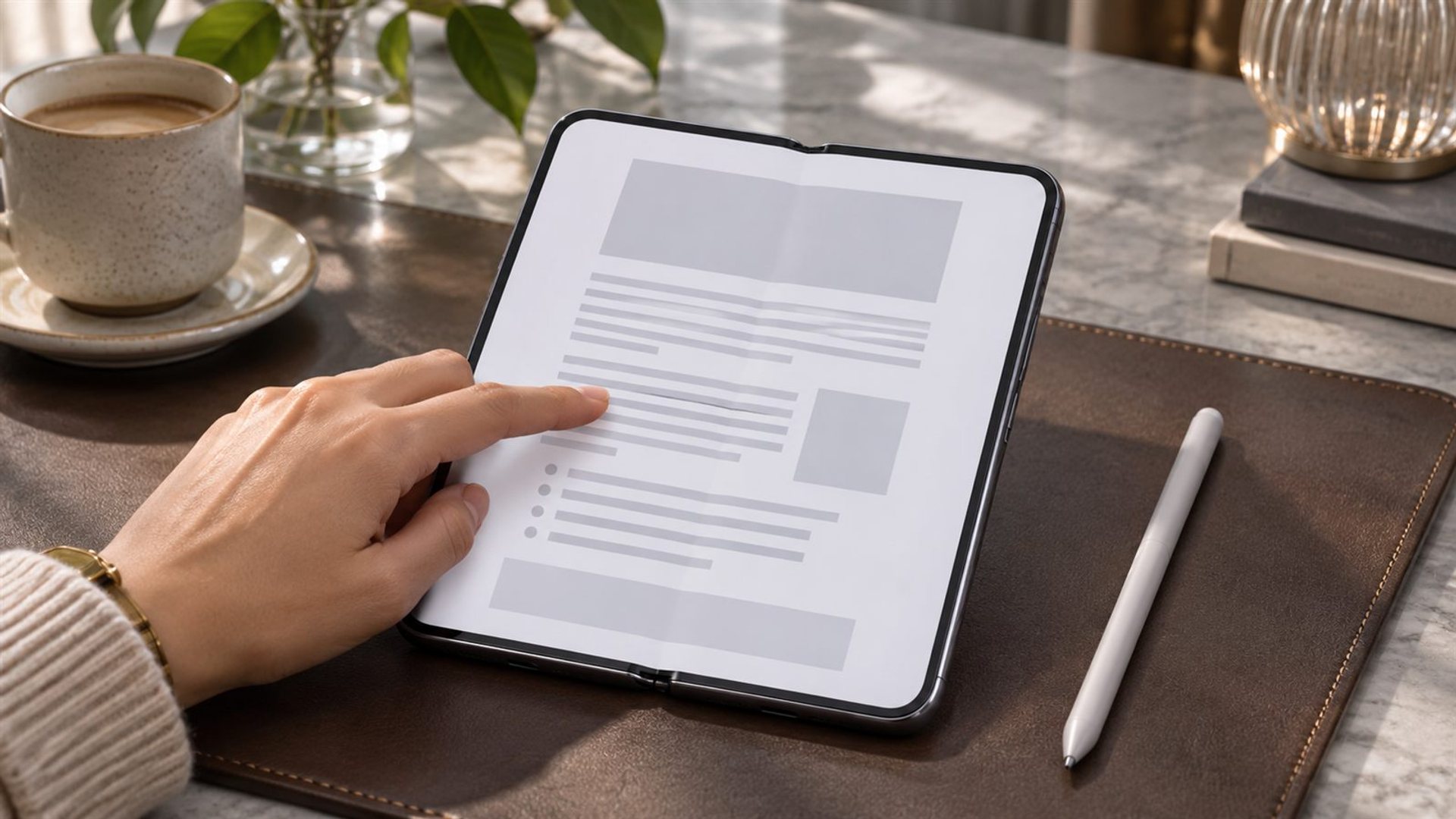
For document review, try a two-stage method. First, read and mark broad sections with the finger. Then, if a compatible pen is available, return to the few areas requiring exact arrows or handwritten explanations. This limits the need to carry or use a stylus during every meeting. If your app's annotation tools are poor, however, changing accessories will not fix the underlying software workflow; test the app with a realistic file before committing to the device.
When does a stylus earn its place?
A compatible pen is most valuable where spatial detail carries meaning: a design revision, diagram, plan or dense PDF margin. It can make small marks easier to place and keep your fingertip out of the way. Whether it improves actual speed depends on the app, the writer and the document. A ten-minute trial using your own report is more useful than a showroom sketch. Include saving, exporting and reopening the annotated file in that trial.
For handwritten meeting notes, consider whether they must later be searchable or shared. A beautiful page of ink is less useful if your team cannot find the decision recorded there. Confirm how the notes app handles export, synchronisation and text recognition for your language, where applicable. Avoid assuming that an AI feature will perfectly transcribe handwriting. If the note contains confidential client information, follow your organisation's data-handling rules before enabling cloud features.
Carry and maintenance also matter. Where will the pen live when the phone is folded? Is the tip replaceable? Can you use it comfortably without pressing hard? A loose stylus in the same pocket as the phone can scratch another surface even if it is screen-compatible. The best accessory is one you can store safely and use with a relaxed hand, not merely one that looks convincing beside the device.
How does VERTU ALPHAFOLD change the decision?
VERTU ALPHAFOLD provides a larger inner display, listed as 8.05 inches, and a 6.53-inch outer display. That extra canvas makes document review and side-by-side work plausible uses. The current ALPHAFOLD product page is the right starting point for the exact configuration. The reviewed VERTU knowledge-base information does not confirm an approved stylus or pen protocol, so this article makes no claim that ALPHAFOLD supports one.
For an ALPHAFOLD owner, begin with a finger-based review workflow: open the actual document, test zoom and text selection, and check whether comments can be saved and shared. If handwriting is essential, request current compatibility guidance from VERTU for the precise hardware and software version before using a pen on either display. This boundary is more helpful than naming an unverified accessory that might risk the inner screen.
A five-minute practical test
Choose one real document with a paragraph, table and image. Time how long it takes to find a passage, highlight it, add a comment and return to that comment later. Repeat on the outer and inner screens where the app permits. Note any accidental touches or awkward hand positions. If you have an officially compatible pen, repeat the same tasks; if not, stop at the finger test. Do not improvise with a random pen merely to complete the comparison.
Judge the outcome by finished work, not only by writing sensation. Could a colleague read the annotation? Did it save in the file format you need? Was the phone comfortable to hold for the full task? The answer may be finger for most activity and pen for occasional precision, or finger throughout. Either result is valid if it comes from your actual workload and a verified device configuration.
Frequently asked questions
Can any stylus be used on a foldable?
No. Confirm the precise phone, display and approved pen; compatibility varies and an unsuitable tip can damage an inner screen.
Is a pen faster than a finger for notes?
Only for some tasks and users. Test a real document, including saving and export, before deciding.
Does ALPHAFOLD officially support a stylus?
Stylus support was not verified in the reviewed VERTU product information. Ask VERTU for current model-specific guidance before using a pen.
Can I annotate without a pen?
Often yes. Touch selection, typed comments and app tools may cover short review tasks, depending on the document software.