
Choose a phone for multitasking by checking whether your actual work can be completed across the apps, layouts and interruptions you expect. Begin with a small number of meaningful workflows, then assess readable space, input, returning to unfinished work and the final result. Treat screen size and memory specifications as information to examine alongside that demonstration, rather than a substitute for it.
Key Takeaways
- Define the work you want to complete before counting visible apps.
- Confirm the exact app combination, software version and supported layout.
- Check input, information transfer and returning after an interruption.
- Judge the completed output as well as the appearance of the workspace.
- Keep product specifications, supported functions and unverified expectations separate.
Describe a workflow, not just an app list
Write down a short sequence that matters to your purchase. You might ask to consult a public document while preparing a sample note, or check an item of information before drafting a message. These are suggested demonstration tasks, not claims about a particular product's capabilities.
Identify the starting content, the destination and what a successful finish would look like. Include the app names and the type of account if that affects your requirements. Use harmless sample information rather than customer records or confidential work material.
Keep the sequence realistic and small enough to inspect. An elaborate demonstration with many unrelated apps can obscure the task you actually need. Prefer a clear answer to one important workflow over a general claim that a phone is suitable for every professional.
Separate convenience from necessity. Decide which steps must work together and which could comfortably be performed in sequence. This makes it easier to recognise a suitable phone without demanding an impressive but unnecessary window arrangement.
Confirm the supported layout for your apps
Ask about the actual operating system, app versions and layout you intend to use. Google's Pixel guidance for using two apps explicitly makes simultaneous use dependent on the app and notes version requirements for some steps. That is a platform-specific example of why the relevant support information matters.
For another handset, use that manufacturer's instructions and the applicable app information. Do not transfer Pixel's menu sequence or supported behaviour to a VERTU phone. Request a demonstration of the precise combination on the product being considered.
Check whether you want simultaneous viewing, quick switching or a supported small video window. Name the requirement rather than grouping all of these under one promise. If a layout is unavailable, ask whether the alternative sequence still meets your underlying need.
Keep unsupported combinations visible in the decision. A demonstration with two different apps does not establish that your required pair behaves identically, and a single successful layout should not become a universal app-support claim.
Inspect the complete workflow in five stages
Use the same sequence on each candidate phone and record what you actually observe. The following is an editorial buyer's method, not a benchmark performed for this article or a promise of any product's result.
| Stage | What to examine | Question to record |
|---|---|---|
| Start | Open the required sample content in the intended apps. | Can you reach the appropriate starting state? |
| View and input | Read, navigate and enter a short sample response. | Is the usable layout suitable with the keyboard present? |
| Transfer | Attempt an approved information or file transfer if required. | Does the needed content reach the intended place? |
| Interrupt and return | Use an agreed harmless interruption, then revisit the work. | What remains available, and what must be reopened? |
| Finish | Review the sample note, file or other output. | Is the result complete and in the correct destination? |
Record unsupported steps as such. Do not fill the gap with an expectation based on a processor name or another handset's review. If the result depends on a setting, account or subscription, note that condition beside the observation.
Make input and readable space part of the decision
Assess the task with the interface elements you actually need visible. Open the keyboard, use a realistic text size and examine the controls. Compare a working layout rather than an empty display or a promotional arrangement without input controls.
Try the orientation you expect to use and ask which changes the app supports. Record whether the content you need remains accessible while typing. If you prefer a separate input accessory, confirm its compatibility and demonstrate that actual arrangement.
Notice how you navigate between the source and the destination. A layout you personally find easy to read may still require a different sequence for entering information. Keep those observations distinct instead of reducing them to a single screen-size judgement.
There is no universal window count in this method. Choose the arrangement that serves the work you have identified, and keep any untested layout out of the purchasing justification.
How should AlphaFold be assessed?
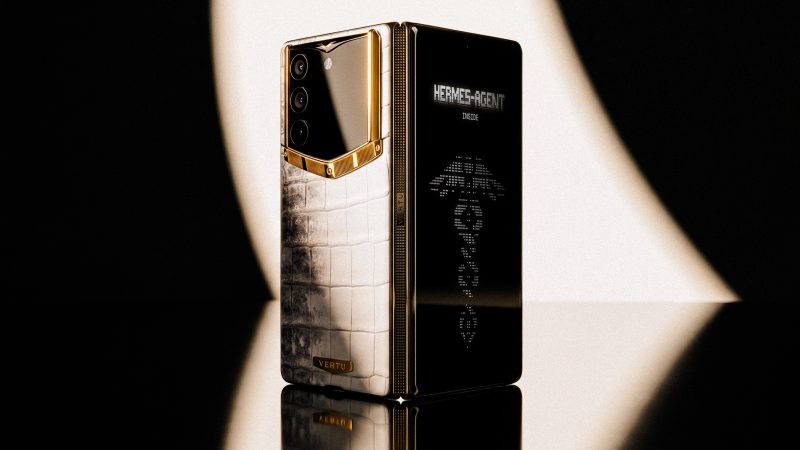
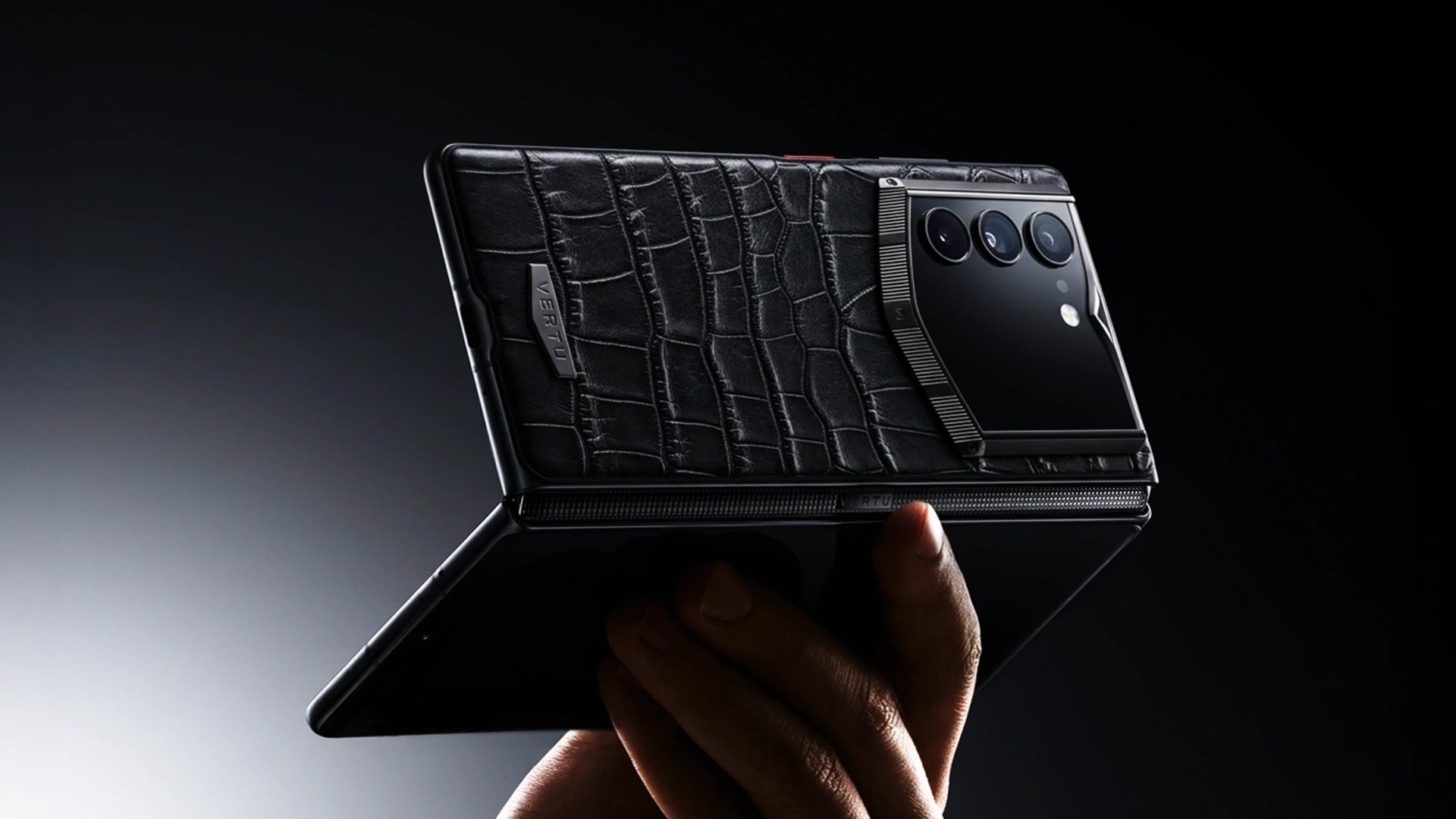
VERTU's current AlphaFold description lists a 6.53-inch outer display and an 8.05-inch inner display, positioning the larger workspace for documents, dashboards, meetings and multitasking. Those are documented product descriptions and intended-use examples, not proof that every application supports a specific layout.
Ask to see your intended workflow on the actual model and current software. If it involves moving from the outside display to the inner one, include that transition. Confirm what happens to the selected app and content instead of assuming automatic continuity.
Keep any business-system demonstration within its stated access conditions. If a feature requires an authorised account or a configured service, confirm that requirement separately. A product presentation should not be treated as evidence that your organisation's systems are already connected.
This guide does not report an AlphaFold multitasking test, an app-retention benchmark or an efficiency improvement. Its role is to identify the demonstration and evidence that would make the product relevant to your own tasks.
Check interruption and recovery deliberately
Agree a harmless interruption before starting the demonstration. You could ask to switch briefly to another sample item and return, following the product's supported controls. Avoid placing a real call or changing an important setting merely to create an interruption.
Inspect the unfinished work after returning. Record what remains visible, whether a draft is present and whether any step must be repeated. Keep the application, account and settings identified so that the observation has a clear scope.
Ask about the app's documented saving and recovery behaviour where that matters. Do not assume that a visible preview means every change has been saved. Verify the resulting sample output in the appropriate destination before considering the workflow complete.
Compare ownership requirements alongside the demonstration
List the conditions needed for your workflow: supported apps, relevant accounts, required connectivity, storage arrangements and any paid service. Ask for clarification of anything that would change the complete cost or practical setup.
Review the permissions and organisational requirements for real work separately from the sample demonstration. Use your organisation's approved process before connecting business accounts or moving work information. This is a preparation recommendation, not a legal or security assurance about any phone.
Keep a short record of the configuration, workflow result and unresolved questions. A phone that performs an optional demonstration well should not be declared suitable for a mandatory workflow that remains unconfirmed.
Frequently asked questions
Is a large screen enough for multitasking?
No. Verify the intended apps, input layout, transitions and completed result on the actual configuration.
Does a two-app demonstration prove every pair will work?
No. Check the combination you need and its applicable platform and app instructions. Keep other combinations unconfirmed.
Should I compare only the time a task takes?
No. Also inspect whether the output is complete, correctly placed and recoverable as required. Do not invent a speed score from an informal demonstration.
Conclusion
The right phone for multitasking is one that supports your important workflows on the configuration you will actually use. Verify the layout, input, transfer, interruption and completed output, then confirm the necessary accounts and services. Choose from those supported results rather than a window count or specification that has not been connected to the work.