
Key Takeaways
- A USB-C hub only works as intended when the phone supports the required functions, such as USB accessories, wired display output or data transfer.
- For an external monitor, check whether the exact phone model supports wired display output—often through DisplayPort Alternate Mode (DP Alt Mode)—and whether the hub has a compatible video port.
- Pass-through charging, data speed and available ports depend on the phone, hub, charger and cable working together; a larger port count does not guarantee better performance.
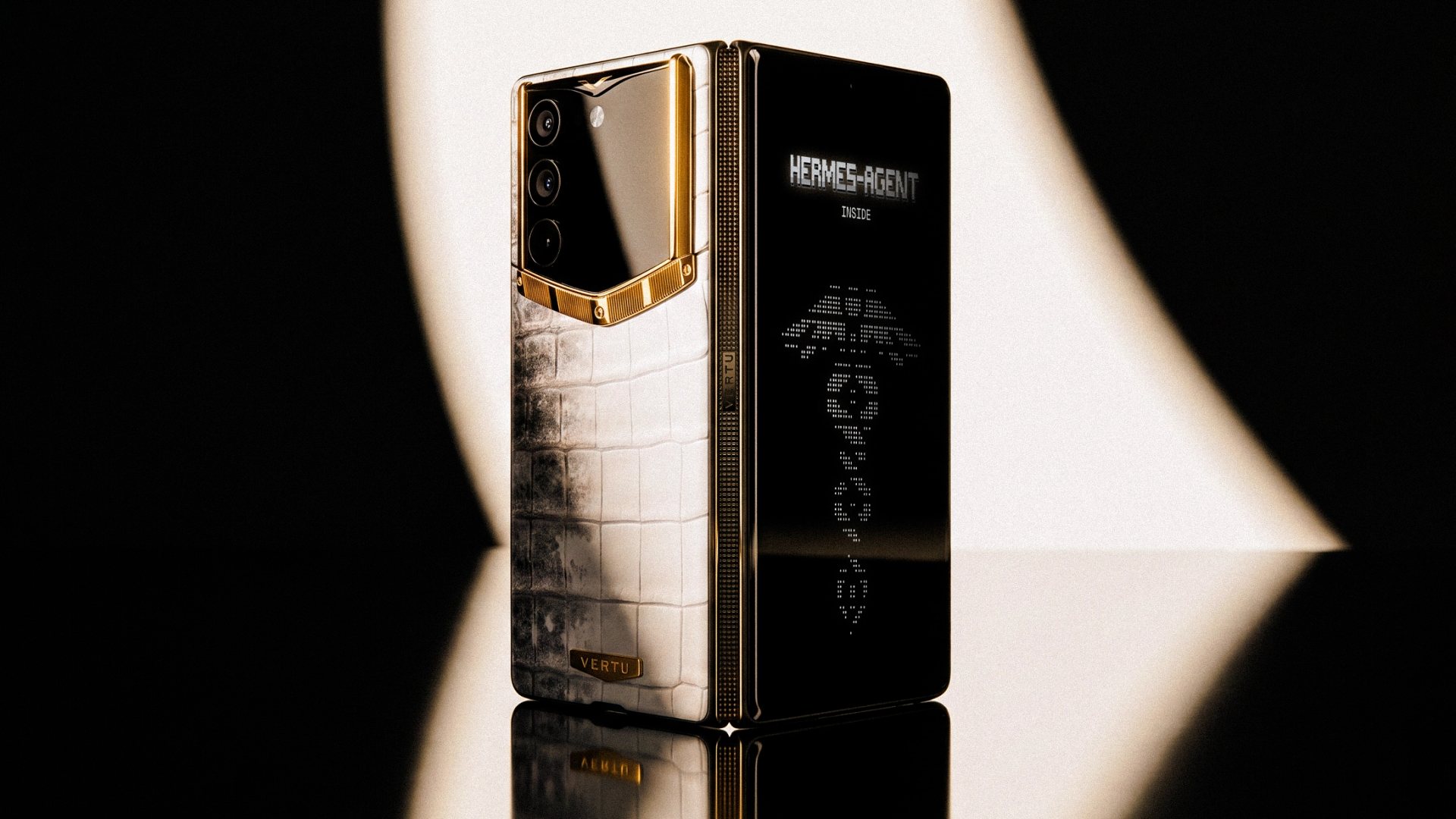
- The VERTU AlphaFold’s large inner display supports a foldable-phone workflow, but its screen size alone does not confirm USB host, DP Alt Mode or USB-C hub compatibility.
To choose a USB-C hub for a foldable phone, first identify what you want to connect, then confirm that the exact phone model supports those functions. Check host or accessory support for peripherals, DP Alt Mode or another documented wired-display method for a monitor, and the hub’s charging and data specifications. The connector shape alone cannot confirm compatibility.
This guide focuses on choosing a hub for a phone-based setup. If you are deciding which cable to use with that hub, see VERTU’s USB-C cable buying guide for a separate explanation of cable ratings and data standards.
Why isn’t the USB-C connector enough to confirm compatibility?
USB-C describes a connector, not a promise that every connected feature is available. A phone may use USB-C for charging and file transfer without supporting external video output or every type of USB accessory. A hub may also offer HDMI, USB-A, card readers and pass-through charging, but the phone still needs to support the function behind each port.
Think of the setup as a chain: phone, hub, cable, charger and connected accessory. The weakest or unsupported link can limit the result. For example, an HDMI port on a hub cannot create a video signal if the phone does not provide compatible wired display output. Similarly, a hub’s fast data rating cannot make a phone or cable transfer data at the same speed.
| What you want to do | What the phone needs to support | What to check on the hub |
|---|---|---|
| Connect a keyboard, mouse or USB drive | USB host or accessory support for the intended device | Matching ports, power needs and any operating-system requirements |
| Show the phone screen on a monitor | Documented wired display output for that model | HDMI or DisplayPort output and supported resolution or refresh rate |
| Charge while using accessories | Charging through the phone’s USB-C port while connected | USB-C power input, charger requirements and power shared with peripherals |
| Read a memory card or transfer files | Support for the storage device and its file system | Card format, reader type and the hub’s data-transfer specification |
What should you check before buying a USB-C hub?
1. Confirm USB host and accessory support
If your main goal is to attach a mouse, keyboard, storage drive or card reader, look for documentation confirming that the phone supports the relevant USB accessories. Check the specific model and operating-system version rather than relying on the presence of a USB-C port. Some accessories may also need an app, additional power or a particular file format.
Consider how you will use the accessory. A keyboard for occasional typing has different requirements from an external SSD used for frequent large-file transfers. If a hub needs more power than the phone can supply, a powered hub or a hub with power pass-through may be necessary—but confirm the phone’s behaviour before buying.
2. Treat display output as a separate requirement
For a monitor, confirm wired display output—often designated as DisplayPort Alternate Mode (DP Alt Mode)—for the exact phone model. DP Alt Mode is a common way for compatible USB-C devices to carry a DisplayPort signal, but support varies by device and it is not a capability that can be inferred from the connector alone. VESA describes the relevant DisplayPort Alternate Mode implementation over USB Type-C.
Then check that the hub’s video output matches the monitor. An HDMI-equipped hub may be suitable when the phone supplies a compatible video signal and the hub supports the desired display mode. Google’s guidance for connecting supported Pixel phones to a display is one model-specific example; it should not be treated as confirmation that another Android phone or foldable has the same capability.
Also check whether the phone supports mirroring, an extended desktop or another display mode. These are different experiences. The hub’s advertised maximum resolution is only one part of the setup; the phone, cable, monitor and hub all need to support the intended result.
3. Check charging pass-through and power limits
A hub with USB-C pass-through charging can let a charger feed power through the hub while other accessories are connected. However, the wattage printed on a hub is not a promise that the phone will receive that full amount. The charger, hub, phone and connected peripherals determine how power is negotiated and shared.
USB Power Delivery (USB PD) supports negotiated power levels between compatible devices. Before choosing a high-wattage hub, confirm the phone’s charging requirements, the charger’s output and the hub’s pass-through specification. The USB-IF overview of USB Power Delivery explains the standard; the device maker’s specifications determine what a particular phone accepts.
If you plan to use the phone for a long video call or extended work session, prioritise a hub and charger combination that is documented for pass-through use. Avoid assuming that connecting a charger guarantees simultaneous charging and every hub function.
4. Match data speed across the whole setup
Data transfer speed is affected by the phone, hub, cable and connected drive. A hub may advertise a fast USB standard, but the real connection can operate at a lower speed if one component has a lower specification. For everyday keyboards or a mouse, this may not matter. For large video files or regular SSD transfers, it can be a deciding factor.
Read the port-level specifications carefully. A USB-C port on a hub may be intended only for power input, while another may support data. Likewise, not every USB-A port necessarily offers the same speed. Look for explicit data rates and port functions rather than relying on product photos or the total number of ports.
5. Choose ports around your actual accessories
List the devices you expect to use before comparing hubs. A monitor may call for HDMI or DisplayPort; older peripherals may need USB-A; a camera workflow may benefit from an SD or microSD reader. Ethernet or a 3.5 mm audio connection matters only if those are part of your setup.
Be especially careful with USB-C ports on a hub. One may be reserved for the charger, while another supports data or video. A compact hub with the right ports can be more useful than a larger dock whose extra connections you will not use.
6. Consider how the hub sits beside a foldable phone
Foldables change how a desk setup is arranged. Think about whether you will use the phone open or closed, where the USB-C port sits, and whether a case affects access to the connector. A short cable between the phone and hub can reduce strain compared with a rigid adapter hanging from the port, particularly when the phone is propped open.
Check the hub’s cable length, weight and placement of ports. If the phone will stand beside a monitor or keyboard, a hub with a separate cable may be easier to position than a compact model that plugs directly into the handset. These are ergonomic considerations, not indicators of electronic compatibility.
VERTU Bonus Tip: What does a foldable screen change?
A larger inner display can make a foldable phone more comfortable for reading documents, viewing dashboards or working across several tasks. The VERTU AlphaFold is listed with a 6.53-inch outer display and an 8.05-inch inner display, giving users a larger screen when the device is unfolded. Its official product information presents the inner display as suited to activities such as document work and multitasking.
That larger canvas may make someone more interested in connecting a keyboard, storage device or external monitor. But screen size and multitasking use do not by themselves establish USB host support, wired display output, DP Alt Mode or compatibility with a particular hub. Check the exact connection specifications before choosing accessories for any phone.
For the device’s documented design and display information, visit the VERTU AlphaFold product page. For broader context on how a foldable can support work routines, see VERTU’s guide to foldable phone productivity workflows.
A quick compatibility checklist
- Write down the specific job: display output, charging, file transfer, peripherals or a combination.
- Check the phone maker’s documentation for the exact model and operating-system version.
- For a monitor, verify wired video output and the display modes supported by the phone.
- Confirm which hub ports carry data, which accept power and which provide video.
- Match charger, hub and phone power requirements; do not treat the hub’s maximum wattage as the phone’s charging rate.
- Check cable length, case clearance and how the hub will sit while the foldable is open or closed.
Frequently Asked Questions
Does every foldable phone support DP Alt Mode?
No. A USB-C port does not confirm DP Alt Mode support. Check the manufacturer’s specifications for the exact phone model and confirm that it supports wired display output.
Will any USB-C hub work with a foldable phone?
No. A hub’s ports work only when the phone supports the corresponding functions. Check accessory or host support, display output, charging pass-through and data compatibility separately.
Can I connect an HDMI monitor through a USB-C hub?
Only if the phone supports a compatible wired video output and the hub can convert it to the monitor’s input. Confirm the phone’s documented display capability and the hub’s supported video modes.
Can a USB-C hub charge a phone while it is in use?
Some hubs support charging pass-through, but the phone, hub and charger must be compatible. Power may also be shared with connected devices, so check the specifications rather than assuming the phone receives the hub’s full advertised wattage.
Is a higher-wattage hub always better?
Not necessarily. The phone accepts power according to its own charging limits, and the hub and charger affect how much power is available. Choose a hub that matches your phone and accessories instead of selecting one by its maximum wattage alone.
Conclusion
The right USB-C hub for a foldable phone is the one that supports your specific tasks and is compatible with the phone, charger, cable and accessories as a complete setup. Start with the phone’s documented features, pay particular attention to DP Alt Mode if you need a wired display, then compare power pass-through, data speed, ports and physical layout. To explore VERTU’s foldable-phone range, visit the VERTU AlphaFold collection.