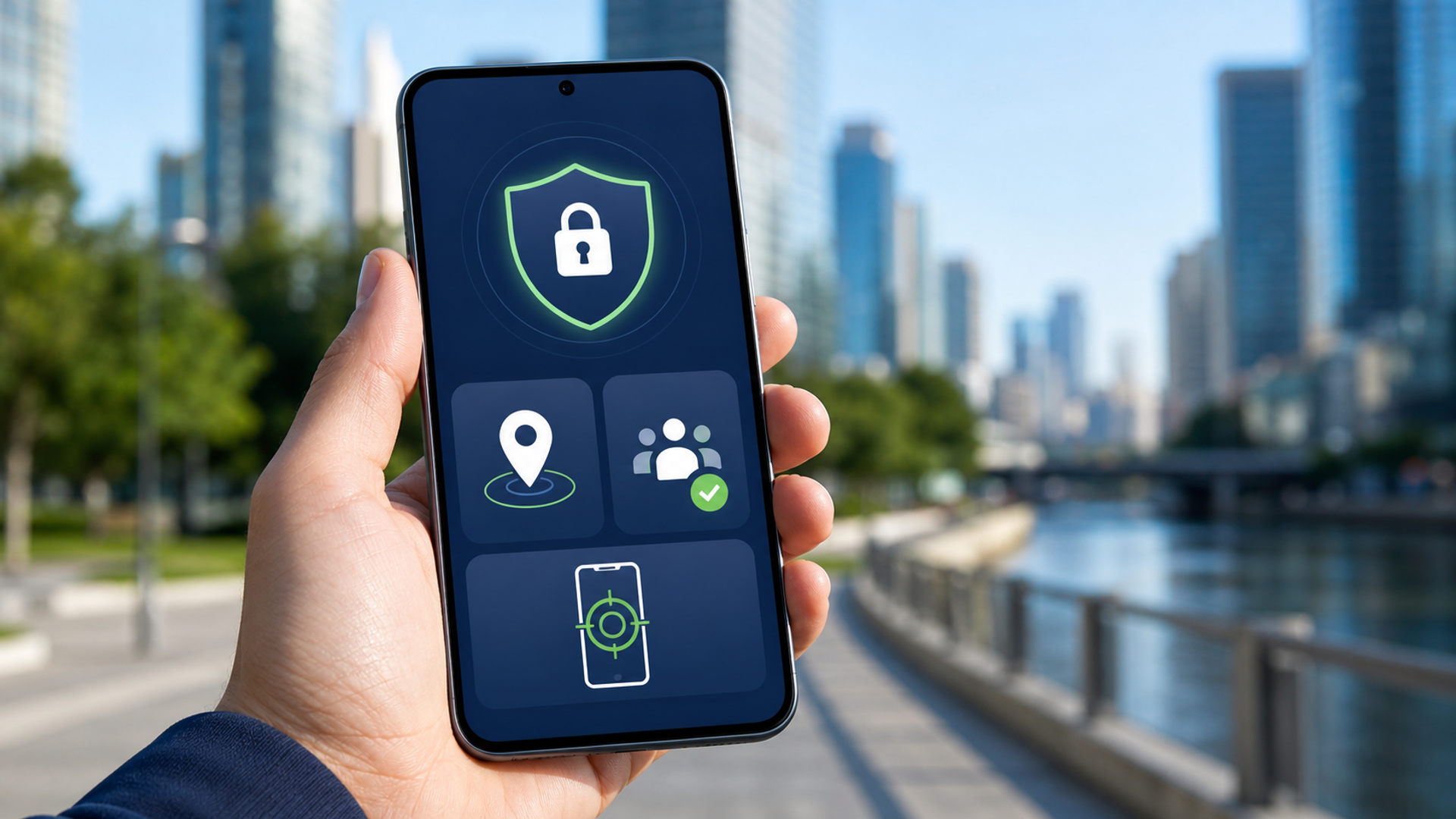
Android 17 improves security in ways ordinary users can understand: temporary precise-location access, selected-contact sharing, a stronger lost-phone lock, improved threat detection and tighter protection against repeated PIN guesses. The update is useful, but it is not self-configuring security.
After Android 17 arrives, review five areas first: Advanced Protection, loss recovery, location access, contact access and local-network permissions. Menu labels and availability can vary by manufacturer, region and update stage, so use your device maker’s current support material alongside Google’s documentation.
The five-setting checklist
| Priority | What to configure | Why it matters |
|---|---|---|
| 1 | Advanced Protection / threat protection | Raises defences for higher-risk users and suspicious activity |
| 2 | Find Hub and biometric “Mark as lost” | Contains a stolen phone even if a thief knows the passcode |
| 3 | Temporary precise location | Reduces persistent location access |
| 4 | Selected-contact sharing | Stops an app receiving the entire address book by default |
| 5 | Local-network access | Limits which apps can discover or communicate with nearby devices |
1. Decide whether Advanced Protection fits your risk
Google’s Android 17 overview says the release enhances Advanced Protection and Live Threat Detection. These tools are most relevant to people facing elevated risks—executives, public figures, journalists, campaigners, administrators and anyone targeted for account access rather than random advertising fraud.
Open Security settings and review the available protection mode. Before enabling, understand any compatibility or convenience trade-offs. A stronger mode may restrict behaviours that some apps rely on. That friction can be appropriate when the consequences of compromise are high.
Do not treat one toggle as a complete defence. Keep the operating system and apps current, remove unknown sideloaded software and protect the Google account with strong multi-factor authentication.
2. Configure loss recovery before loss
Android 17’s enhanced “Mark as lost” feature is designed to let the owner lock a missing phone with biometrics so that someone who knows the passcode cannot simply disable tracking or access information. That is a meaningful response to passcode observation and theft.
Set up Find Hub now:
verify the phone appears in the correct account;
confirm location and network settings required by the service;
add recovery methods that do not depend only on the phone;
record the device identifier according to your organisation’s policy;
practise finding the lost-device controls from a second device.
The last step matters. A feature you cannot reach under stress is not a recovery plan.
For work phones, confirm who has authority to lock or wipe the device and whether the company’s mobile-device management system takes precedence.
3. Use temporary precise location
Many apps need location once and keep it indefinitely because the user accepted a broad prompt months ago. Android 17 adds temporary precise-location access, giving users a narrower option.
Review apps in three groups:
Continuous need
Navigation during an active journey, device-finding and certain safety functions may need precise access while in use or, in limited cases, beyond it.
Temporary need
A delivery, ride, local search or event app may need precision for one task. Grant temporary access where available.
No meaningful need
A utility or entertainment app with no location-dependent function should not receive precise location simply because it asks.
Do not remove access mechanically from critical safety or business apps. Understand the function, then grant the narrowest permission that still works.
4. Share selected contacts, not the entire address book
An address book is a relationship map. It can contain private numbers, assistants, family members, clients and notes that the app does not need.
Android 17 lets users share specific contacts instead of the complete list. Use that for messaging, travel and social apps that only need a few people.
When an app asks:
ask whether search or manual entry works without access;
share selected contacts if discovery is genuinely useful;
avoid full access unless the app’s core function requires it;
revisit permissions after the event or project ends.
The control reduces exposure at the point of collection. It cannot retract contact data an app already uploaded under an earlier permission, so review the app’s own account and deletion controls as well.
5. Review local-network access
Android’s developer documentation says apps targeting Android 17 need the ACCESS_LOCAL_NETWORK runtime permission or privacy-preserving system pickers for communication with local devices such as smart-home products and casting receivers.
For users, the important question is simple: why does this app need to discover devices on the same network?
Legitimate examples include:
casting to a display;
configuring a trusted smart-home device;
printing;
transferring to a nearby computer;
controlling professional equipment.
A calculator, wallpaper app or unrelated game has a weaker case. Deny first when the function is unclear; grant later if a feature you intentionally use requires it.
On hotel and office networks, local discovery can expose more devices than expected. Narrow permission complements—but does not replace—network isolation and endpoint security.
A ten-minute Android 17 security review
After updating:
Install all pending system and Google Play updates.
Open the security dashboard and resolve critical warnings.
Confirm screen lock, biometrics and account recovery.
Verify Find Hub from another device.
Enable the appropriate threat-protection mode.
Sort apps by location permission and reduce persistent precision.
Sort apps by contacts permission and use selected sharing.
Review nearby-device and local-network access.
Remove apps no longer used.
Check work-profile or enterprise-management status.
What Android 17 does not solve
The update cannot prevent every phishing message, protect a reused password on another service or make an unsafe app trustworthy. It cannot guarantee that a manufacturer delivers every feature on the same timetable. It also cannot repair an account-recovery plan that points back to the lost device.
Security improves when several layers agree:
updated software;
narrow permissions;
strong account authentication;
rapid loss response;
careful app selection;
encrypted, policy-compliant handling of sensitive data.
Should you install immediately?
Most users should install the stable release supplied by their device maker after checking backup, battery and critical-app compatibility. Do not install a beta on a primary business phone merely to obtain a new security feature early.
Google released Android 17 first to supported Pixel devices, with other eligible devices following through 2026. The Android Developers release post also distinguishes the stable platform from beta availability on partner devices. Confirm which channel your phone is offering before proceeding.
The final decision
Android 17’s most valuable security change is not one dramatic shield. It is the ability to grant less: less time, fewer contacts and narrower local access—combined with stronger containment when a phone goes missing.
Enable the protections you understand, test recovery from another device and review permissions as part of the update. Security settings create value only when they match the way the phone is actually used.
For a wider device-level comparison, see VERTU Signals’ guide to phones with long-term security support.