Mastering the Largest Android Phone: A Complete Usage Guide
Effectively using the largest Android phone means transforming its expansive screen from a potential inconvenience into a powerful tool for productivity and entertainment. The key is to leverage built-in software features designed for one-handed operation whilst customising the layout to suit your personal workflow. By mastering these functions, you can fully realise the benefits of a larger display without compromising on comfort or usability.
Key Advantages of an Expansive Screen
A larger display offers a fundamentally different and more immersive mobile experience. The most significant benefit is the enhanced visual real estate, which improves everything from watching films to editing documents. Media consumption becomes more cinematic, with vibrant colours and details filling your view. For productivity, having more space allows for effective multitasking, such as viewing a video conference on one half of the screen whilst taking notes on the other. This makes a large phone an excellent substitute for a tablet or small laptop when you are on the move.
Furthermore, gaming is significantly more enjoyable, with on-screen controls being less obtrusive and graphics appearing more detailed. Accessibility is also a major advantage; text, icons, and user interface elements can be scaled up for easier reading and interaction, which is a crucial feature for many users.
Essential Tips for Comfortable One-Handed Use
Whilst a large screen is excellent for viewing, it can present challenges for single-handed navigation. Fortunately, the Android operating system includes several clever features designed to make even the largest android phone manageable. Familiarising yourself with these settings is the first step towards effortless control.
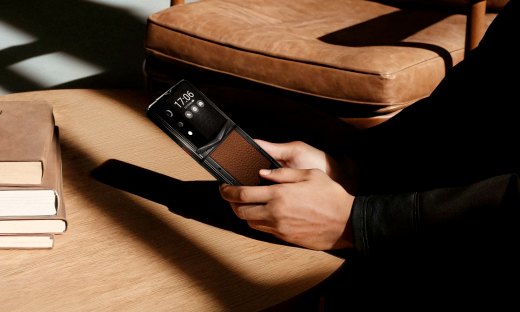
- Activate One-Handed Mode: Most large Android devices feature a dedicated 'one-handed mode'. This is typically enabled with a simple gesture, such as a swipe down on the navigation bar, which shrinks the entire screen interface towards a lower corner for easy thumb access.
- Customise Your Keyboard: Leading keyboard applications, including the default Gboard, have a one-handed layout. This setting docks the keyboard to the left or right side of the screen, compressing the keys into a comfortable range for single-thumb typing.
- Organise Your Home Screen: Arrange your most frequently used application icons along the bottom and sides of your home screen. Placing them within the natural arc of your thumb's reach minimises the need to stretch uncomfortably to the top of the display.
- Utilise Reachability Gestures: Many manufacturers include custom gestures. For example, a 'swipe down' gesture anywhere on the home screen can be configured to pull down the notification shade, saving you the effort of reaching for the top edge of the phone.
Optimising Display and Battery Settings
A large, high-resolution display is a significant consumer of battery power. To get the most out of your device throughout the day, it is wise to fine-tune its display settings. Modern OLED and AMOLED screens, common in premium large phones, offer specific ways to conserve energy without sacrificing visual quality.
Using features like adaptive brightness, which automatically adjusts screen intensity based on ambient light, can prevent unnecessary power drain. Similarly, enabling Dark Mode not only reduces eye strain but can also lead to noticeable battery savings, as the display technology uses less power to show black or dark pixels.
| Setting | Recommended Action & Benefit |
|---|---|
| Screen Resolution | Set to 'Auto' or 'FHD+' for daily use. This balances clarity with battery efficiency, reserving the maximum QHD+ resolution for when you are viewing high-quality media. |
| Adaptive Brightness | Keep this setting enabled. It learns your preferences over time and provides the optimal brightness level for your environment, saving power automatically. |
| Dark Mode | Schedule Dark Mode to turn on automatically in the evenings or keep it on permanently. On OLED/AMOLED screens, this directly reduces power consumption. |
| Screen Timeout | Set a shorter timeout period, such as 30 seconds or 1 minute. This ensures the display turns off quickly when not in use, preventing wasted energy. |
Leveraging the Large Display for Productivity
The true power of the largest android phone is unlocked when you use it as a productivity hub. The expansive screen is perfect for advanced multitasking features that are often underutilised. Learning to use these functions can dramatically improve your efficiency when working away from your desk.
Split-screen mode is the most powerful of these tools. It allows you to run two applications side-by-side, perfect for referencing information in an email whilst composing a reply, or watching a tutorial whilst working in a related application. Some devices also support floating 'pop-up' windows, allowing a third application to hover over your split-screen pair. This level of multitasking, combined with the convenience of a device that fits in your pocket, makes a large-screen phone a formidable work tool.
Mastering a large Android phone is about adapting its settings and features to your needs. By embracing its size and utilising the smart software solutions available, you can enjoy a superior experience for both work and leisure. For those seeking a premium device with an impressive display, you can explore the curated collections at the official VERTU store.