If your phone holds deal terms, travel routes, private numbers, and the conversations that move a company, “AI features” aren’t just a convenience layer. They’re a new set of pipes that touch the same sensitive data.
This guide gives you a decision-stage framework you can actually use. Not buzzwords. Five security questions to answer before you let an AI-enabled phone become your default assistant.
If you’re evaluating a premium device for AI phone privacy, the goal isn’t to avoid AI. It’s to keep it boxed in.
60-second self-check (do this before enabling any AI assistant)
Permissions: Check whether the AI app has Contacts, Photos (All Photos), Microphone, Files, or “run in background” without a clear need.
Network posture: Turn off auto-join for unknown Wi‑Fi; disable Wi‑Fi/Bluetooth when not in use.
AI retention: Find the AI feature’s history/transcript/cache settings. If you can’t locate them, assume retention is on.
Device lock: Ensure a strong device passcode/PIN and biometric unlock are enabled.
Private space: Confirm you can separate confidential work from everyday apps with a distinct space/profile.
Step-up confirmation: Trigger one high-risk action (share/export/change security setting) and verify it requires Face ID/Touch ID or device credential.
Key takeaways
Treat mobile AI security as a data-handling system: authorization, transmission, storage, isolation, and sensitive-action confirmation.
The highest-risk moment is usually not “the model.” It’s the handoff: a permission you forgot you granted, a file that got cached, or a message that left the device.
You want hardware-backed keys, strong app sandboxing, and clear separation between private and everyday spaces.
For sensitive operations, insist on step-up confirmation (biometric or device credential) before data export, account changes, and payments.
If you’re evaluating a secure AI foldable, look for named controls you can verify: Private Space, end-to-end encryption, and system isolation.
Important note (cyber safety / YMYL): This article provides general security education and decision guidance. It is not a guarantee of security, and it is not legal, compliance, or incident-response advice. If you operate in a regulated industry or face elevated threat levels, consult qualified security professionals.
How this guide is sourced: We prioritize primary references (NIST standards and official Apple/Android security documentation) and translate them into device-level checks you can verify.
Last updated: 2026-06-01
Why AI changes the mobile risk model
Even a well-secured phone becomes easier to leak from when AI features are present.
Not because AI is “mysterious,” but because AI workflows:
pull more inputs (microphone, photos, documents, clipboard, contacts)
generate more outputs (summaries, drafts, reminders) that may be stored or shared
run across more components (on-device processing, cloud calls, third-party app actions)
The good news: the fundamentals still work. NIST’s SP 800-124 Rev.2 “Guidelines for Managing the Security of Mobile Devices in the Enterprise” (2023) still maps cleanly to how you should treat an AI-enabled phone.
If you’re trying to separate marketing from reality, this is the easiest filter: does the phone’s on-device AI security story come with clear boundaries you can verify?
The 5 pillars of mobile AI security
Think of this as a checklist for your own device, and a buying framework when you’re comparing “secure phones.”
1) Authorization: who (or what) is allowed to reach your data?
AI assistants fail quietly when permissions are broad and long-lived.
For a privacy-first workflow, your goal is not “deny everything.” It’s controlled access:
least privilege (only what’s needed)
just-in-time permissions (grant when needed, revoke when done)
separation between personal convenience and confidential work
Where this goes wrong
A single AI-enabled app gets Photos, Microphone, Contacts, Files, and “run in background.” Then you forget it exists.
How to verify: On your phone, review permissions app-by-app. If an AI feature can’t explain why it needs Contacts or All Photos, treat that as a red flag.
2) Transmission: what leaves the device, and how is it protected?
If you care about confidentiality, treat every network hop as hostile until proven otherwise.
At a minimum, you want:
modern transport encryption (TLS) for app traffic
safe network behavior when traveling (public Wi‑Fi is where compromises get cheap)
an encrypted communication option for your most sensitive calls and messages
NIST explicitly emphasizes protecting data in transit for mobile deployments in SP 800-124 Rev.2 (2023).
Collector’s note: For high-profile travel, the risk isn’t theoretical. It’s opportunistic. Rogue Wi‑Fi, SIM-swap attempts, and “charging station” tricks are common enough that it’s worth rehearsing your response.
For that lens, VERTU’s internal guide, “Mobile Security for High-Profile Users: Protecting Your Data on the Move” (2026), is a useful quick read.
How to verify: Turn off auto-join for unknown Wi‑Fi networks. Disable Wi‑Fi and Bluetooth when you’re not using them. If you must use public Wi‑Fi, use a trusted VPN and assume shoulder-surfing is part of the threat model.
Travel high-risk action card (airport / hotel / meeting)
Airport / lounge: Avoid unknown Wi‑Fi; if you must connect, use a trusted VPN. Keep Bluetooth off. Don’t open sensitive docs while shoulder-surfing is likely.
Hotel: Treat the network as untrusted. Prefer your own hotspot. Avoid public USB charging ports; use your own charger/cable or a power-only adapter.
Meeting / conference: Use a “private space” or work profile for confidential notes and attachments. Before sharing, double-check recipients and require biometric confirmation for any export/share action.
3) Storage: if the phone is taken, what can be pulled from it?
For serious smartphone data protection, you’re looking for two layers:
(That’s the core of secure AI assistant on phone design, too. The assistant can only be as private as the storage and keys underneath it.)
platform encryption at rest
secure key handling (so “encrypted” doesn’t secretly mean “decryptable if you steal the file”)
On iPhone, Apple documents a hardware-backed approach through the Secure Enclave and Data Protection classes, including per-file protection, in Apple Platform Security docs like “The Secure Enclave” and “Data Protection overview”.
On Android, the equivalent concept is to keep sensitive keys non-exportable using the Android Keystore system and to avoid risky storage patterns, especially noted in “Sensitive Data Stored in External Storage” (Android Security).
AI-specific storage risk
AI features create extra artifacts:
chat histories and prompts
summaries and drafts
cached attachments
logs that include “helpful context”
You don’t need paranoia. You need boundaries.
How to verify: Look for settings that control history, caching, and cloud sync for AI features. If you can’t find them, assume more is being retained than you want.
4) Isolation: can you separate private work from everything else?
Isolation is what lets you use one device without turning it into one giant shared bucket.
At the platform level:
Apple relies on app sandboxing and system controls; see Apple’s broader platform security documentation (for example, Apple Platform Security guide PDF).
Android explicitly documents app isolation in the Android application sandbox.
But for a high-profile user, sandboxing alone can still feel too flat. The practical question is whether you can create separate spaces with different rules.
That’s why “private space” features matter, when they’re real and not just a label.
How to verify: You should be able to describe, in one sentence, what’s isolated from what. If the salesperson can’t explain it clearly, the isolation model probably isn’t the core design.
5) Sensitive operation confirmation: do you have a human-in-the-loop gate?
This is the pillar most buyers forget.
AI assistants can draft and suggest all day. But certain actions should always require a clear, deliberate confirmation:
exporting a file
changing account security settings
approving payments
sharing a contact list
sending a message to a new recipient
On iPhone, Apple documents user-authentication gating for protected secrets via Keychain access control; see “Keychain data protection”.
On Android, you can configure keys to require user authentication before cryptographic use, and Android provides a standardized UX path for biometrics via BiometricPrompt (covered within official Android security guidance and APIs; a starting point is Android’s security tips alongside keystore guidance).
How to verify: Try it yourself. Pick a high-risk action and see whether the device requests Face ID/Touch ID (or Android biometric/device credential). If a “private” feature doesn’t ask for your presence when it should, it’s a convenience feature, not a control.
What to ask before you trust an AI assistant on your phone
If an assistant can act across apps, it can also create unintended leakage.
Ask these three questions:
What data does it ingest by default? (and can you reduce it?)
What does it store, and for how long? (including summaries, logs, and voice transcripts)
What actions can it take without you? (especially messages, purchases, account changes)
If you can’t get crisp answers, you’re not buying “AI.” You’re buying opacity.
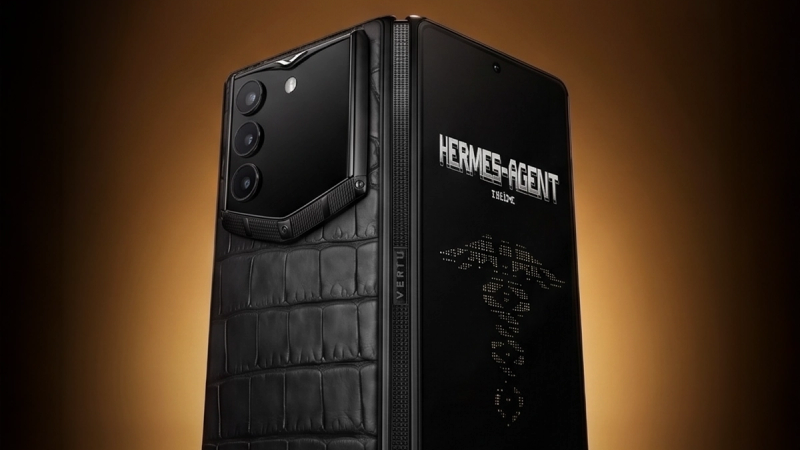
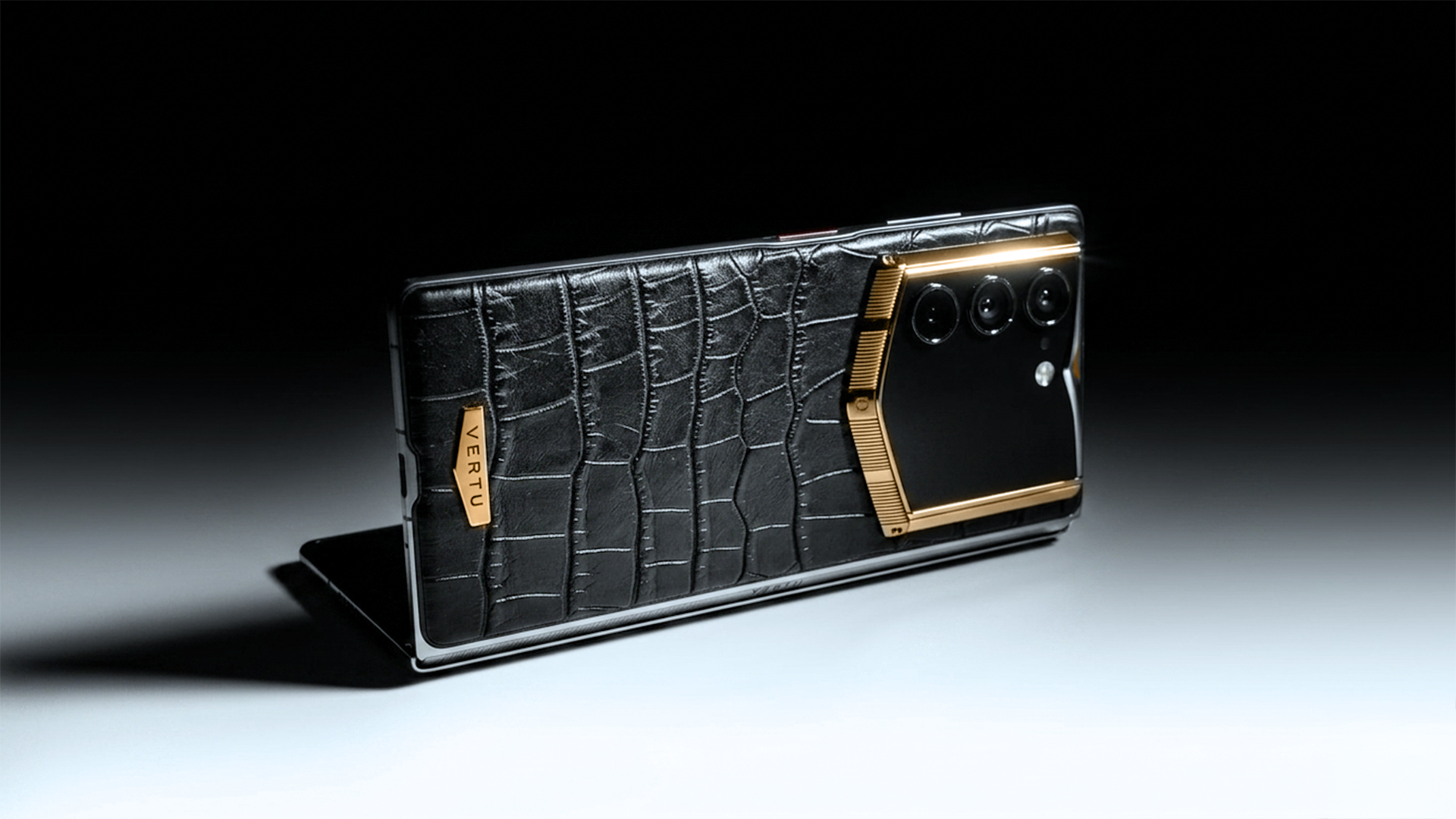
A secure AI foldable option: VERTU AlphaFold (how to verify, not just what’s claimed)
If your decision is “I want a private command center, not just another flagship,” treat any security feature as something you must verify in a live demo or on the device.
What VERTU states publicly: On the official VERTU AlphaFold page, VERTU lists security features including Private Space, End-to-end Encryption, encrypted V-Talk, and triple-system isolation.
What to require in a 5-minute demo (acceptance checklist):
Private Space / separate spaces: Ask the presenter to show the exact settings path and demonstrate what is isolated (apps, files, notifications, accounts). You should be able to explain the boundary in one sentence.
Encryption claims: Confirm what is end-to-end encrypted (which app/channel) versus “encrypted in transit” or “encrypted at rest.” Ask what metadata remains visible.
AI data handling: Locate controls for AI history, transcripts, caching, and cloud sync. If those toggles are missing or unclear, assume retention is enabled.
Isolation model (“triple-system isolation”): Ask for a concrete example: “If I install a new app in the everyday space, can it see files, clipboard, notifications, or accounts in the private space?” Require an on-device demonstration.
Sensitive actions: Test one high-risk flow (export a file, share to a new recipient, change account security settings, approve a payment). It should require biometric or device-credential confirmation.
Source note: Details such as “hardware privacy protection” and “AI data security” are described on VERTU product pages (for example, the AlphaFold bespoke product page). Use them as a starting point, then validate the behavior with the checklist above.
Pro Tip: If a control can’t be shown in under 60 seconds (settings path + behavior), treat it as marketing until proven otherwise.
Video (optional): a quick refresher
If the embed doesn’t load for any reason, you can open it directly: Mobile Device Security Basics (YouTube)
FAQ
Is on-device AI always safer than cloud AI?
Not automatically. On-device processing can reduce data transmission, which is a meaningful win. But if the system keeps large local logs, grants broad permissions, or makes it easy to export data, you can still lose.
What’s the fastest way to improve AI phone privacy today?
Do a permission audit, turn off features you don’t use, and tighten network behavior when traveling. Then set one rule: no sensitive action happens without explicit confirmation.
How many internal “spaces” do I actually need?
For most high-profile workflows, two is a solid baseline: everyday convenience vs private work. Three can make sense if you maintain a travel profile/device posture.
5-pillar scorecard (copy/paste)
Score each pillar 1–5 (1 = weak, 5 = strong). Require evidence you can verify.
Pillar | Score (1–5) | Evidence to look for (verification) | Pass threshold (practical) |
|---|---|---|---|
Authorization | Permission list is minimal; just-in-time prompts; easy revoke; no “always-on” background access without need | You can revoke access without breaking core phone functions; AI app does not require Contacts/All Photos by default | |
Transmission | Clear encrypted channel options; safe Wi‑Fi behavior; VPN compatibility; strong account protections against SIM-swap | You can operate safely on travel networks with a repeatable routine (VPN + no auto-join + limited radios) | |
Storage | Encryption at rest + hardware-backed/non-exportable keys; no sensitive data in external/shared storage | A lost device does not expose AI histories, attachments, or work files without device credential | |
Isolation | Distinct spaces/profiles; file/account separation; predictable boundaries; demonstrable “can/can’t access” rules | You can describe what is isolated from what, and it matches device behavior during a live test | |
Sensitive confirmation | Biometric/device-credential gating for exports, new recipients, security changes, payments | High-risk actions consistently require explicit presence/confirmation |
Next steps
If you want a clean way to decide in one sitting, take the five pillars above and score any phone you’re considering from 1–5. Then run one real-world test: ask the assistant to handle a task that touches sensitive information, and watch what it asks permission to do.
If you’re exploring a secure AI foldable specifically, start with VERTU’s official AlphaFold security features, then use the brand’s broader context on mobile security for high-profile users to pressure-test your travel threat model.