![How to Scan Receipts and Documents with Your Phone [Full Guide]](https://cdn.sanity.io/images/e0gp1l2g/production/0db13feec1d5e72b8a8a5f976d1f3e86619c9228-3840x1860.webp?w=1920&h=1080&q=84&auto=format&fit=crop)
Key Takeaways
- To scan a document with your phone, capture the page, adjust its edges, check the result and save it in a suitable format.
- On iPhone, Notes and Files offer document scanning. On Android, supported Pixel and Galaxy phones may scan from Camera; Google Drive is another option.
- Good lighting, a flat surface, legible text and a clear file name make scans easier to read and retrieve.
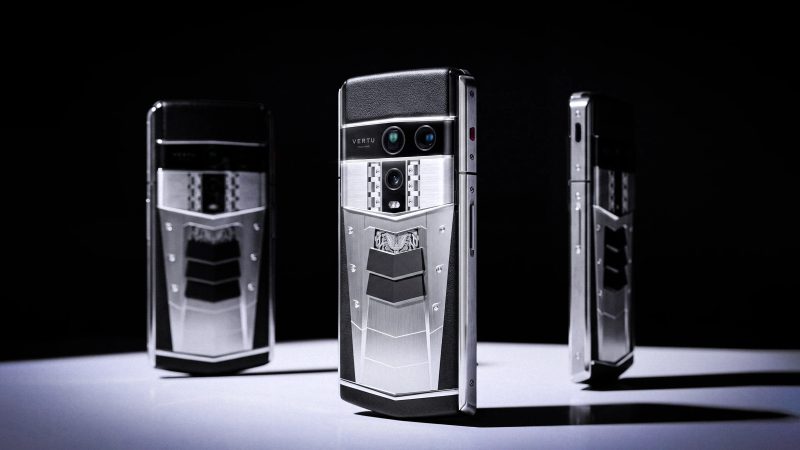
- For high-volume business receipts, simple scanning can be part of a dedicated receipt-to-ledger workflow. VERTU lists Snap-to-Ledger expense capture among AlphaFold’s VPS and Hermes Agent capabilities.
To scan a receipt or document with your phone, open a scanning feature, place the page in view, capture it, adjust the crop and save the result. On iPhone, start with Notes or Files. On Android, some Pixel and Samsung Galaxy models can scan directly from Camera; Google Drive is an alternative when your phone does not offer a camera-based scanner.
For business receipts, creating an image is only the first step: the file may also need to be named, reviewed and routed into an expense process. VERTU’s guide to AI finance assistants and receipt-to-ledger workflows explores that broader process.
Which phone scanning method should you use?
The right method depends on where you want the scan to go. Use Notes if you want to keep a scan with related notes, Files if you want to save it directly to a chosen location, and a camera-based scanner for a quick capture when your Android model supports one.
| Method | Useful for | Where the scan goes |
|---|---|---|
| iPhone Notes | Receipts, forms and pages you want to keep with a note | Saved in the note as a scanned document |
| iPhone Files | Documents you want to save to a selected folder | A chosen Files location |
| Pixel Camera | Quick scans on supported Pixel phones | Save, download or share using the options shown |
| Samsung Galaxy Camera | Quick scans on Galaxy models with document scanning enabled | Follow the device’s available save options |
| Google Drive on Android | Scans you want to organise within a Drive workflow | A selected Drive location |
How do you scan a document on an iPhone?
On iPhone, you can scan a document in Notes or Files. Both let you capture a page, adjust its edges and add more pages to the same scan.
- To use Notes: Open a note or create one, tap the attachment button, then choose Scan Documents.
- Place the page in view of the camera. Let the phone capture it automatically, or switch to manual capture if you prefer.
- Adjust the corners so the scan follows the page edges, then keep the scan.
- Add more pages if needed, then tap Done. The scan is saved in the note.
To save a scan directly to a folder instead, open Files, tap the more button, choose Scan Documents, capture and adjust the pages, then choose a location and save. Apple’s iPhone and iPad scanning instructions cover both Notes and Files. Menu names may vary slightly with the iOS version.
Can Android scan documents from the built-in Camera app?
Yes, some Android phones can scan documents from Camera, but the feature and its controls vary by manufacturer, model and software version. Pixel Camera displays a “Scan document” prompt on supported devices. Samsung Galaxy models with document scanning enabled show an on-screen scan control when the camera detects a document.
Pixel: use the “Scan document” prompt
- Open the Google Camera app and point it at the document.
- Wait for the Scan document prompt, then tap it.
- Follow the on-screen instructions and review the captured page.
- Tap Done, then choose an available option to save, download or share.
Google’s Pixel document-scanning guide also describes a Drive-based scanning route. The wording and available options can differ by device and app version.
Samsung Galaxy: use the document-scan control
- Open Camera settings and look for a Scanning or Scan documents and text option. Enable document scanning if your model requires it.
- Return to Camera and point it at the page. When the phone detects a document, tap the on-screen Scan control.
- Review the result, adjust it if the preview offers that option, and save.
Controls differ between Galaxy models and One UI versions. Samsung’s Galaxy S26 scanning instructions, for example, show how to enable scanning from Camera settings. If your camera has no scanning prompt, use a document-scanning app instead.
How do you scan receipts and documents with Google Drive?
Google Drive is a practical alternative when your Android camera does not offer document scanning or when you want to save the scan into a Drive folder.
- Open Google Drive and choose the scan option, which may appear under the + button or as a camera icon.
- Point the camera at the receipt or document and capture it.
- Review the crop and orientation. Add another page if the document has more than one.
- Finish the scan, name the file and choose where to save it using the options shown in the app.
Google Drive’s controls can vary by app version and device. Before leaving the screen, check that the file has been saved to the intended account and folder.
How can you make a phone scan easier to read?
A clear scan starts before you press the shutter. Give the page a flat surface, even light and enough space around its edges for the camera to identify the full document.
- Reduce glare: Move the page away from direct reflections, especially if it is glossy or laminated.
- Keep the phone parallel: Hold the camera square to the page to reduce perspective distortion.
- Check the whole page: Make sure corners, signatures, totals and small print have not been cropped.
- Review the result at full size: Zoom in on the smallest or most important text before discarding the original image.
- Capture faint receipts carefully: Avoid shadows and confirm that the merchant, date, currency and total remain legible.
Automatic edge detection is convenient, but it is not a substitute for checking the final page. A crop that trims a handwritten note, receipt total or document reference can make the scan less useful even when the rest looks sharp.
Should you save a receipt or document as a PDF or an image?
Choose PDF for multi-page paperwork or when you want several pages in one file. Choose an image when you need a single page that can be inserted into a message or another document. The formats offered depend on the app you use, so check the save options before finishing.
A simple naming pattern can make later searches easier: YYYY-MM-DD_Merchant_Amount_Currency.pdf. For other documents, use a short subject and date, such as 2026-10-12_Travel-Claim.pdf. Avoid putting unnecessary personal or payment details in the file name.
How should you manage scanned documents and privacy?
A phone scan may contain addresses, signatures, account details or business information. Before saving or sharing it, consider who needs access and which account or storage location will hold the file.
- Use a work-approved account for business documents if your organisation has one.
- Check the destination folder and sharing permissions before sending a scan.
- Share only the pages or details the recipient needs.
- Keep a separate, unedited copy when you need to preserve the original scan for your own records.
- Remove temporary copies from locations where you no longer need them.
VERTU Bonus Tip: When receipt scanning becomes an expense workflow
For someone who scans receipts mainly to record business spending, the useful question is not only how to create a clean image, but what happens to the receipt next. VERTU AlphaFold’s official product page lists Snap-to-Ledger expense capture through VPS and Hermes Agent. That positions the feature within an expense workflow rather than as a general-purpose scanner for every document type.
A basic phone scan creates a digital copy; an expense workflow may organise receipt information for review and processing. VERTU describes its enterprise capabilities as dependent on authorisation, deployment and configuration. For more on the product’s broader work context, see how VERTU AlphaFold fits into a business-trip workflow.
Frequently Asked Questions
Can I scan a receipt with my phone without installing another app?
Yes. iPhone users can scan with Notes or Files, and supported Pixel and Samsung Galaxy phones may offer scanning in Camera. If your Android camera does not show a scan option, use a document-scanning app such as Google Drive.
How do I scan several pages into one document?
Start a scan in Notes, Files or a scanning app, capture the first page, then use the option to add another page before saving. Review the page order and crop before you finish.
Can a phone scan be saved as a searchable PDF?
Some scanning apps offer searchable PDFs, but this depends on the app and its text-recognition features. Check the saved file before relying on search, especially if the receipt is faint, creased or printed in small type.
Is a phone scan the same as a photograph?
Not quite. A scanning feature can detect page edges and adjust the crop, making a document easier to read and store than an unedited camera photo. You should still inspect the saved result for missing edges or unclear text.
Conclusion
For everyday receipts and paperwork, your phone can create a practical digital copy in a few steps: capture the page, correct the edges, check the text and save it somewhere you can find again. iPhone Notes or Files, supported Android camera scanners and Google Drive cover common needs; business expense workflows may add a review and processing layer. To explore VERTU AlphaFold models and configurations, visit the VERTU AlphaFold collection.
![Top 10 Two-Tone Carbon-Fibre Watches for Men [2026 List]](https://cdn.sanity.io/images/e0gp1l2g/production/18870799ba33fab0e038968359cd5772d7d7db30-1024x576.webp?w=180&h=180&q=78&auto=format&fit=crop)
![Top 10 Two-Tone Carbon-Fibre Watches for Men [2026 List]](https://cdn.sanity.io/images/e0gp1l2g/production/18870799ba33fab0e038968359cd5772d7d7db30-1024x576.webp?w=800&h=450&q=82&auto=format&fit=crop)
![Top 10 Luxury Watches with Digital Complication Displays for Men [Latest]](https://cdn.sanity.io/images/e0gp1l2g/production/c4f6bf8c080f291c39f7cc85c7344ecff2fd3799-1024x553.webp?w=800&h=450&q=82&auto=format&fit=crop)