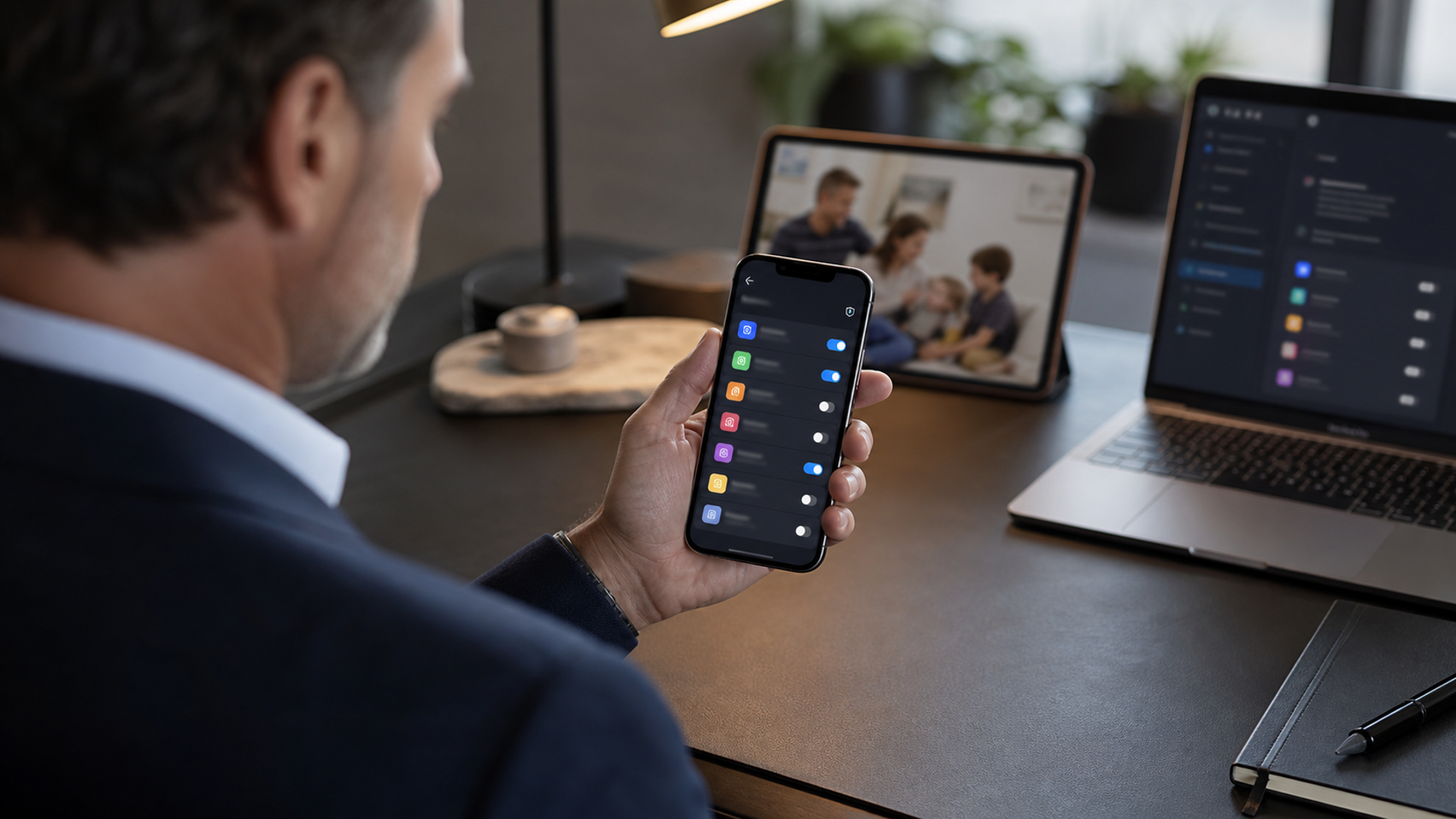
Apple says the next generation of Siri AI can use personal context across messages, email and photos, understand what is on screen and take more actions across apps. That can remove substantial friction, but it also makes configuration more consequential. Before upgrading, users should review what Siri can see, which apps it can act through, what requires confirmation and how conversational history is stored or removed. This analysis is supported by Apple Siri, Dictation and Privacy and Apple privacy features. For the adjacent decision, see our personal intelligence permissions checklist.
What Apple announced
At WWDC26, Apple described an updated Siri architecture integrated across iPhone, iPad, Mac, Apple Watch and Vision Pro. Its official announcement says Siri AI can draw on personal context, answer questions about on-screen content, use broader knowledge and support more system-wide app actions. Apple also announced a dedicated Siri app and iCloud synchronisation for conversation history.
Those descriptions establish intended capabilities, not a reason to grant every permission. Availability can vary by device, language, region and software release. The right approach is staged access: begin narrow, test behaviour and expand only where the benefit is clear.
The eight-check permission audit
| Check | Question | Safer default |
|---|---|---|
| Device eligibility | Which devices receive the feature? | Verify the exact model and OS before changing workflow |
| Data scope | Which messages, mailboxes, files and photos are visible? | Start with the minimum relevant apps |
| App actions | What can Siri prepare or execute? | Require confirmation for sending, paying, deleting and booking |
| Screen awareness | When can on-screen content be interpreted? | Avoid invoking it on confidential screens |
| History | Where are conversations stored and synchronised? | Review retention and deletion controls |
| Accounts | Which personal and work identities are connected? | Keep managed work data within employer policy |
| Network path | Which requests run locally or use remote processing? | Check Apple's current documentation per feature |
| Recovery | Can permissions, history and access be revoked? | Test revocation before depending on the feature |
1. Separate availability from marketing
Confirm the feature on the exact device, language and country. A workflow built around a demonstration can fail when a language, app action or account type is unsupported. Use Apple's release notes and settings on the device as the source of truth.
2. Map personal context by category
“Personal context” is too broad for a useful decision. Divide it into communications, media, files, calendar, location and browsing. Decide which category provides enough value to justify access. A reminder drawn from messages may be helpful; unrestricted access to every mailbox may not be necessary.
3. Distinguish drafting from execution
An assistant that drafts a reply is lower risk than one that sends it. The same distinction applies to adding a calendar event versus inviting attendees, finding a product versus purchasing it, and preparing directions versus sharing location. Significant external actions should remain visible and confirmable.
4. Treat the screen as a disclosure surface
Screen awareness can make help immediate, but the visible screen may contain a passport, contract, medical note, private conversation or financial account. Develop a simple habit: before invoking Siri on screen content, ask whether the same screenshot could be shared with a third party. If not, do not assume the assistant is the appropriate channel.
5. Review history as carefully as messages
A dedicated conversation history can be convenient because previous instructions remain accessible. It can also create a compact record of intentions, searches and personal questions. Find the controls for viewing, deleting and synchronising that history. If deletion behaviour is unclear, avoid placing secrets in the conversation.
6. Keep work and personal authority separate
Executives often use one device for both managed and private accounts. Employer mobile-device rules may restrict which assistant can access corporate email, documents or meetings. Do not move work material into a personal assistant merely because the interface permits it. Managed accounts, data-loss prevention and approved tools take precedence.
7. Test failure and ambiguity
Give the assistant low-risk tasks with similar names, overlapping calendars and ambiguous dates. Observe whether it asks a clarifying question. Test a poor network and revoked permission. Reliability is not only whether the ideal request succeeds; it is whether uncertainty remains visible before an action leaves the device.
8. Schedule a permission review
Permissions accumulate after the novelty period. Set a review after one week and again after one month. Remove apps that did not provide clear benefit, delete unnecessary history and check whether an update changed behaviour or added a new integration.
A practical rollout sequence
Update a secondary or non-critical device first where possible.
Enable one context category, such as calendar.
Use read-only and drafting tasks for several days.
Confirm how history and permissions are removed.
Add one app action with confirmation.
Keep payments, identity documents and confidential work outside the experiment.
Reassess after the first major software update.
The correct trust model
Personal context makes an assistant useful because it reduces repeated explanation. It also changes mistakes from generic answers into potentially personal actions. Trust should therefore be granular and reversible, not a single decision made during setup.
Use Siri AI where the context is proportionate to the task. Keep consequential actions confirmable, protect managed work boundaries and treat history as data. Convenience is strongest when the user can still see—and withdraw—the authority behind it.
A household and shared-device check
Personal context can become ambiguous on shared iPads, family calendars, shared photo libraries and household Macs. Before enabling broader access, confirm which account is active, whether notifications expose another person's information and how voice recognition behaves for different users. Children and guests should not inherit an adult's authority merely because they can reach the device.
Create one harmless test for each shared surface: ask for an event from a family calendar, search for a non-sensitive photo and attempt to draft—but not send—a message. If the system crosses an expected boundary, reduce access before using real personal context. Shared convenience requires clearer identity, not looser permissions.