Connecting Android phones to smart TVs without wires is becoming increasingly popular. Did you know that 87% of US households now own a smart TV? Additionally, daily smart TV usage has increased by 21% compared to last year. Younger generations, such as Millennials and Gen Z, are leading the way in streaming content. Millions of them connect wirelessly every month. Curious about how to connect Android phone to smart TV without using cables? You're in the right place! It's easy, and the experience is truly impressive!
Key Takeaways
Use Chromecast to stream easily. Plug Chromecast into your TV, set it up with Google Home, and share content from your phone without trouble.
Make sure Miracast works on your devices. Check if both your Android phone and smart TV support Miracast for screen mirroring to work.
Try the casting feature on your Android phone. Open 'Cast' in Quick Settings to show your screen on your smart TV quickly.
How to Connect Android Phone to Smart TV Using Chromecast
Setting Up Chromecast for Your Smart TV
First, plug your Chromecast device into your TV's HDMI port. Then, connect the USB cable to a power source. Turn on your TV and switch to the correct HDMI input. Download the Google Home app on your Android phone. Open the app and follow the on-screen instructions to set up your Chromecast. Make sure your phone and Chromecast are on the same Wi-Fi network. This step is crucial for a smooth connection.
Casting Content from Your Android Phone
Once your Chromecast is ready, open an app like YouTube or Netflix on your phone. Look for the "cast" icon, usually in the top-right corner. Tap it and select your Chromecast device from the list. Your content will instantly appear on the TV screen. You can control playback, volume, and even pause the video directly from your phone. This makes it easy to enjoy your favorite shows and movies.
Tips for Optimizing Chromecast Performance
To get the best experience, keep your Chromecast and router close to each other. This reduces lag and buffering. Use a 5GHz Wi-Fi network if available. It offers faster speeds compared to 2.4GHz. Also, update your Google Home app and Chromecast firmware regularly. This ensures compatibility and smooth performance. If you experience issues, restart your Chromecast and router.
Pro TipAvoid running multiple devices on the same Wi-Fi network while casting. This helps maintain a stable connection.
Mirror Android to TV with Miracast
Checking Device Compatibility with Miracast
Before using Miracast, check if your devices work with it. Android removed Miracast starting with version 6.0 (Marshmallow). Some brands still include it in their custom Android versions. If your phone doesn’t have Miracast, try other options like Chromecast. To check, look for "Wireless Display" or "Screen Mirroring" in your phone’s settings. For TVs, make sure they support Miracast directly or with an adapter.
Step-by-Step Guide to Connect via Miracast
- Turn on Miracast on Your TVGo to your TV’s settings and enable Miracast. It might also be called "Screen Mirroring" or "Wireless Display".
- Enable Screen Mirroring on Your PhoneOpen your phone’s settings and choose "Cast" or "Wireless Display". Ensure both devices use the same Wi-Fi network.
- Pick Your TVYour phone will search for devices. Tap your TV’s name when it shows up.
- Start MirroringOnce connected, your phone’s screen will show on the TV. You can now watch videos, view photos, or give presentations on a bigger screen.
Troubleshooting Common Miracast Issues
Sometimes, Miracast doesn’t work perfectly. Here’s how to fix common problems:
Problem Stage | What Happens |
|---|---|
Connection | Devices fail to link. |
Projection | Media doesn’t display on the TV. |
UnexpectedDisconnect | Devices disconnect suddenly. |
- Check Wi-Fi SettingsMiracast uses Wi-Fi Direct on the 2.4 GHz band. Make sure both devices are on this frequency.
- Fix DelaysIf there’s lag, move your phone and TV closer together.
- Check ResolutionMiracast supports up to 1080p. If the picture looks bad, adjust your phone’s resolution.
TipRestart your phone and TV if problems continue. This often fixes connection issues fast.
Using Built-in Casting Features on Android and Smart TVs
How to Use the "Cast" Feature on Android Phones
The "Cast" feature on your Android phone makes sharing content with your TV super simple. To get started, swipe down from the top of your screen to open the Quick Settings menu. Look for the "Cast" icon, which looks like a rectangle with Wi-Fi waves in the corner. Tap it, and your phone will search for nearby devices. Select your smart TV from the list, and voilà! Your phone's screen will appear on the TV.
Want to stop casting? Just tap the "Cast" icon again and disconnect. This feature works great for streaming videos, showing off photos, or even playing mobile games on a bigger screen.
TipKeep your phone and TV on the same Wi-Fi network. This ensures a smooth connection.
Ensuring Your Smart TV Supports Built-in Casting
Not all TVs support built-in casting. To check if yours does, look for terms like "Google Cast" or "Screen Mirroring" in your TV's settings or user manual. Many newer models come with this feature pre-installed. If you have a smart TV with built-in casting, you’re good to go. If not, you might need an external device like Chromecast.
Enhancing Performance for Built-in Casting
For the best experience, reduce interference by limiting other devices on your Wi-Fi network. Place your router close to your TV and phone. This minimizes lag and buffering. Also, keep your Android phone updated to the latest software version. Updates often improve compatibility and performance.
Pro TipRestart your router and TV occasionally. This can fix minor connectivity issues and improve casting quality.
Connecting Vertu Meta2 to Smart TVs for a Premium Experience
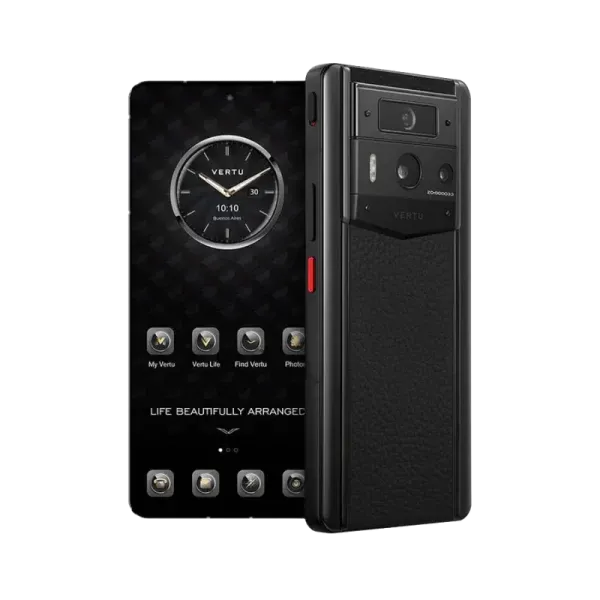
Using Meta2's Features for Easy Casting
The Vertu Meta2 makes wireless casting simple and smooth. Its advanced tech gives a fast and high-quality experience. You can cast video from android phone to tv quickly. The Snapdragon 8 Gen2 chip and 12GB RAM make it super fast. Streaming is lag-free and connects in seconds.
The phone’s 6.78-inch AMOLED screen makes visuals look amazing on TV. Movies and photos appear bright and clear when mirrored. The Meta2’s AI assistant helps you connect easily. It guides you step-by-step to link android phone to smart tv. Enjoy your favorite shows with no hassle.
Pro TipUse the Meta2’s Ghost system for safe streaming. It keeps your data secure while casting.
Checking if Meta2 Works with Your Smart TV
First, see if your smart TV supports casting. Most newer TVs work well with the Meta2. If not, use a Chromecast or similar device.
Make sure both devices are on the same Wi-Fi network. The Meta2 works with different Wi-Fi bands, so connecting is easy. Once set up, you can cast video from android phone to tv without problems.
Tips for a Strong Connection with Meta2
Keep your Meta2 and TV near the router for better signal. This avoids interruptions and keeps the connection stable. Use a 5GHz Wi-Fi network if possible. It’s faster and better for streaming.
Update your Meta2 regularly to fix bugs and improve performance. If something goes wrong, restart your phone and TV. This often solves connection issues quickly.
NoteDon’t use too many devices on the same Wi-Fi. This keeps the connection strong when you connect android phone to smart tv.
Connecting your Android phone to a smart TV without wires is simple. You can use Chromecast, Miracast, or built-in casting features. Each option has its own advantages. For instance:
Feature | Chromecast | Miracast |
|---|---|---|
How it works | Streams directly from apps | Mirrors your phone’s screen |
Wi-Fi needed? | Needs Wi-Fi | Works without internet |
Video quality | Limited to 1080p HD |
With Chromecast, you can stream and use your phone at once. Miracast is great for offline use, especially in places without Wi-Fi.
For the best experience, try the Vertu Meta2. It offers smooth streaming and secure connections. No matter which method you pick, you’ll learn how to mirror your screen and cast videos easily. You’ll also find it simple to control your smart TV.
TipChoose the method that fits your devices and enjoy watching on a bigger screen!
FAQ
How do I enable screen mirroring on Android?
Open your phone's settings and search for "Cast." Tap it, then select your TV from the list. Ensure both devices share the same Wi-Fi network.
Can I cast to TV from Android phone without Wi-Fi?
Yes, you can use Miracast or Wi-Fi Direct. These methods allow screen mirroring without an internet connection. Check your TV and phone for compatibility.
Why is my casting video lagging?
Lag often happens due to weak Wi-Fi signals. Move your router closer to your devices. Use a 5GHz network for smoother performance and fewer interruptions.